

If you’re looking for a VPS to host Joomla, the server configuration you choose can make a noticeable difference in performance, especially when your website starts receiving multiple requests at the same time.
To see how Kamatera performs with Joomla in a real-world environment, I created a Joomla website on a Kamatera VPS and tested it with actual website content, images, PageSpeed Insights, Pingdom, and ApacheBench.
Rather than testing only an empty Joomla installation, I imported content from a real WordPress website so the test environment would be closer to a practical website.
I also tested three different Kamatera configurations to see whether adding CPU and RAM would make a meaningful difference.
In this Kamatera Joomla hosting review, I’ll show you the complete setup, performance results, concurrent-request testing, and what I learned from the experiment.
Looking for the broader Kamatera evaluation?
Check out our complete Kamatera Review 2026 for pricing, VPS features, setup experience, WordPress testing, pros and cons, and our overall verdict.
Why I Tested Joomla on Kamatera
I had already tested Kamatera with WordPress as part of my broader Kamatera VPS review.
However, VPS performance can vary considerably depending on the application, configuration, database activity, theme, plugins, caching, and website content.
So instead of assuming that the WordPress results represented every type of website, I decided to perform a separate Joomla test.
This gave me an opportunity to answer a more specific question:
How well can a relatively small Kamatera VPS handle a real Joomla website?
Kamatera VPS Configurations Used for Testing
I tested the Joomla website across three different Kamatera configurations during the performance testing:
- Type A: 1 vCPU and 1 GB RAM
- Type A: 2 vCPU and 2 GB RAM
- Type B: 2 vCPU and 2 GB RAM
This allowed me to see whether increasing CPU and RAM, as well as changing the VPS type, made a noticeable difference to Joomla’s performance.
For the later ApacheBench load/concurrency testing, I used the Type A 1 vCPU/1 GB and Type B 2 vCPU/2 GB configurations.
I kept the Joomla website and its content the same throughout the testing so that the server configuration was the primary variable being compared.
My Kamatera Joomla Test Setup
I created a Joomla installation on:
joomla.kamatera.techfin2k.com
For the initial deployment, I used Kamatera’s Joomla application image, which automatically installed and configured the required Joomla server environment.
The test setup included:
- Joomla application image provided through Kamatera
- Nginx web server
- PHP-FPM
- MySQL
- HTTPS/SSL
- 1 or 2 vCPU, depending on the test
- 1 GB or 2 GB RAM, depending on the test
After creating the server using Kamatera’s Joomla application image, I connected to the VPS through SSH using Windows PowerShell for the remaining configuration and testing.
I used the SSH terminal to:
- Set up free HTTPS/SSL using Certbot (Let’s Encrypt)
- Complete the Joomla setup and obtain the Joomla administrator login credentials
- Perform the ApacheBench load/concurrency tests
- Check CPU, RAM, swap, and system load before and after testing
One practical limitation I encountered was that copying and pasting commands was not convenient in the Kamatera web console. This can be frustrating when troubleshooting because you may need to copy an error message to search for its cause or consult documentation. I therefore used SSH through Windows PowerShell, which made it much easier to manage the server and perform the testing.
I deliberately used relatively small VPS configurations rather than starting with a high-end server. The goal was to see how well Joomla could perform on a modest Kamatera VPS and whether increasing the available CPU and RAM would make a noticeable difference.
Baseline Performance Test
After setting up Joomla, I ran the first performance tests using Google PageSpeed Insights and Pingdom.
This was the initial Joomla installation before making further changes to the website.
Google PageSpeed Insights Results
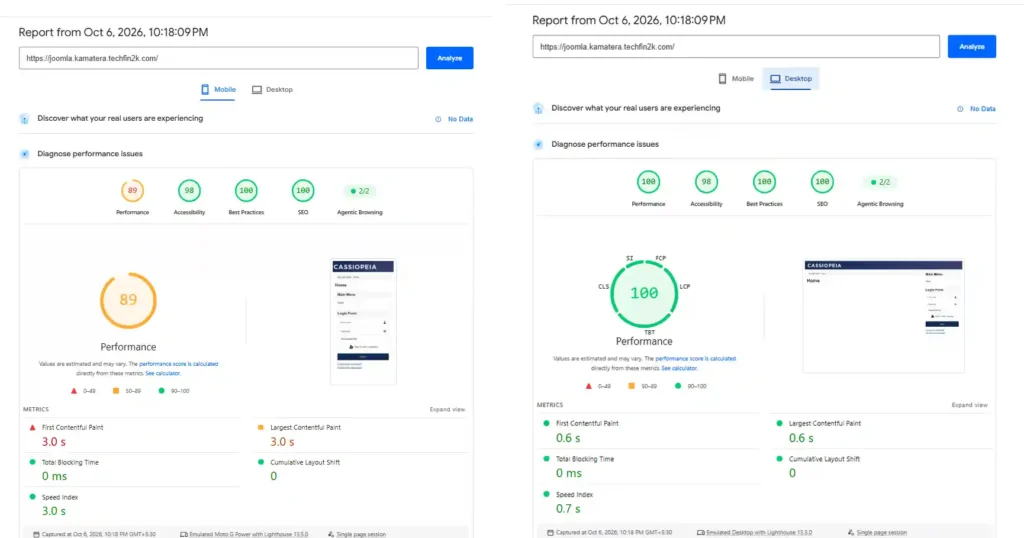
The fresh Joomla installation performed particularly well on desktop, achieving a 100/100 Performance score. The mobile Performance score was 89.
The detailed results are shown below:
Google PageSpeed Insights — Fresh Joomla Installation
Baseline results before importing articles, media files, and additional website content.
📱 Mobile
| Accessibility | 98 |
| Best Practices | 100 |
| SEO | 100 |
| FCP | 3.0 s |
| LCP | 3.0 s |
| TBT | 0 ms |
| CLS | 0 |
| Speed Index | 3.0 s |
🖥️ Desktop
| Accessibility | 98 |
| Best Practices | 100 |
| SEO | 100 |
| FCP | 0.6 s |
| LCP | 0.6 s |
| TBT | 0 ms |
| CLS | 0 |
| Speed Index | 0.7 s |
Pingdom Results
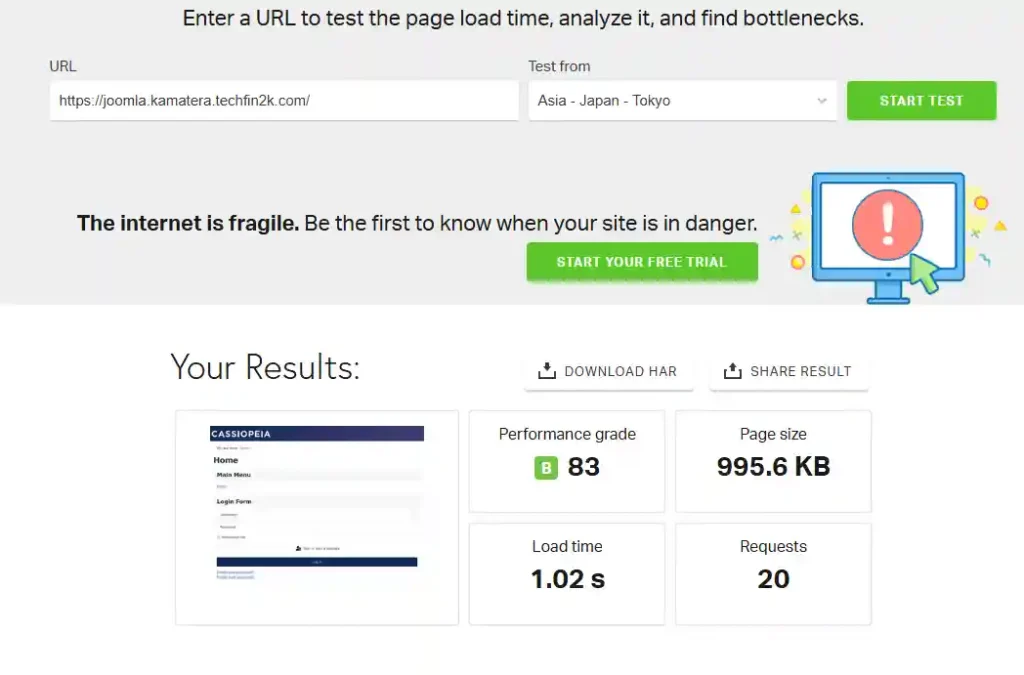
I then tested the same fresh Joomla installation with Pingdom from Tokyo.
What These Baseline Results Tell Us
The fresh Joomla installation produced a PageSpeed Performance score of 89 on mobile and 100 on desktop.
The desktop results were particularly strong, with both FCP and LCP at 0.6 seconds, while Total Blocking Time and Cumulative Layout Shift were both zero.
Pingdom recorded a 1.02-second load time, with a page size of approximately 996 KB and 20 requests.
However, this was only the baseline. A fresh Joomla installation is not representative of a typical content website.
Performance After Importing Real Website Content
After completing the baseline test, I imported content from my WordPress website into Joomla. The imported Joomla site contained 34 published articles and 216 downloaded media files, including featured images.
This gave me a more realistic test environment instead of relying only on the default Joomla installation.
I then repeated the PageSpeed Insights and Pingdom tests using the same homepage.
Google PageSpeed Insights Results
The Joomla website continued to perform well after adding the real content.
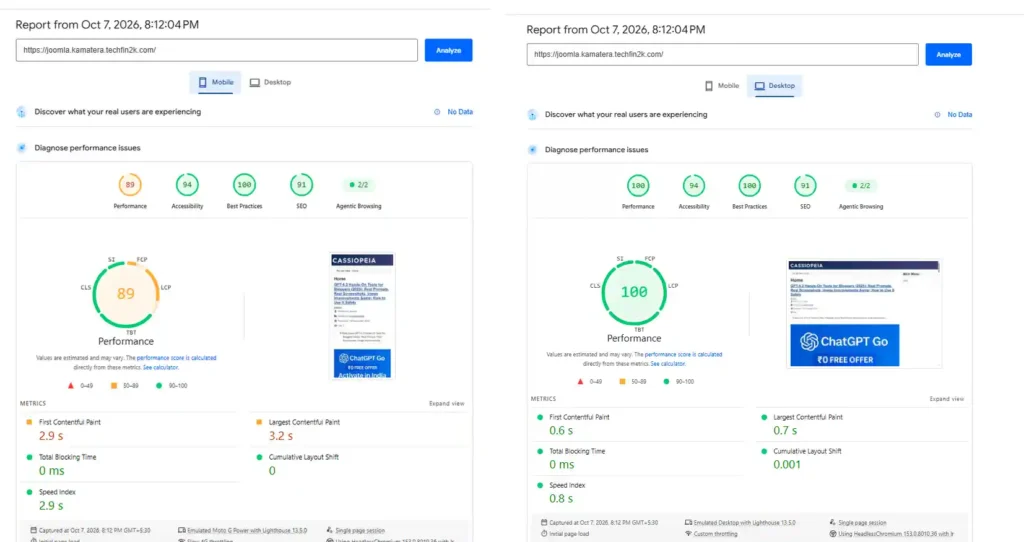
The mobile Performance score was 89, while the desktop Performance score reached 100.
Here are the complete results:
Joomla With Real Content — PageSpeed Insights
Performance after importing 34 published articles and 216 media files, including featured images.
📱 Mobile
| Accessibility | 94 |
| Best Practices | 100 |
| SEO | 91 |
| First Contentful Paint | 2.9 s |
| Largest Contentful Paint | 3.2 s |
| Total Blocking Time | 0 ms |
| Cumulative Layout Shift | 0 |
| Speed Index | 2.9 s |
🖥️ Desktop
| Accessibility | 94 |
| Best Practices | 100 |
| SEO | 91 |
| First Contentful Paint | 0.6 s |
| Largest Contentful Paint | 0.7 s |
| Total Blocking Time | 0 ms |
| Cumulative Layout Shift | 0.001 |
| Speed Index | 0.8 s |
Pingdom Results
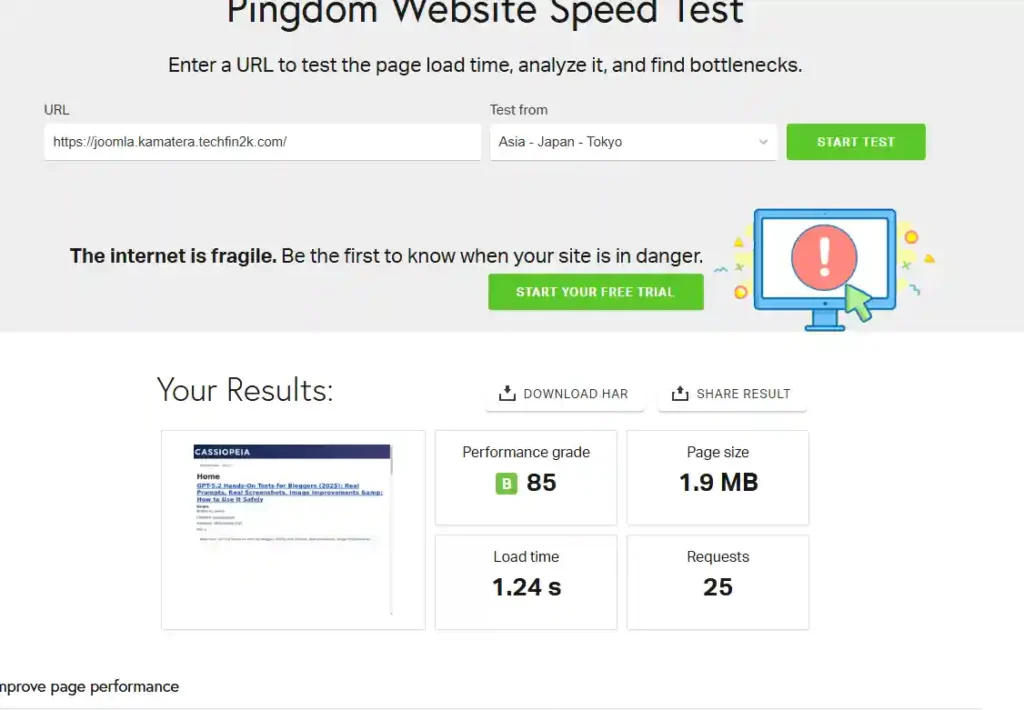
I also repeated the Pingdom test from Tokyo, Japan.
What Changed After Adding the Content?
The results are quite interesting when compared with the fresh Joomla installation.
The mobile PageSpeed Performance score remained at 89, while desktop remained at 100.
The mobile FCP was 2.9 seconds and LCP was 3.2 seconds, while desktop FCP and LCP remained very low at 0.6 and 0.7 seconds, respectively.
The site also maintained 0 ms Total Blocking Time, and the desktop CLS was only 0.001.
Pingdom recorded a 1.24-second load time, compared with 1.02 seconds for the initial fresh installation. The page size increased from approximately 996 KB to 1.9 MB, and the number of requests increased from 20 to 25.
This increase is expected because the Joomla site now contained real articles, images, and other content.
Type A — 2 vCPU / 2 GB RAM Performance Test
After testing the Joomla website on the Type A 1-vCPU/1-GB configuration, I increased the server resources to 2 vCPU and 2 GB RAM while keeping the Joomla installation, content, media, and configuration unchanged.
The purpose was to see whether doubling the CPU and RAM would produce a noticeable improvement in normal website performance.
Google PageSpeed Insights
Type A — 2 vCPU / 2 GB RAM
PageSpeed Insights results using the same Joomla website with 34 published articles and 216 media files.
📱 Mobile
| Accessibility | 94 |
| Best Practices | 100 |
| SEO | 91 |
| First Contentful Paint | 2.9 s |
| Largest Contentful Paint | 3.8 s |
| Total Blocking Time | 0 ms |
| Cumulative Layout Shift | 0.005 |
| Speed Index | 2.9 s |
🖥️ Desktop
| Accessibility | 94 |
| Best Practices | 100 |
| SEO | 91 |
| First Contentful Paint | 0.6 s |
| Largest Contentful Paint | 0.8 s |
| Total Blocking Time | 0 ms |
| Cumulative Layout Shift | 0.001 |
| Speed Index | 0.7 s |
Pingdom
What Did We Learn?
The results are interesting because doubling the resources did not automatically improve the PageSpeed score.
On the 1-vCPU/1-GB configuration, the mobile score was 89 and the desktop score was 100. On this Type A 2-vCPU/2-GB test, the scores were 84 on mobile and 99 on desktop.
Pingdom, however, was almost unchanged:
- 1 vCPU / 1 GB: 1.24 seconds
- 2 vCPU / 2 GB: 1.23 seconds
The page size and number of requests also remained identical at 1.9 MB and 25 requests.
This suggests that simply adding CPU and RAM does not necessarily make a single-page website load faster in tools such as PageSpeed Insights or Pingdom. Other factors, including the website itself and how the page is rendered, can have a significant effect.
Type B — 2 vCPU / 2 GB RAM Performance Test
After testing the Joomla website on the Type A 2-vCPU/2-GB configuration, I switched to Type B with the same 2 vCPU and 2 GB RAM.
The Joomla installation, articles, media files, and website configuration remained unchanged. This allowed me to see whether the different Kamatera VPS type would make a noticeable difference despite having the same CPU and RAM allocation.
Google PageSpeed Insights
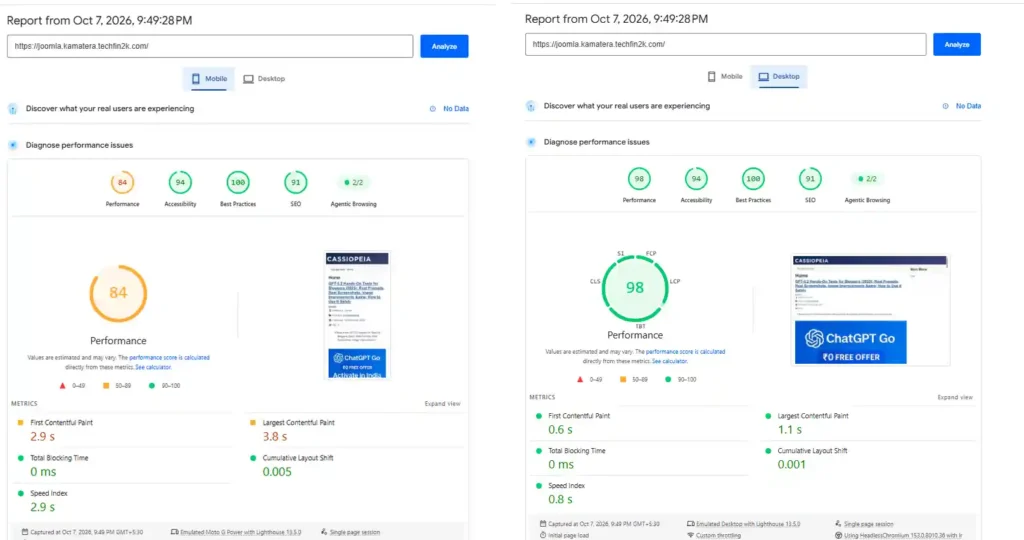
Type B — 2 vCPU / 2 GB RAM
PageSpeed Insights results using the same Joomla website with 34 published articles and 216 media files.
📱 Mobile
| Accessibility | 94 |
| Best Practices | 100 |
| SEO | 91 |
| First Contentful Paint | 2.9 s |
| Largest Contentful Paint | 3.8 s |
| Total Blocking Time | 0 ms |
| Cumulative Layout Shift | 0.005 |
| Speed Index | 2.9 s |
🖥️ Desktop
| Accessibility | 94 |
| Best Practices | 100 |
| SEO | 91 |
| First Contentful Paint | 0.6 s |
| Largest Contentful Paint | 1.1 s |
| Total Blocking Time | 0 ms |
| Cumulative Layout Shift | 0.001 |
| Speed Index | 0.8 s |
Pingdom Results
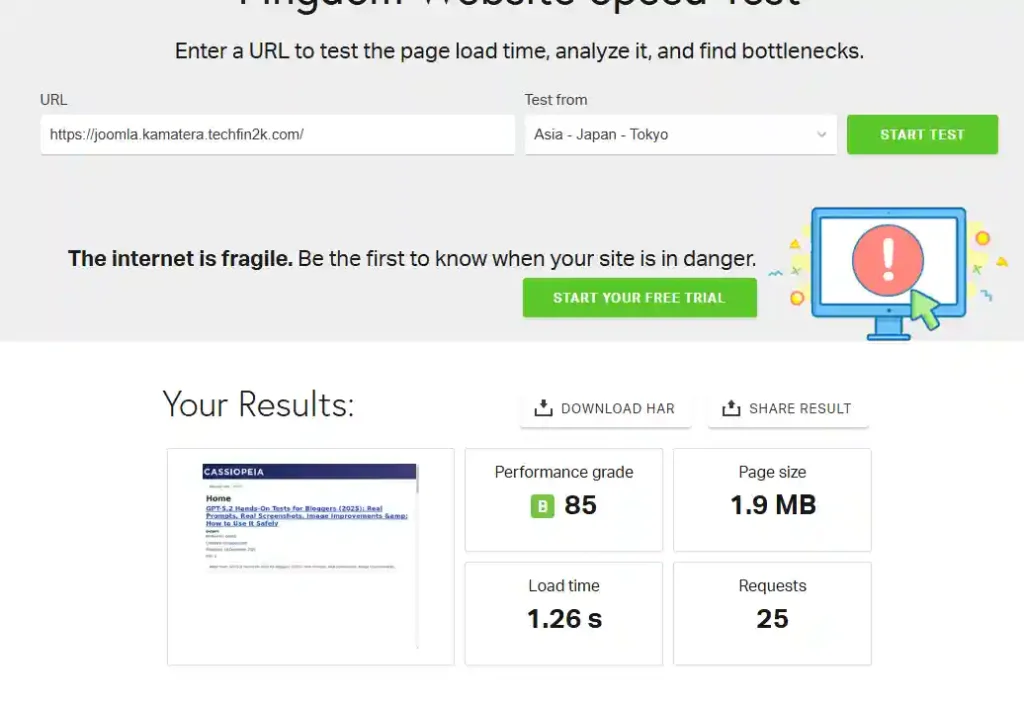
Type A vs Type B: What Did the Speed Tests Show?
The results were surprisingly close.
Both configurations had:
- 2 vCPU
- 2 GB RAM
- 1.9 MB page size
- 25 requests
- Pingdom grade B / 85
Pingdom recorded:
- Type A 2/2: 1.23 seconds
- Type B 2/2: 1.26 seconds
The PageSpeed results were also relatively close:
Type A vs Type B — 2 vCPU / 2 GB RAM
| Metric |
Type A 2 vCPU / 2 GB |
Type B 2 vCPU / 2 GB |
|---|---|---|
| Mobile Performance | 84 | 84 |
| Desktop Performance | 99 | 98 |
| Mobile FCP | 2.9 s | 2.9 s |
| Mobile LCP | 3.8 s | 3.8 s |
| Desktop FCP | 0.6 s | 0.6 s |
| Desktop LCP | 0.8 s | 1.1 s |
| Total Blocking Time (TBT) | 0 ms | 0 ms |
| Mobile CLS | 0.005 | 0.005 |
| Desktop CLS | 0.001 | 0.001 |
| Pingdom Load Time | 1.23 s | 1.26 s |
For this particular single-page Joomla workload, changing from Type A to Type B did not produce a meaningful difference in the normal page-speed tests.
This is useful because it shows that the difference between the VPS types may become more apparent under concurrent workloads, rather than necessarily showing up in a single PageSpeed or Pingdom test.
Joomla Load & Concurrency Test
PageSpeed and Pingdom are useful for measuring how quickly a webpage loads, but they don’t tell us how the VPS behaves when multiple requests arrive at the same time.
To test this, I used ApacheBench (ab) and sent 100 HTTP requests to the Joomla homepage at two different concurrency levels:
- 5 concurrent requests
- 10 concurrent requests
I performed these tests on two configurations:
- Type A — 1 vCPU / 1 GB RAM
- Type B — 2 vCPU / 2 GB RAM
I also checked the server’s memory, swap usage, and system load immediately before and after the tests.
Important: This is a controlled load/concurrency test, not a maximum-capacity or maximum-users test. The purpose was to compare how the two configurations handled the same workload.
Type A — 1 vCPU / 1 GB RAM
Before starting the ApacheBench tests, the server had approximately 227 MB of available memory, with 0 B of swap in use.
The system load was also very low.
Server resources before testing
Type A — 1 vCPU / 1 GB: Before Load Testing
5 Concurrent Requests
The first test sent 100 total requests with 5 concurrent requests.
The server completed all 100 requests successfully with zero failed requests.
100 Requests — 5 Concurrent
After this test:
- Available RAM: 227 MB → 206 MB
- Swap: 0 B
- Load average: 0.56 / 0.18 / 0.10
So the server continued operating without meaningful swap usage.
10 Concurrent Requests
I then doubled the concurrency to 10 requests at a time, while keeping the total number of requests at 100.
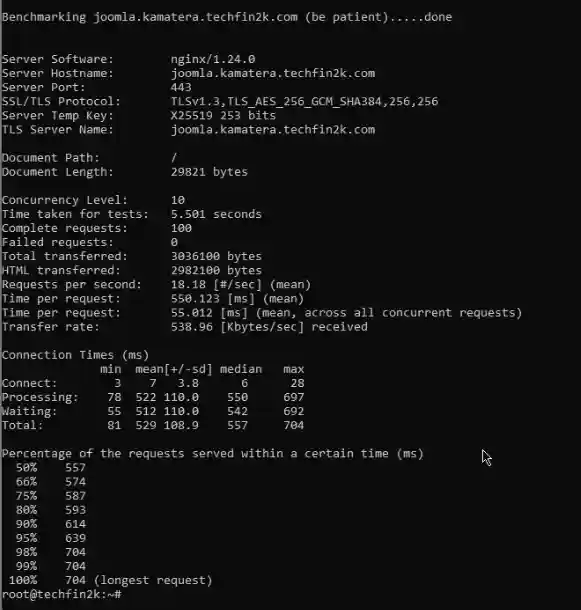
100 Requests — 10 Concurrent
After the 10-concurrent test:
- Available RAM: 221 MB
- Swap: 256 KiB
- Load average: 0.41 / 0.15 / 0.10
The 256 KiB of swap usage is negligible, so I would not consider this evidence of a memory problem.
Type B — 2 vCPU / 2 GB RAM
I then repeated the same tests using the Type B 2-vCPU/2-GB configuration.
Before testing, the server had approximately:
- 1.9 GiB total RAM
- 1.2 GiB available RAM
- 0 B swap used
- Load average: 0.11 / 0.36 / 0.18
This configuration therefore started with substantially more memory headroom than the 1-GB server.
Server resources before testing
Type B — 2 vCPU / 2 GB: Before Load Testing
5 Concurrent Requests
The Type B server completed all 100 requests successfully.
100 Requests — 5 Concurrent
There was one unusually slow request of 1.896 seconds, which increased the maximum response time. However, the median and 95th-percentile results were substantially lower.
After the test:
- Available RAM: 1.1 GiB
- Swap: 0 B
- Load average: 0.17 / 0.35 / 0.18
10 Concurrent Requests
Finally, I increased the concurrency to 10 requests at a time.
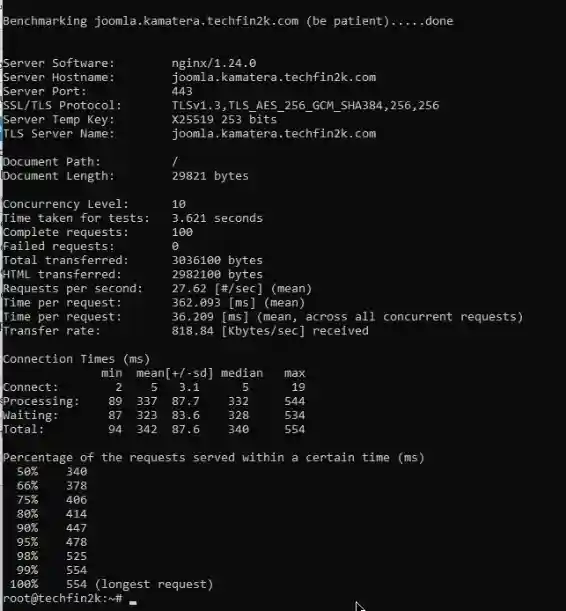
100 Requests — 10 Concurrent
After this test:
- Available RAM: 1.1 GiB
- Swap: 0 B
- Load average: 0.10 / 0.32 / 0.18
The server still had around 1.1 GiB of available memory, and no swap was being used.
Load Test Comparison
ApacheBench Load Test Comparison
| Metric | Type A 1 vCPU / 1 GB | Type B 2 vCPU / 2 GB |
|---|---|---|
| 5 Concurrent — Throughput | 14.57 | 19.44 |
| 10 Concurrent — Throughput | 18.18 | 27.62 |
| 5 Concurrent — Median | 320 ms | 164 ms |
| 10 Concurrent — Median | 557 ms | 340 ms |
| 5 Concurrent — Failed Requests | 0 | 0 |
| 10 Concurrent — Failed Requests | 0 | 0 |
What does throughput mean?
Higher throughput means better request-handling capacity under the tested conditions. In our test, Kamatera’s Type B configuration achieved 27.62 requests per second, compared with 18.18 requests per second on Type A at 10 concurrent requests. This indicates that Type B handled this workload more efficiently. However, these results do not establish the maximum number of real-world visitors either configuration can support.
What Did the Load Test Show?
The difference between the two configurations became much clearer under concurrent requests than it did in the normal PageSpeed and Pingdom tests.
At 5 concurrent requests:
- Type A: 14.57 requests/sec
- Type B: 19.44 requests/sec
At 10 concurrent requests:
- Type A: 18.18 requests/sec
- Type B: 27.62 requests/sec
That’s approximately 52% higher throughput for Type B at 10 concurrent requests.
The response times also improved substantially on Type B. At 10 concurrent requests, the median response time was 340 ms, compared with 557 ms on Type A.
Memory was the other major difference
The 1-GB server started with only around 227 MB of available memory, whereas the 2-GB server started with approximately 1.2 GiB available.
After the tests, Type B still had around 1.1 GiB available memory and 0 B swap usage.
This suggests that the additional RAM doesn’t necessarily make a single page load dramatically faster, but it provides much greater headroom for concurrent workloads and additional server processes.
Overall conclusion from the load test
For this particular Joomla website, both configurations handled the controlled test successfully with zero failed requests.
However, the 2-vCPU/2-GB Type B configuration clearly handled concurrent requests more efficiently, delivering higher throughput and lower median response times while retaining considerably more memory headroom.
This is why I would not judge the Kamatera VPS solely by its PageSpeed score. The concurrency test revealed a performance difference that was not obvious from the normal page-speed tests.
Does More RAM Always Make Joomla Faster?
Not necessarily.
This was one of the most interesting observations during my testing.
The 1-vCPU/1-GB configuration achieved a PageSpeed mobile score of 89, while the larger configurations achieved a score of 84 in their subsequent tests.
However, this does not mean that the larger VPS was slower in every respect.
PageSpeed is not a pure server benchmark. It measures several aspects of page performance, including:
- Server response
- Browser rendering
- JavaScript and CSS processing
- Image loading
- Network conditions
- Other page-level factors
The ApacheBench results revealed a different aspect of performance.
Under the tested concurrent-request workloads, the 2-vCPU/2-GB Type B configuration achieved higher throughput than the 1-vCPU/1-GB Type A configuration. At 10 concurrent requests, Type B handled 27.62 requests per second, compared with 18.18 requests per second for Type A.
This suggests that the Type B configuration handled this particular workload more efficiently.
Therefore, I would not choose a VPS configuration based solely on a single PageSpeed score. Consider both page-loading metrics and server-side request-handling performance when comparing hosting plans.
Is 1 GB RAM Enough for Joomla?
For this particular test website, yes, the 1-vCPU/1-GB configuration was capable of running Joomla successfully.
The configuration handled:
- A Joomla website with 34 published articles
- More than 200 media files
- Multiple extensions
- ApacheBench tests with 100 HTTP requests
- Concurrency levels of 5 and 10 simultaneous requests
There were zero failed requests in both concurrency tests.
However, I would not automatically recommend 1 GB RAM for every production Joomla website.
A larger Joomla website with the following requirements may benefit from additional resources:
- Higher visitor traffic
- More extensions and plugins
- A larger database
- Background tasks and scheduled jobs
- E-commerce functionality
- More simultaneous requests
The 2-vCPU/2-GB configuration provides more memory and processing headroom, which can be useful as a website grows. In my tests, the Type B 2-vCPU/2-GB configuration also achieved higher throughput than the Type A 1-vCPU/1-GB configuration under both tested concurrency levels.
Keep in mind that these were controlled tests with 100 requests, not a full stress test. They demonstrate that the smaller configuration can run this particular Joomla website and handle the tested workload, but they do not establish how many real-world visitors it can support reliably.
Who Should Consider Kamatera for Joomla?
Kamatera could be a good option if you want:
- A customizable VPS with flexible resource configurations
- Control over CPU and RAM allocation
- The ability to scale server resources as your website grows
- A server environment where you can configure and manage Joomla
- More server control than typical shared hosting
- The option to start with a smaller configuration and upgrade when needed
It’s particularly worth considering if you don’t want to pay for a larger VPS immediately and prefer to begin with modest resources before scaling as your website’s requirements increase.
Who Should Avoid a Small 1 GB Joomla VPS?
I would be more cautious about choosing the 1-vCPU/1-GB configuration for a demanding production website.
Consider a larger configuration if you operate:
- A busy Joomla website with substantial traffic
- An online store with database-intensive operations
- A website with a large database
- A Joomla installation using several resource-intensive extensions
- A website that must handle many simultaneous requests
The 1-GB configuration worked successfully in my test, but successful testing does not mean that 1 GB RAM is sufficient for every Joomla website. Actual requirements depend on traffic, extensions, caching, database activity, and background processes.
Kamatera Joomla Hosting: Pros and Cons
Pros
- Flexible VPS configurations with adjustable CPU and RAM resources
- The 1-vCPU/1-GB configuration successfully ran our Joomla test website with 34 published articles and more than 200 media files
- Zero failed requests during our controlled ApacheBench concurrency tests
- The Type B 2-vCPU/2-GB configuration achieved higher throughput than the Type A 1-vCPU/1-GB configuration in our tests
- The ability to scale server resources as website requirements grow
- Greater control over the server environment than typical shared hosting
Cons
- Technical knowledge required: Setting up, configuring, securing, and maintaining a VPS can be challenging for beginners.
- Resource limits on smaller configurations: The 1-vCPU/1-GB plan offers less headroom for resource-intensive Joomla websites and growing traffic.
- Potentially less RAM and storage for the money: Some dedicated hosting providers may offer more RAM and storage at a similar price, depending on the plan. Buyers should compare CPU allocation, storage type, bandwidth, management, and renewal pricing before deciding. Looking for more resources for your budget? Compare my best hosting providers to see how other hosting options compare in terms of RAM, storage, performance, and pricing.
- Server management responsibilities: You may need to handle server updates, security configuration, backups, and troubleshooting yourself, depending on the services you choose.
Final Verdict: Is Kamatera Good for Joomla Hosting?
After testing Joomla on Kamatera with 1 vCPU/1 GB RAM and 2 vCPU/2 GB RAM configurations, I found that even the smaller configuration was capable of running my test website successfully.
The website contained 34 published articles and more than 200 media files. The 1-vCPU/1-GB configuration also completed both ApacheBench tests—100 HTTP requests at concurrency levels of 5 and 10—with zero failed requests.
The larger Type B 2-vCPU/2-GB configuration demonstrated an advantage under the tested concurrent-request workloads. At 10 concurrent requests, it achieved 27.62 requests per second, compared with 18.18 requests per second on Type A 1-vCPU/1-GB.
These results suggest that the smaller configuration can be a reasonable starting point for a modest Joomla website, while the larger configuration offers more resources and better throughput under the specific conditions I tested. These tests were not a full stress test, so they should not be treated as a guarantee of real-world visitor capacity.
My recommendation: Kamatera is worth considering if you want a flexible VPS for Joomla and are comfortable managing a server. Start with a smaller configuration only if it suits your website’s expected workload, and consider upgrading as traffic and resource requirements increase.
FAQs
Is Kamatera good for Joomla?
Yes. In our hands-on test, Kamatera successfully hosted a Joomla website with 34 published articles and more than 200 media files. In My ApacheBench tests, the Type A 1-vCPU/1-GB and Type B 2-vCPU/2-GB configurations both completed all 100 requests successfully at concurrency levels of 5 and 10, with zero failed requests.
How much RAM does Joomla need on Kamatera?
A 1-GB VPS was sufficient for our test website, but it provided considerably less memory headroom than the 2-GB configuration. For a growing or busier Joomla website, 2 GB or more would be a more comfortable starting point.
Is 2 GB RAM better than 1 GB for Joomla?
For higher concurrent workloads, our testing showed a clear advantage. At 10 concurrent requests, the 2-vCPU/2-GB configuration achieved 27.62 requests/sec compared with 18.18 requests/sec on the 1-vCPU/1-GB configuration.
Did the larger Kamatera VPS improve PageSpeed?
The ApacheBench tests showed that the Type B 2-vCPU/2-GB configuration handled the tested concurrent-request workload more efficiently than the Type A 1-vCPU/1-GB configuration. However, because both the resource allocation and VPS type differed, the test cannot isolate which factor caused the improvement.
How did you test Kamatera Joomla performance?
We used Google PageSpeed Insights, Pingdom, and ApacheBench. ApacheBench was used to send 100 HTTP requests at concurrency levels of 5 and 10.
How many failed requests did the Joomla VPS have?
Zero. Both the type A 1-vCPU/1-GB and type B 2-vCPU/2-GB configurations completed all 100 requests successfully at both concurrency levels tested.
Enjoying our content?
Make TechFin2K a preferred source on Google to see more of our content when it is relevant to you.
