
Disclosure: This review contains affiliate links. If you purchase through our link, we may earn a commission at no additional cost to you. However, this review is based on our own hands-on testing and the results are not influenced by the affiliate relationship.
If you are searching for a flexible cloud server where you can choose your CPU, RAM, storage and data-center location, Kamatera is an interesting option.
But there is an important question:
Is Kamatera actually a good choice if you simply want to host a WordPress website?
To find out, I created a real WordPress server on Kamatera, configured a domain and SSL, installed plugins, added real website content and images, and tested the website using Google PageSpeed Insights, Pingdom, WebPageTest and SpeedVitals.
I also tested the same WordPress installation after increasing the server resources, including Kamatera’s Type B configuration.
The results were interesting.
In this Kamatera review, I’ll show you what I found, where Kamatera makes sense, where it doesn’t, and whether I think it is worth the price.
What Is Kamatera?
Kamatera is a cloud infrastructure provider rather than a traditional WordPress-focused hosting company.
It provides cloud servers and infrastructure that can be configured for different workloads, including websites, applications, databases, development environments and business infrastructure.
Its product range includes:
| Cloud Servers | Cloud VPS |
| Virtual Private Cloud | Cloud Firewall |
| Load Balancers | Block Storage |
| Virtual Dedicated Servers | Reseller Hosting |
| Cloud API | Managed Cloud Services |
| Backup and Disaster Recovery | Kubernetes |
| VPN Hosting |
Kamatera also supports different server CPU types and allows resources to be scaled as requirements change.
This distinction is important because Kamatera is not really competing only with traditional WordPress hosts.
It is competing more broadly in the cloud infrastructure market.
Kamatera Pricing
Kamatera currently advertises servers starting at $4/month.
The basic configuration includes:
- 1 vCPU
- Type A CPU
- 1GB RAM
- 20GB NVMe SSD
- Ubuntu Server
- Internet traffic allowance
The current Standard configuration is $25/month and includes:
- 2 vCPU
- Type B CPU
- 2GB RAM
- 20GB NVMe SSD
- Ubuntu Server
The Pro configuration is $39/month with 2 vCPU, Type B and 4GB RAM. Kamatera
Kamatera pricing
| Plan | CPU | RAM | Storage | Price |
|---|---|---|---|---|
| Basic | 1 vCPU Type A | 1GB | 20GB NVMe | $4/mo |
| Standard | 2 vCPU Type B | 2GB | 20GB NVMe | $25/mo |
| Pro | 2 vCPU Type B | 4GB | 20GB NVMe | $39/mo |
One thing to keep in mind is that Kamatera uses a highly configurable pricing model, so the final price depends on the resources and services you select.
Kamatera also supports hourly billing and says servers can be scaled up or down as requirements change.
Important: traffic depends on the data center
There is another detail worth mentioning.
Kamatera’s normal monthly traffic allowance is currently 5TB, but Kamatera states that Singapore, Tokyo, Hong Kong and Sydney have a 1TB monthly traffic limit.
Since my test server was located in Singapore, this is particularly relevant to my testing.
Kamatera 30-Day Free Trial
Kamatera offers a 30-day free trial.
The current trial includes:
- One cloud server
- Configuration worth up to $100
- 1TB traffic
- 1TB cloud block storage
- Access to the cloud platform
- Ability to scale within the $100 limit
- 24/7 technical support
A valid credit card is required. Kamatera states that the card isn’t charged as long as you remain within the trial limits.
This is useful because you can actually test the infrastructure before committing to a paid configuration.
However, remember to terminate the server before the trial ends if you don’t want to continue paying.
My Kamatera WordPress Test
For my hands-on test, I created a cloud server in:
Singapore
My initial configuration was:
- Type A
- 1 vCPU
- 1GB RAM
- 20GB NVMe storage
- Ubuntu Server
- WordPress application image
I then connected my own subdomain:
kamatera.techfin2k.com
and configured HTTPS using Let’s Encrypt.
I used the WordPress installation for the actual testing rather than testing an empty server only.
Installing WordPress on Kamatera
One of the convenient things about Kamatera is that WordPress is available as a preconfigured application.
Instead of manually installing every component from scratch, you can select the WordPress application during server creation.
The server provided access to:
- WordPress
- PHP
- MySQL
- Nginx
- WordPress administrator
- Server-level access
After creating the server, I connected my domain and configured SSL.
One issue during deployment
My first server creation attempt did not complete successfully. The provisioning process stopped during operating-system initialization.
I deleted that attempt and created the same configuration again, and the second deployment completed successfully.
I would not consider one failed provisioning attempt enough evidence to call this a systemic problem, but I am including it because this is a hands-on review, not a marketing page.
WordPress Performance Testing
This is where things became interesting.
I tested the website at several stages.
Test 1: Blank WordPress
With a basic WordPress installation:
Google PageSpeed Insights
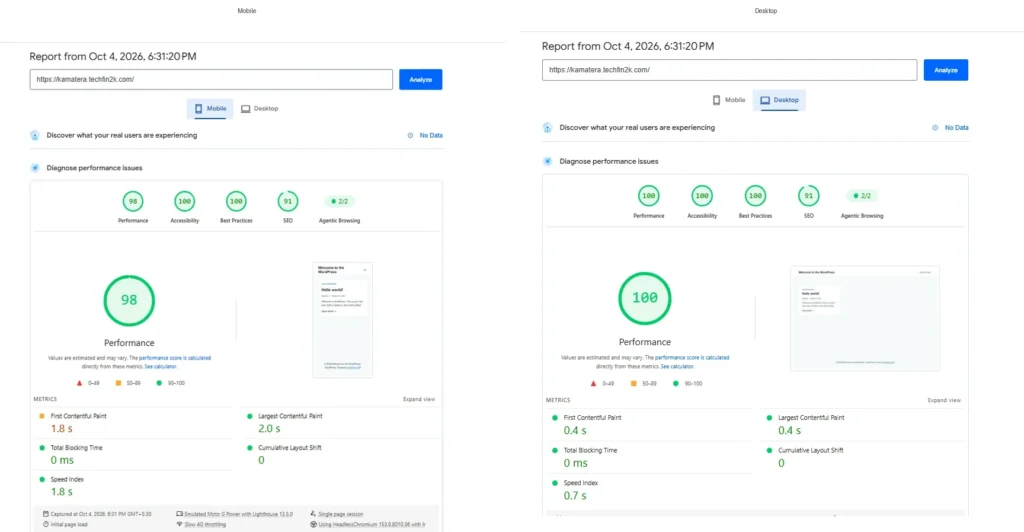
| PageSpeed Metric | 📱 Mobile | 💻 Desktop |
|---|---|---|
| Performance | 98 | 100 |
| Accessibility | 100 | 100 |
| Best Practices | 100 | 100 |
| SEO | 91 | 91 |
| Agentic Browsing | 2/2 | 2/2 |
| First Contentful Paint (FCP) | 1.8s | 0.4s |
| Largest Contentful Paint (LCP) | 2.0s | 0.4s |
| Total Blocking Time (TBT) | 0ms | 0ms |
| Cumulative Layout Shift (CLS) | 0 | 0 |
| Speed Index | 1.8s | 0.7s |
Pingdom
| Pingdom Website Speed Test — London, UK | |
|---|---|
| Performance Grade | B 85 |
| Load Time | 1.76 seconds |
| Page Size | 173.2 KB |
| Requests | 10 |
So the basic installation performed very well.
WordPress With Plugins
I then installed the same 15 active WordPress plugins used in my previous hosting tests. The plugins cover common functions such as page building, SEO, security, performance optimization, forms and backups.
PageSpeed Insights
| PageSpeed Metric | 📱 Mobile | 💻 Desktop |
|---|---|---|
| Performance | 88 | 99 |
| Accessibility | 100 | 100 |
| Best Practices | 100 | 100 |
| SEO | 91 | 91 |
| Agentic Browsing | 2/2 | 2/2 |
| First Contentful Paint (FCP) | 3.0s | 0.7s |
| Largest Contentful Paint (LCP) | 3.2s | 0.7s |
| Total Blocking Time (TBT) | 0ms | 0ms |
| Cumulative Layout Shift (CLS) | 0 | 0 |
| Speed Index | 3.0s | 0.8s |
Pingdom
| Pingdom Website Speed Test — London, UK | |
|---|---|
| Performance Grade | C 75 |
| Load Time | 2.07 seconds |
| Page Size | 357.8 KB |
| Requests | 17 |
The results were still reasonable, although the additional plugins naturally increased page weight and load time.
Real Website Content + Images
This was the most important test.
For this stage, I used a more realistic workload based on my previous hosting tests. I added 33 WordPress posts, more than 200 images, and the same set of plugins, allowing me to evaluate how Kamatera handled a website with substantial real content and media.
PageSpeed Insights
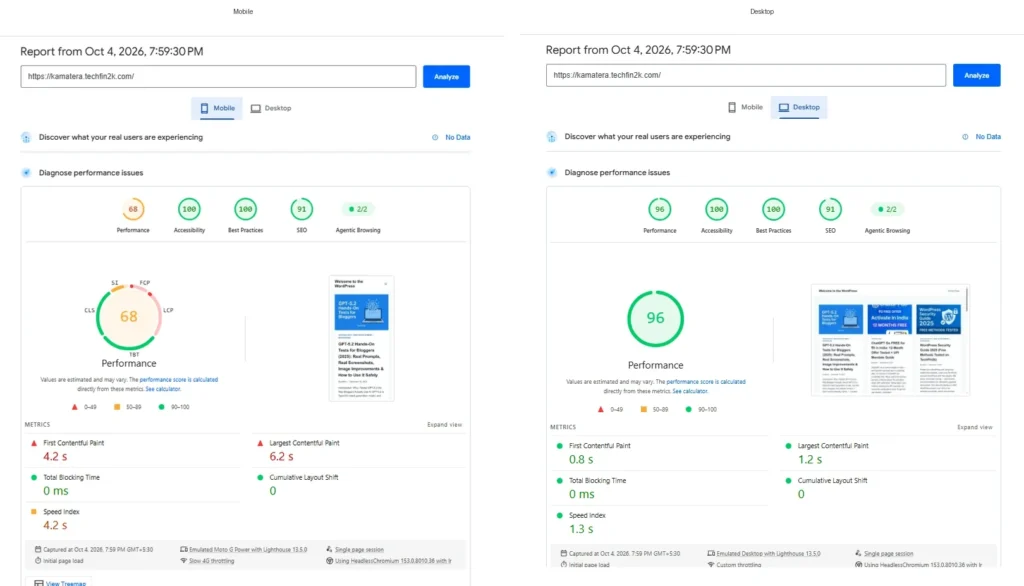
| PageSpeed Metric | 📱 Mobile | 💻 Desktop |
|---|---|---|
| Performance | 68 | 96 |
| Accessibility | 100 | 100 |
| Best Practices | 100 | 100 |
| SEO | 91 | 91 |
| Agentic Browsing | 2/2 | 2/2 |
| First Contentful Paint (FCP) | 4.2s | 0.8s |
| Largest Contentful Paint (LCP) | 6.2s | 1.2s |
| Total Blocking Time (TBT) | 0ms | 0ms |
| Cumulative Layout Shift (CLS) | 0 | 0 |
| Speed Index | 4.2s | 1.3s |
Pingdom
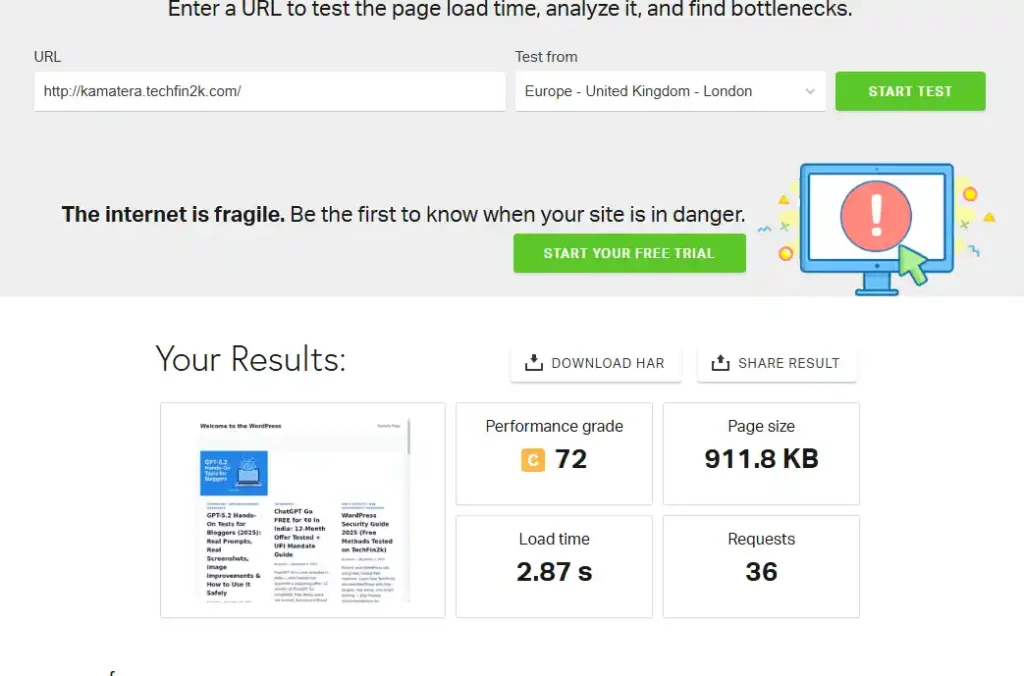
| Pingdom Website Speed Test — London, UK | |
|---|---|
| Performance Grade | C 72 |
| Load Time | 2.87 seconds |
| Page Size | 911.8 KB |
| Requests | 36 |
What These Results Tell Us
The performance difference became much more noticeable after adding 33 posts, more than 200 images, and the full plugin setup.
On mobile, the PageSpeed score dropped to 68, with the Largest Contentful Paint increasing to 6.2 seconds. However, the desktop result remained strong at 96, with an LCP of just 1.2 seconds.
Pingdom recorded a 2.87-second load time, with the page size increasing to 911.8 KB and requests increasing to 36.
This shows that the entry-level Kamatera configuration handled a lightweight WordPress installation very well, but performance—particularly on mobile—declined considerably once I introduced a more realistic content and media workload.
Importantly, Total Blocking Time remained at 0ms and CLS remained at 0, so the main concern in this test was loading speed rather than JavaScript blocking or layout instability.
This also gave me a reason to test whether increasing the server resources would improve the results, which I tested next.
Did More RAM Improve WordPress Performance?
The initial server had 1GB of RAM. After installing the plugins and loading the full test workload of 33 posts and 200+ images, the free -h command showed only around 90MB of RAM available. This doesn’t mean the website alone was consuming 90% of the RAM; Linux also uses memory for PHP, MySQL, Nginx, caching and other system processes. However, the limited available headroom made me curious whether additional RAM and CPU resources would improve performance.
Then
I upgraded the same Type A server to 2GB RAM and 2 CPU cores, increasing the cost from $4/month to approximately $10/month.
This was one of the most interesting parts of my testing.
The initial server had:
1GB RAM + 1 vCPU Type A
I later increased the resources and tested the same WordPress installation with:
2GB RAM + 2 vCPU Type A
The results remained almost identical:
PageSpeed Insights
| PageSpeed Metric | 📱 Mobile | 💻 Desktop |
|---|---|---|
| Performance | 68 | 96 |
| Accessibility | 100 | 100 |
| Best Practices | 100 | 100 |
| SEO | 91 | 91 |
| Agentic Browsing | 2/2 | 2/2 |
| First Contentful Paint (FCP) | 4.2s | 0.8s |
| Largest Contentful Paint (LCP) | 6.2s | 1.2s |
| Speed Index | 4.2s | 1.3s |
Pingdom
| Pingdom Website Speed Test — London, UK | |
|---|---|
| Performance Grade | C 72 |
| Load Time | 2.87 seconds |
| Page Size | 911.8 KB |
| Requests | 36 |
The results were essentially unchanged from the previous test. The website continued to score 68 on mobile and 96 on desktop, while Pingdom recorded a 2.87-second load time. This was notable because the server now had 2GB of RAM and 2 CPU cores instead of 1GB RAM and 1 CPU core.
The increased resources provided considerably more memory headroom, but they did not produce a meaningful improvement in page-loading performance. This suggested that RAM capacity was not the primary limitation for this particular WordPress workload.
What About Kamatera Type B?
Kamatera describes Type B as a configuration with a dedicated physical CPU thread and reserved resources, so I wanted to see whether moving from Type A to Type B would make a meaningful difference for this WordPress workload.
I upgraded the same server to 2 CPU cores, 2GB RAM, and Type B. This increased the monthly server cost from approximately $10 to $25.
I kept everything else unchanged — the same WordPress installation, plugins, 33 posts, 200+ images, domain and configuration — so the results could be compared directly.
PageSpeed Insights
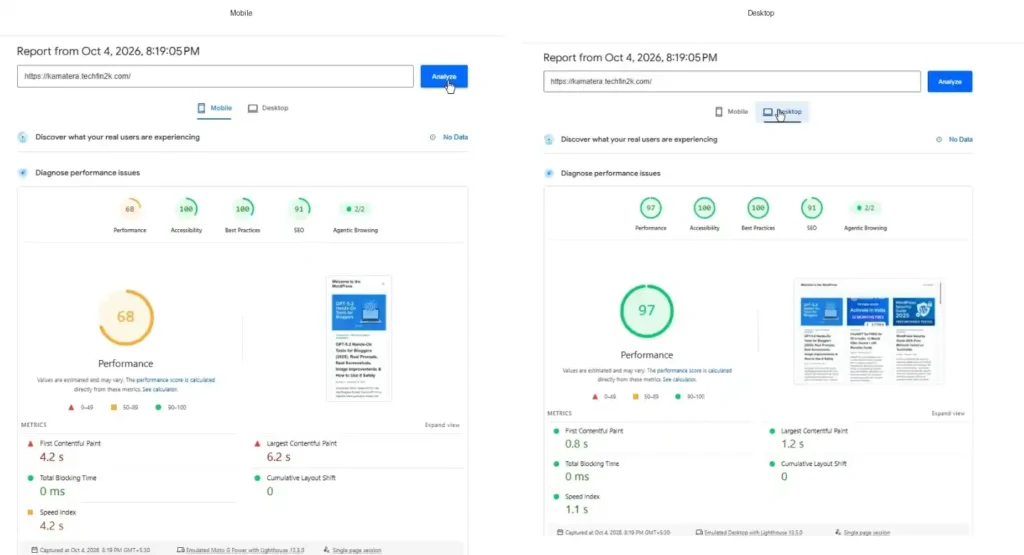
| PageSpeed Metric | 📱 Mobile | 💻 Desktop |
|---|---|---|
| Performance | 68 | 96 |
| Accessibility | 100 | 100 |
| Best Practices | 100 | 100 |
| SEO | 91 | 91 |
| Agentic Browsing | 2/2 | 2/2 |
| First Contentful Paint (FCP) | 4.2s | 0.8s |
| Largest Contentful Paint (LCP) | 6.2s | 1.2s |
| Speed Index | 4.2s | 1.1s |
Pingdom
| Pingdom Website Speed Test — London, UK | |
|---|---|
| Performance Grade | C 72 |
| Load Time | 2.73 seconds |
| Page Size | 911.8 KB |
| Requests | 36 |
Interestingly, the results were almost identical to the 2GB Type A configuration.
That means the move to Type B, despite increasing the monthly price to $25, did not produce a noticeable improvement in the PageSpeed or Pingdom results for this particular WordPress workload.
Additional WebPageTest Results
To get a broader picture of the server’s response time, I also used WebPageTest from a different geographic location.
I tested the same WordPress site from Los Angeles, California, using a desktop Chrome configuration over WiFi.
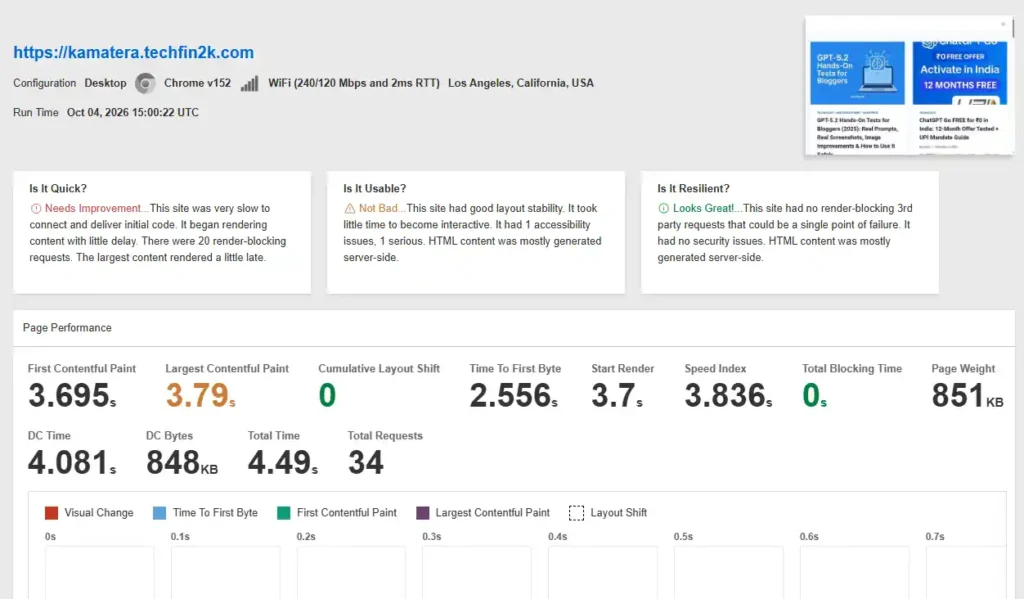
The results were:
- Time to First Byte (TTFB): 2.556 seconds
- First Contentful Paint (FCP): 3.695 seconds
- Largest Contentful Paint (LCP): 3.79 seconds
- Speed Index: 3.836 seconds
- Total Time: 4.49 seconds
- Page Weight: 851 KB
- Requests: 34
- Total Blocking Time: 0 seconds
- Cumulative Layout Shift: 0
The TTFB was relatively high from Los Angeles, which is understandable given that the test server is located in Singapore.
TTFB Across Multiple Locations
I also used a multi-location TTFB test to see whether the response time was consistent across different regions.
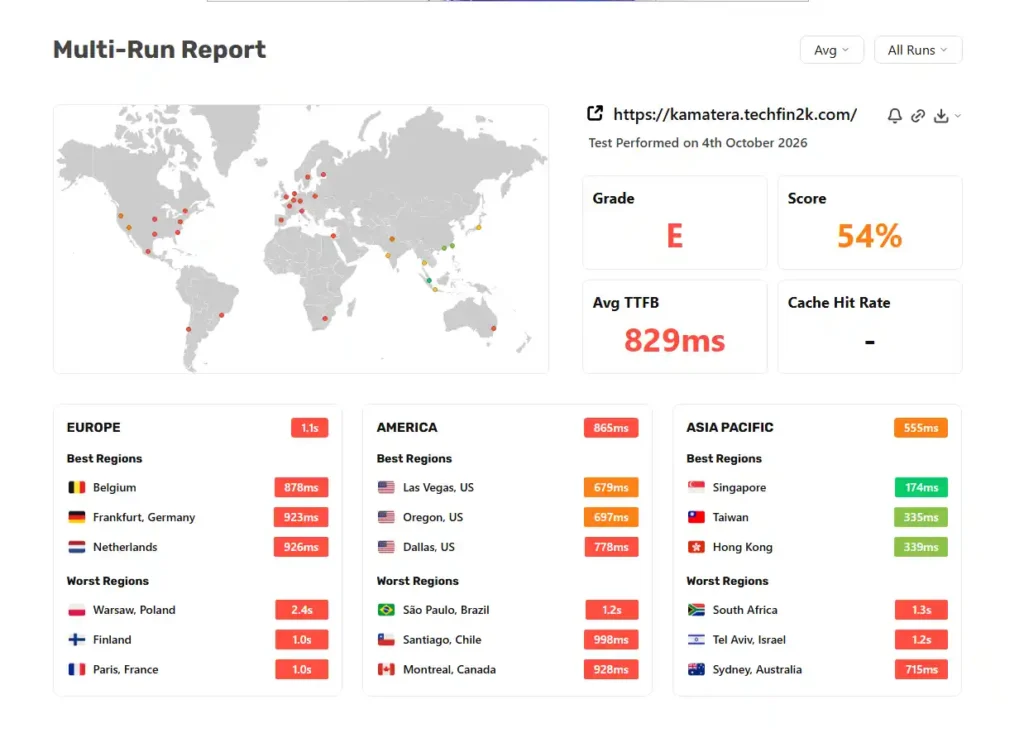
The test reported an average TTFB of 829ms, while the Singapore test location recorded just 174ms.
This provides an important piece of context for the earlier performance results. The server was not equally slow from every location. The response time was considerably better from Singapore than from locations farther away.
This suggests that geographical distance and network routing have a significant effect on the initial response time for this Singapore-hosted server.
For visitors located relatively close to the Singapore data center, the initial server response can therefore be much faster than for visitors connecting from distant regions.
What I Found
These additional tests reinforce an important point from my testing: Kamatera’s performance cannot be judged from a single speed-test result or location.
The desktop PageSpeed results were consistently strong, while the full WordPress workload produced considerably weaker mobile results. The WebPageTest results also showed that geographic distance can have a noticeable effect on TTFB.
I therefore considered the location of the data center, the type of workload, and the testing methodology when evaluating Kamatera rather than relying on a single performance score.
So, Is Kamatera Fast?
Yes, but there is an important qualification.
Our testing does not support simply saying that Kamatera is slow.
The desktop PageSpeed results were consistently strong, with the final full-content test scoring 96, including an LCP of 1.2 seconds. The basic WordPress installation also reached 100 on desktop.
The additional TTFB testing showed that location also matters. The Singapore test location recorded a very good 174ms TTFB, while the average across multiple locations was 829ms.
However, the picture was different on mobile. With our realistic workload of 33 posts, 200+ images, and the same plugin setup, the final PageSpeed mobile score was 68, with an LCP of 6.2 seconds. Moving from Type A to Type B with 2GB RAM and 2 CPU cores did not produce a meaningful improvement in these page-speed results, despite increasing the monthly cost to $25.
Therefore, based on my hands-on testing, I would describe Kamatera as:
A capable and flexible cloud infrastructure platform with strong desktop performance and good response times for users closer to its data center, but it may not offer the best performance-to-price value for a typical WordPress website.
What I Like About Kamatera
1. Highly Customizable Servers
You aren’t restricted to a small number of fixed hosting packages.
You can configure CPU, RAM, storage, server location and other resources according to your requirements.
2. Multiple CPU Types
Kamatera offers different CPU configurations for different workloads.
Its Type B configuration provides a dedicated physical CPU thread with reserved resources, making it more suitable for workloads where predictable CPU resources are important.
3. Scalability
One of Kamatera’s strongest features is scalability.
You can increase CPU, RAM, storage and other resources as your requirements grow instead of having to migrate to an entirely different hosting platform.
4. Global Data Centers
Kamatera provides multiple data-center locations, allowing you to select a location closer to your target audience.
This can be particularly important for applications where network latency matters.
Our own testing also demonstrated this: the Singapore TTFB result was significantly better than the result from the United States.
5. Root-Level Control
Kamatera provides server-level access, giving developers much more control than typical shared or managed WordPress hosting.
You can install and configure the software and services required for your particular workload.
6. More Than WordPress
Kamatera isn’t limited to WordPress.
You can use its infrastructure for applications, databases, development environments, VPNs, Kubernetes and many other workloads.
This is one of the reasons I see Kamatera as more of a cloud infrastructure platform than a traditional WordPress host.
7. Additional Infrastructure Services
For larger deployments, Kamatera offers additional services such as:
- Cloud Firewall
- Load Balancers
- Block Storage
- Virtual Private Cloud
- Managed Cloud Services
- Backup and Disaster Recovery
- Monitoring
These options make Kamatera considerably more interesting for businesses and developers running more complex infrastructure.
What I Don’t Like About Kamatera
1. Type B Pricing Is Expensive for Basic WordPress
The biggest concern for me is value.
The Type B configuration I tested with 2 CPU cores and 2GB RAM cost $25/month.
For someone who simply wants to run a normal WordPress website, that is a significant monthly cost.
2. More Resources Didn’t Improve My WordPress Results Significantly
I tested the same website through:
1GB Type A → 2GB Type A → 2GB Type B
The realistic WordPress performance remained broadly similar.
The move to Type B provides reserved CPU resources, but I did not see a corresponding improvement in my PageSpeed results with this particular workload.
3. It Is More Technical Than Typical WordPress Hosting
Kamatera gives you a cloud server rather than a heavily managed WordPress environment.
That provides considerably more control, but it also means more responsibility for server configuration and maintenance.
If you want a hosting provider to handle most technical tasks for you, managed WordPress hosting may be easier.
4. Pricing Requires Careful Configuration
The $4 starting price is attractive, but the final cost can increase substantially when you add RAM, CPU resources, storage and additional services.
Therefore, you should check the complete configuration and price before deploying.
Who Should Use Kamatera?
Developers
Kamatera is a good option if you want root access and control over the server environment.
Web Application Developers
If you’re deploying applications rather than simply a WordPress blog, the ability to customize and scale the infrastructure becomes much more valuable.
Businesses
Businesses requiring multiple servers, private networking, firewalls, load balancing or managed infrastructure can make better use of Kamatera’s broader platform.
SaaS Developers
For applications that may grow over time, the ability to scale infrastructure can be particularly useful.
Advanced WordPress Users
If you specifically want your own cloud server and are comfortable managing server-level configuration, Kamatera can be worth considering.
Who Should Probably Look Elsewhere?
If your requirement is simply:
“I want to host one WordPress website as cheaply and easily as possible.”
Kamatera would not be my first choice.
The $25/month Type B configuration provides substantially more infrastructure flexibility than a typical WordPress hosting plan, but a normal WordPress website may not need that flexibility.
For this type of user, a WordPress-focused hosting provider may offer better value.
Kamatera Review: Final Verdict
Kamatera is not simply a WordPress hosting company. It is a cloud infrastructure platform.
Once I looked at Kamatera from that perspective, its pricing made more sense.
The ability to configure servers, choose locations, scale resources and add services such as firewalls, load balancers and private networking is where Kamatera’s real value lies.
However, my hands-on WordPress testing produced a more mixed conclusion.
The basic 1GB Type A server performed extremely well with a lightweight WordPress installation, reaching 98 on mobile and 100 on desktop in PageSpeed Insights.
When I added 33 posts, more than 200 images and the same plugin setup, mobile performance dropped to 68, while desktop remained strong at 96.
I then increased the resources to 2GB RAM and 2 CPU cores, and finally tested the same workload on 2GB Type B. Neither upgrade produced a meaningful improvement in the PageSpeed results.
At the same time, the additional response-time testing showed that location matters considerably. The Singapore TTFB test recorded 174ms, while the Los Angeles WebPageTest run recorded 2.556 seconds.
So I would not describe Kamatera as simply “slow.”
Instead, my conclusion is:
Kamatera is a capable and flexible cloud infrastructure platform with strong desktop performance and good response times close to its data centers, but its higher-priced Type B configurations may not provide enough additional WordPress performance to justify the cost for a typical website.
My Ratings
| Category | Rating |
|---|---|
| Basic WordPress Hosting | ⭐⭐⭐☆☆ |
| Cloud Infrastructure | ⭐⭐⭐⭐☆ |
| Developer Flexibility | ⭐⭐⭐⭐☆ |
| Scalability | ⭐⭐⭐⭐☆ |
| Value for a Basic WordPress Site | ⭐⭐⭐☆☆ |
| Overall | ⭐⭐⭐⭐☆ |
Overall verdict: Kamatera is a powerful and flexible cloud platform, but its biggest advantage is infrastructure flexibility—not necessarily getting the most WordPress performance for your money.
If you need a highly configurable cloud environment, Kamatera is worth considering.
If you simply need affordable and easy-to-manage WordPress hosting, I would compare it carefully with WordPress-focused hosting providers before making a decision.
Our Hands-On Testing Summary
| Test | Configuration / Workload | Mobile | Desktop | Key Result |
|---|---|---|---|---|
| Basic WordPress | 1 vCPU, 1GB RAM, Type A | 98 | 100 | Excellent performance |
| WordPress + Plugins | 1 vCPU, 1GB RAM, Type A | 88 | 99 | Mobile performance declined |
| Content + Images | 1 vCPU, 1GB RAM, 33 posts, 200+ images + plugins | 68 | 96 | Heavy workload affected mobile performance |
| 2GB Type A | 2 vCPU, 2GB RAM, same workload | 68 | 96 | More resources made little difference |
| 2GB Type B | 2 vCPU, 2GB RAM, same workload | 68 | 96 | No meaningful improvement for this workload |
These tests show an important pattern: Kamatera delivered excellent desktop performance throughout the testing, while mobile performance became weaker as the WordPress installation became heavier. Increasing the server from 1GB to 2GB RAM and moving from Type A to Type B did not produce a meaningful improvement in the PageSpeed results for this particular workload.
Enjoying our content?
Make TechFin2K a preferred source on Google to see more of our content when it is relevant to you.
