

Last Updated on October 29, 2026 by RADHIKA VATLAM
Finding a genuinely usable free web hosting service can be challenging. While several providers advertise free hosting, the actual experience can vary considerably when you try to create an account, install WordPress, manage the website, and run a real website with content and images.
As part of my hands-on free hosting testing series, I first tested InfinityFree and ByetHost to see how these free hosting services perform with WordPress.
After completing those tests, I wanted to continue the testing with GoogieHost and AwardSpace. However, I ran into problems before I could even start the testing.
When I tried to register with GoogieHost, the signup process returned a 502 Host Unreachable error, so I could not complete the account creation and begin my testing.
I then tried AwardSpace. I was also unable to create a free hosting account. Since I wanted to understand whether this was a temporary problem or a limitation with the free hosting plan, I contacted AwardSpace customer support.
AwardSpace support replied that free hosting plan registrations were currently unavailable and advised me to look for another free hosting provider or consider one of its paid hosting plans.

So, I moved on to another free hosting provider: AeonFree for review.
This time, I was able to successfully create a hosting account, set up a free subdomain, install WordPress, and test the hosting environment under different workloads.
In this AeonFree Review 2026, I will show you what I experienced during the setup process, how easy the dashboard and cPanel were to use, and how the hosting performed with a fresh WordPress installation, 15 plugins, and a real content-and-media workload.
I tested the website using Google PageSpeed Insights, GTmetrix, and Pingdom so that the results were not based on a single performance-testing tool.
The goal of this review is simple: to document what I actually experienced while using AeonFree, rather than relying only on the provider’s advertised specifications.
Creating an AeonFree Free Hosting Account
Creating an AeonFree free hosting account involved a few straightforward steps.
Completing the Registration Form
I started by entering the required registration details, including my first name, last name, email address, and password. I also had to agree to the Terms & Conditions by selecting the checkbox provided on the registration form. After completing the CAPTCHA, I clicked Create Account.
Verifying the Email Address
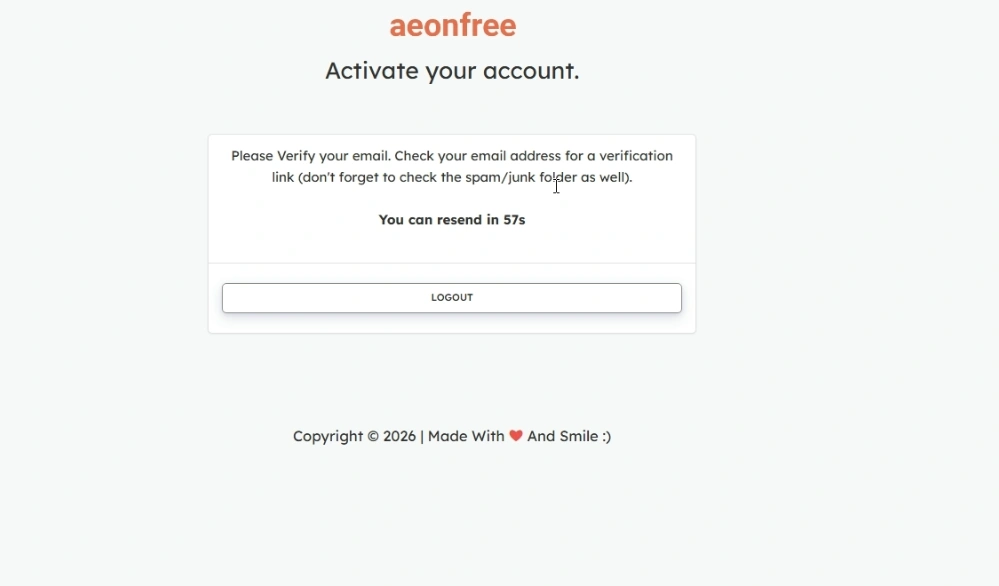
AeonFree then displayed a message asking me to verify my email address. It also advised checking the Spam or Junk folder if the verification email did not arrive and provided an option to resend the email after 60 seconds.
I opened the email address used during registration and clicked the verification link. My AeonFree account was activated immediately after the email was verified.
Choosing a Free Subdomain
After verification, AeonFree displayed a warning stating that hosting phishing websites or other illegal websites would result in a permanent ban without warning from using AeonFree and iFastNet services.
I then proceeded to create the hosting account and choose a free subdomain. AeonFree provided three main free subdomain options during my setup:
hstn.meiceiy.comzya.me
I entered techfin2k as the subdomain name and selected zya.me. AeonFree checked the name and confirmed that techfin2k.zya.me was available.
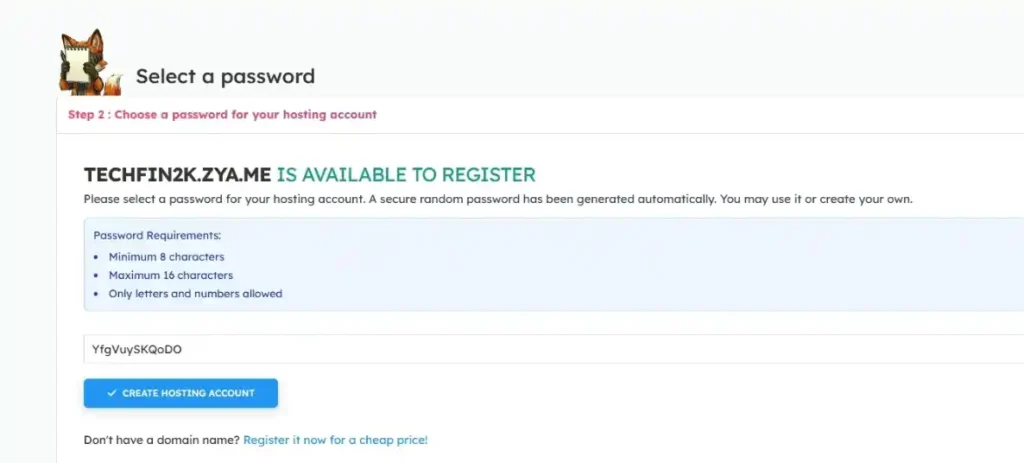
I then created a password for the hosting account. The form specified that the password could contain letters and numbers only.
After clicking Create Account, the hosting account was created successfully.
Receiving the Hosting Account Details
AeonFree also sent a confirmation email containing the hosting-account access details, including the cPanel username and password, FTP username and password, and related account information.
Accessing the Control Panel
I then clicked the Control Panel button from the AeonFree dashboard. Before accessing the control panel, AeonFree displayed a prompt asking for approval to receive emails concerning hosting status changes, offers, and other account-related information.
I approved the request so that I could proceed to the control panel. The prompt indicated that declining this communication could result in the hosting account being deleted.
AeonFree Dashboard and cPanel Experience
After creating the hosting account, I accessed the AeonFree dashboard to see how easy it was to manage the hosting account and access the available tools and features.
Clean and Easy-to-Navigate Dashboard
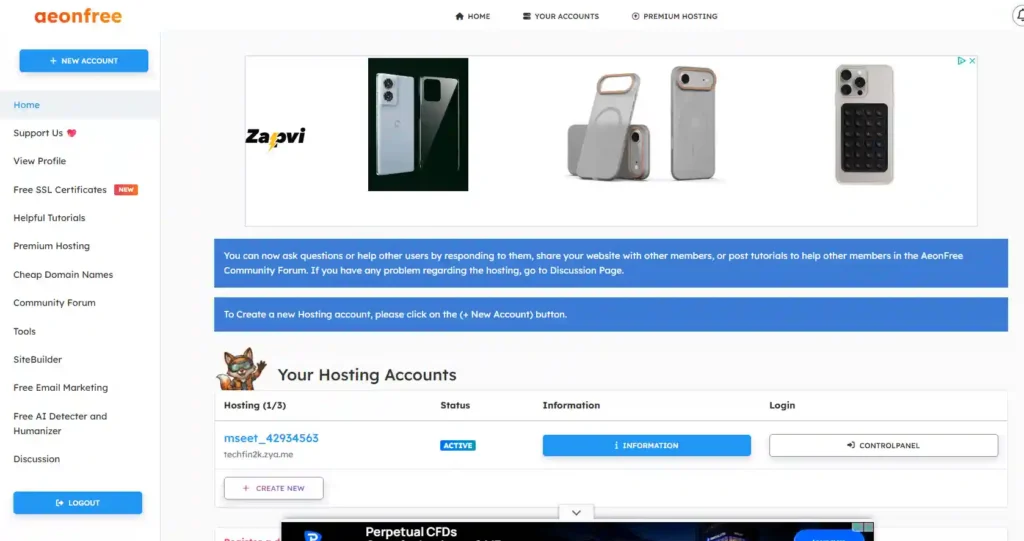
The AeonFree dashboard has a clean and straightforward layout, with a left-side navigation panel that makes it easy to locate the different hosting tools and account options.
The navigation menu includes options for features such as hosting account management, Site Builder, SSL, Email, and other hosting-related services. I found the layout itself easy to understand and navigate.
However, there is an important point to mention about the advertising. When I clicked certain options in the dashboard, a popup/banner advertisement appeared. I had to close the advertisement before I could continue to the selected section.
Therefore, although the dashboard layout is easy to navigate, the advertising can interrupt the navigation process. This is something I noticed during my testing and is worth mentioning to anyone considering the free hosting plan.
I also explored several of the services presented through the dashboard. Some options labelled as free took me to external service providers, where the available offers included limited free periods or trials and paid plans. Users should therefore check the destination and terms of each service rather than assuming that every option shown in the dashboard is a permanently free service provided directly by AeonFree.
cPanel Interface
AeonFree provides cPanel for managing the hosting account. After accessing the control panel, I found that advertisements were also displayed within the cPanel interface.
However, the advertisements were clearly identifiable as ads and remained separate from the main cPanel controls. During my testing, they did not obstruct the options I needed to use.
This was important for my testing because I needed to access different cPanel functions while setting up WordPress and managing the hosting account. I was able to navigate through cPanel normally without advertisements preventing access to the available options.
Therefore, although AeonFree’s free hosting environment is ad-supported, the advertisements did not make the dashboard or cPanel difficult for me to use during the testing process.
Overall Dashboard Experience
Overall, I found the AeonFree dashboard clean, organized, and easy to navigate. The left-side navigation panel makes it straightforward to find the different hosting tools and features.
The presence of advertisements is something users should be aware of, as ads appear in both the main hosting dashboard and cPanel. However, based on my testing, they remained separate from the important controls and did not interfere with normal navigation.
I also did not encounter any domain-related errors while using my test subdomain, techfin2k.zya.me, during the testing process.
With the hosting dashboard and control panel checked, I then moved on to the next step: installing WordPress on AeonFree.
Installing WordPress on AeonFree
After exploring the AeonFree cPanel, I checked the available hosting information and installation options before setting up WordPress.
Checking Resource Usage and Hosting Limits
On the right side of the cPanel interface, AeonFree displayed the resource usage and limits for the hosting account. The resource information was available directly within the control panel, making it easy to see the available limits while managing the account. We will discuss these resource limits in the coming section.
I briefly explored the different cPanel options and then moved on to installing WordPress.
Installing WordPress Using Softaculous
For the WordPress installation, I selected Softaculous from cPanel.
Softaculous displayed several applications that could be installed through the installer, including WordPress, Joomla, Drupal, AbanteCart, and other available applications.
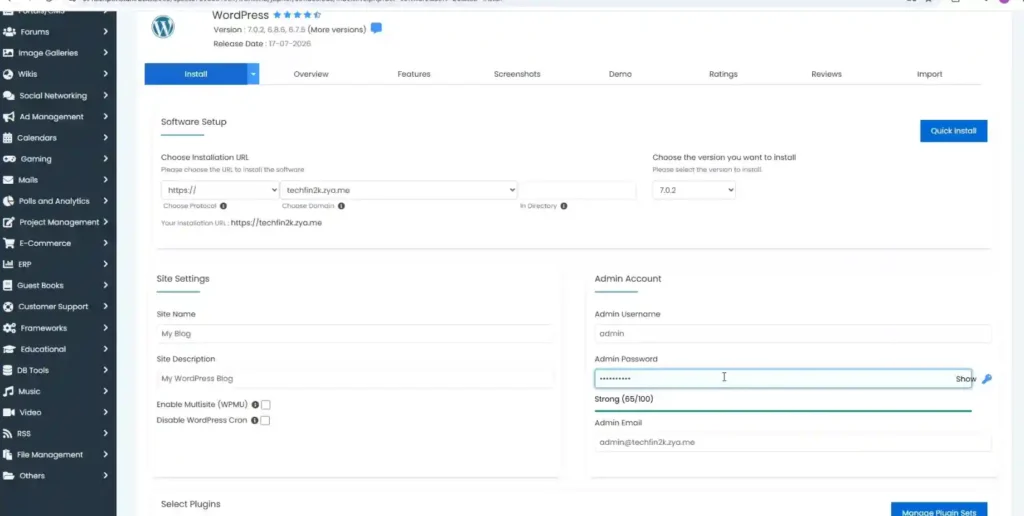
I selected WordPress and entered the required installation details, including:
- WordPress admin username
- Admin password
- Website title
- Other required installation settings
After entering the details, I clicked Install to begin the WordPress installation.
The WordPress installation itself was completed in just 29 seconds, which was quite quick.
Total Setup Time
I also measured the overall time from creating and activating the AeonFree account through selecting the free subdomain and completing the WordPress installation.
The complete process took approximately 5 minutes and 30 seconds.
However, this included some additional time caused by my own setup process. For example, I initially entered special characters in the password even though the hosting-account password field specified that only letters and numbers should be used, so I had to enter the password again. I also spent some time selecting and configuring the free subdomain.
Therefore, under a more straightforward setup, the complete process could reasonably take under five minutes, depending on how quickly the registration and configuration steps are completed.
Checking the WordPress Installation
Once the installation was finished, I checked both the WordPress admin dashboard (wp-admin) and the live website.
Both were working correctly, and I was able to log in to the WordPress dashboard and access the website without any issues.
This completed the initial AeonFree setup, so I could move on to the first performance test using a fresh WordPress installation.
AeonFree Fresh WordPress Performance Test
After successfully installing WordPress, I first performed a performance test with a fresh WordPress installation. At this stage, I had not yet installed the 15 plugins or imported my test content and media.
The purpose of this first test was to establish a baseline performance result. This gives us a reference point for seeing how the performance changes when additional plugins, content, images, and other website resources are added in the later tests.
For my testing, I used the website URL https://techfin2k.zya.me/, which I had chosen when creating the account.
For this test, I used three different performance-testing tools: Google PageSpeed Insights, GTmetrix, and Pingdom. I tested PageSpeed Insights on both mobile and desktop.
I ran the tests on September 16, 2026.
It is worth noting that these tools use different testing environments and methodologies, so their scores and loading times should not be compared directly with each other. Instead, I used all three to get a broader picture of the website’s performance.
I also looked at metrics such as First Contentful Paint (FCP), Largest Contentful Paint (LCP), Total Blocking Time (TBT), and Cumulative Layout Shift (CLS). These metrics provide more detail than the overall performance score alone.
If you want to understand these metrics in more detail, you can read my guide on Core Web Vitals and how to improve Core Web Vitals
Google PageSpeed Insights
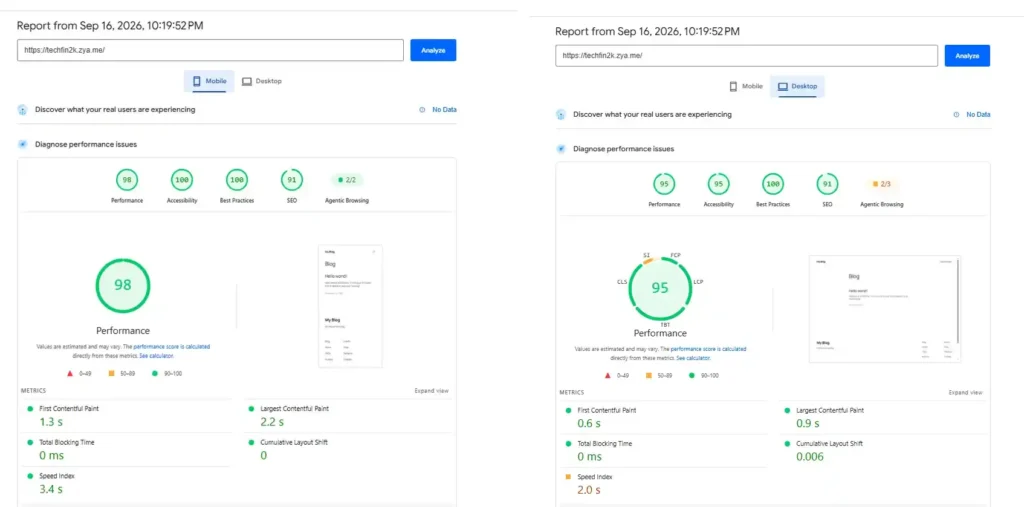
I first tested the fresh WordPress installation with Google PageSpeed Insights on both mobile and desktop.
Mobile Results
The mobile test recorded a Performance score of 98.
The other scores were 100 for Accessibility, 100 for Best Practices, and 91 for SEO.
The First Contentful Paint (FCP) was 1.3 seconds, while Largest Contentful Paint (LCP) was 2.2 seconds. FCP indicates when the first visible content appears, while LCP measures when the largest visible content element has loaded.
The test recorded 0 ms Total Blocking Time (TBT) and 0 Cumulative Layout Shift (CLS). In simple terms, the test did not detect measurable main-thread blocking or layout movement during the measurement.
The Speed Index was 3.4 seconds.
Desktop Results
On desktop, PageSpeed Insights recorded a Performance score of 95.
Accessibility was 95, Best Practices was 100, and SEO was 91.
The FCP was 0.6 seconds, while LCP was 0.9 seconds. TBT remained at 0 ms, and CLS was 0.006.
The Speed Index was 2.0 seconds.
The desktop results were also strong, with the largest content element loading in less than one second in this particular test.
GTmetrix Results
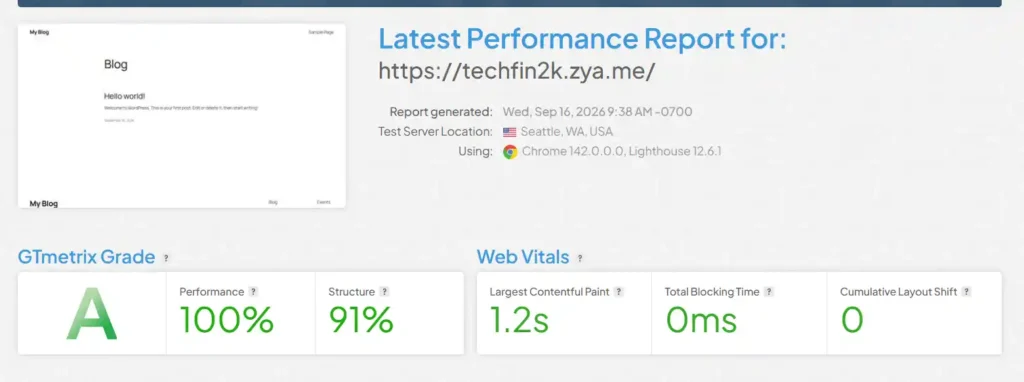
I then tested the same fresh WordPress installation using GTmetrix.
GTmetrix gave the website a Grade A, with a Performance score of 100% and a Structure score of 91%.
The recorded Largest Contentful Paint (LCP) was 1.2 seconds, while Total Blocking Time was 0 ms and Cumulative Layout Shift was 0.
The GTmetrix report shows that the test was performed from Seattle, Washington, USA, using Chrome and Lighthouse.
The 100% Performance score represents GTmetrix’s assessment of the page under its testing methodology, while the Structure score is a separate measurement of how the page is technically structured.
Pingdom Website Speed Test
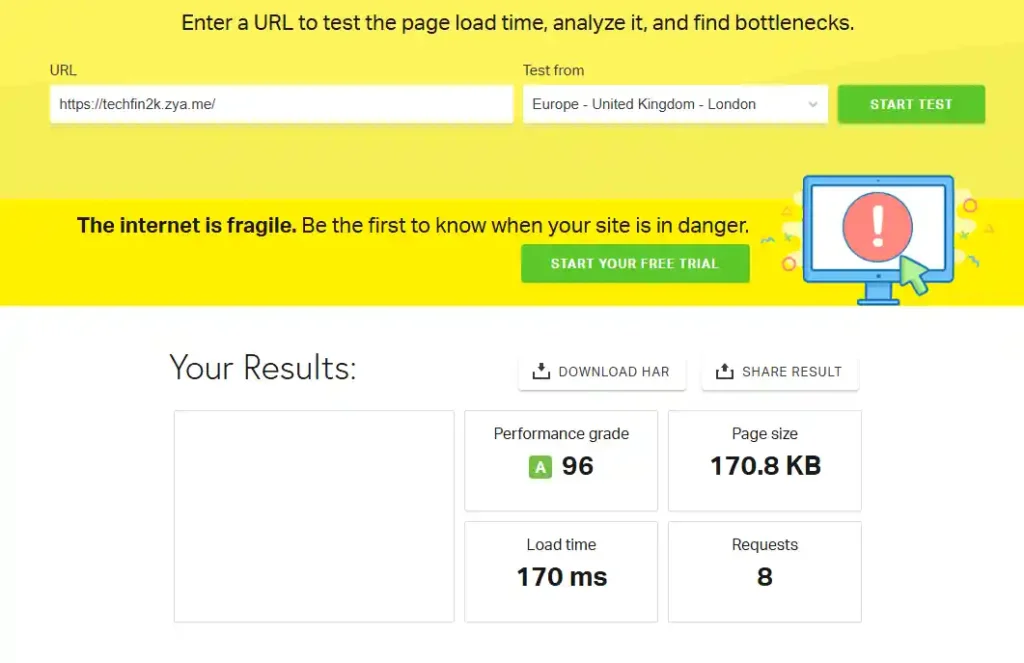
Finally, I tested the fresh WordPress installation using Pingdom.
Pingdom recorded a Performance Grade of A with a score of 96.
The website had a page size of 170.8 KB and generated only 8 requests during this test.
The recorded load time was 170 ms.
The Pingdom test was performed from Europe – United Kingdom – London.
The relatively small page size and low number of requests are important because this was still a fresh WordPress installation. The website did not yet contain the additional plugins, content, and media that I would add in the later stages of testing.
Fresh WordPress Performance Results
The results from all three tools are summarized below.
| Testing Tool | Test | Performance | Key Timing | Other Metrics |
|---|---|---|---|---|
| PageSpeed Insights | Mobile | 98 | FCP: 1.3s LCP: 2.2s |
TBT: 0ms CLS: 0 |
| PageSpeed Insights | Desktop | 95 | FCP: 0.6s LCP: 0.9s |
TBT: 0ms CLS: 0.006 |
| GTmetrix | Seattle, USA | A / 100% | LCP: 1.2s | Structure: 91% TBT: 0ms CLS: 0 |
| Pingdom | London, UK | A / 96 | Load time: 170ms | Page size: 170.8 KB Requests: 8 |
What the Baseline Results Show
The fresh WordPress installation produced strong results across all three testing tools during this test.
PageSpeed Insights recorded 98 on mobile and 95 on desktop. GTmetrix gave the website a Grade A with 100% Performance, while Pingdom recorded an A grade with a score of 96.
The website was also very lightweight at this stage. Pingdom measured a page size of only 170.8 KB with 8 requests, and its measured load time was 170 ms.
These results should be treated as the baseline rather than the final performance of a typical content-rich WordPress website. A fresh WordPress installation has considerably fewer resources to load than a website with plugins, images, posts, and other content.
In the next stage, I installed 15 WordPress plugins and repeated the same tests to see how the additional plugins affected the performance.
AeonFree Performance Test With 15 WordPress Plugins
After completing the baseline performance test with a fresh WordPress installation, I wanted to see how AeonFree would perform with a more realistic WordPress setup.
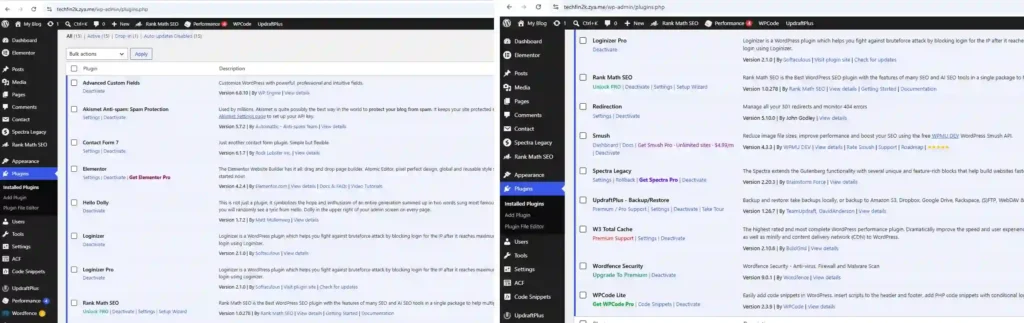
For the second stage of my testing, I installed 15 WordPress plugins on the test website and activated all of them before running the performance tests again.
I installed and activated the following 15 plugins, covering SEO, website building, security, performance, backups, forms, and other common WordPress functions.
The 15 WordPress Plugins I Installed
I selected plugins covering different types of common WordPress functionality rather than installing 15 plugins that all performed similar tasks.
| Category | Plugins Installed | Purpose |
|---|---|---|
| SEO | Rank Math SEO | SEO |
| Website Builders | Elementor, Spectra Legacy | Page building and content design |
| Security | Loginizer, Loginizer Pro, Wordfence Security | Login protection and website security |
| Performance & Images | W3 Total Cache, Smush | Caching and image optimization |
| Website Management | Redirection, WPCode Lite | Redirects, 404 monitoring and code snippets |
| Backup | UpdraftPlus | Website backup and restoration |
| Forms & Spam Protection | Contact Form 7, Akismet Anti-spam | Contact forms and spam protection |
| Custom Content | Advanced Custom Fields | Custom fields and content management |
| Other | Hello Dolly | Additional WordPress plugin |
After installing and activating all 15 plugins, I repeated the performance tests using the same three tools:
Google PageSpeed Insights Results
Mobile Results
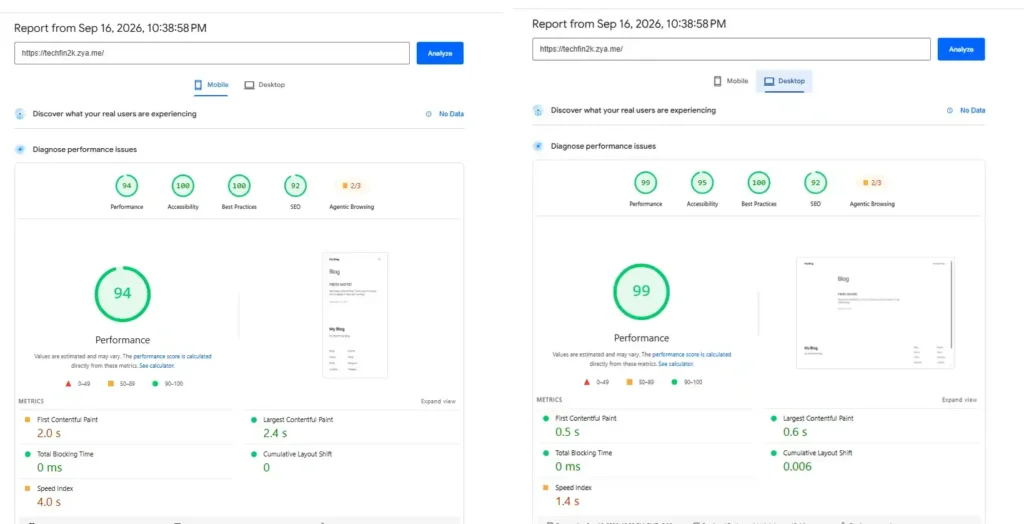
The mobile PageSpeed test recorded a Performance score of 94.
The other scores were 100 for Accessibility, 100 for Best Practices, and 92 for SEO.
The recorded FCP was 2.0 seconds, while LCP was 2.4 seconds.
Total Blocking Time remained at 0 ms, and Cumulative Layout Shift was 0.
The Speed Index was 4.0 seconds.
Compared with the fresh WordPress test, the mobile Performance score changed from 98 to 94, while FCP increased from 1.3 seconds to 2.0 seconds and LCP increased from 2.2 seconds to 2.4 seconds.
These changes occurred after adding the 15 plugins, although individual speed-test runs can also vary.
Desktop Results
The desktop PageSpeed test recorded a Performance score of 99.
Accessibility was 95, Best Practices was 100, and SEO was 92.
The FCP was 0.5 seconds, while LCP was 0.6 seconds.
TBT remained at 0 ms, and CLS was 0.006.
The Speed Index was 1.4 seconds.
Interestingly, the desktop Performance score was higher in this run than in my fresh WordPress test, where it was 95. I would not interpret this as the plugins making the website faster, because PageSpeed results can vary between individual tests.
GTmetrix Results
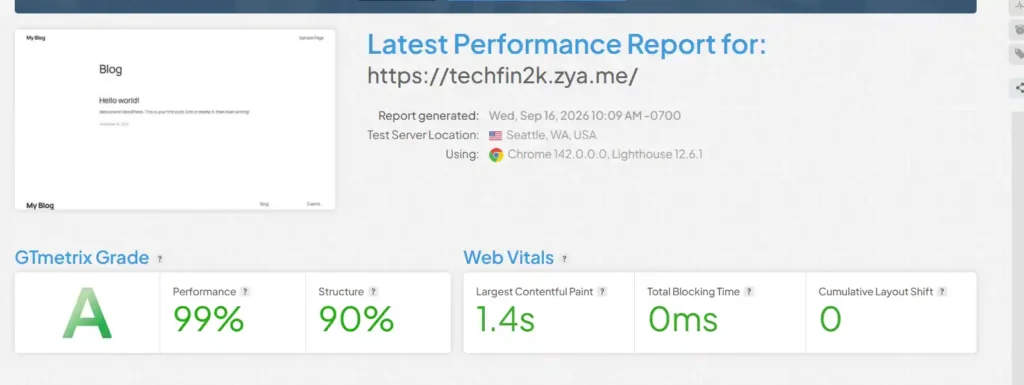
GTmetrix gave the website a Grade A, with a Performance score of 99% and a Structure score of 90%.
The recorded Largest Contentful Paint was 1.4 seconds.
Total Blocking Time was 0 ms, while Cumulative Layout Shift remained at 0.
The GTmetrix result continued to show a Grade A after the 15 plugins were installed, although the Performance score changed slightly from 100% in the fresh WordPress test to 99% in this test.
Pingdom Results
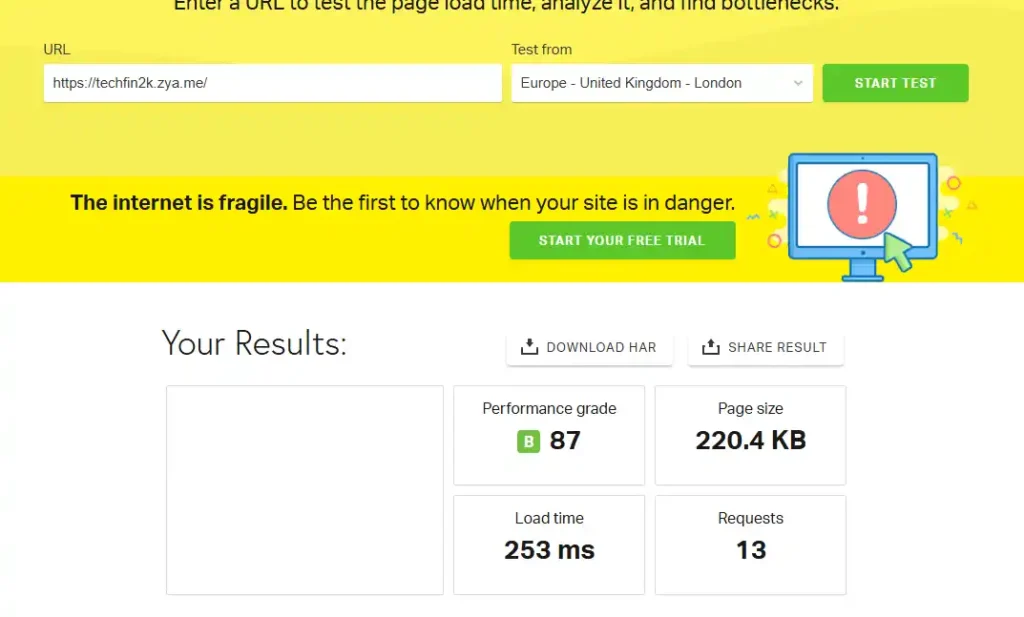
Pingdom recorded a Performance Grade of B with a score of 87.
The page size increased to 220.4 KB, while the number of requests increased to 13.
The recorded load time was 253 ms, compared with 170 ms during the fresh WordPress test.
The Pingdom test location was Europe – United Kingdom – London.
The increase in page size and requests is expected because the WordPress installation now had 15 additional plugins and their associated resources.
AeonFree 15-Plugin Performance Results
Here is a comparison of the results from all three testing tools:
| Testing Tool | Test | Performance | Key Timing | Other Metrics |
|---|---|---|---|---|
| PageSpeed Insights | Mobile | 94 | FCP: 2.0s LCP: 2.4s |
TBT: 0ms CLS: 0 |
| PageSpeed Insights | Desktop | 99 | FCP: 0.5s LCP: 0.6s |
TBT: 0ms CLS: 0.006 |
| GTmetrix | Seattle, USA | A / 99% | LCP: 1.4s | Structure: 90% TBT: 0ms CLS: 0 |
| Pingdom | London, UK | B / 87 | Load time: 253ms | Page size: 220.4 KB Requests: 13 |
What Changed After Adding 15 Plugins?
The results show some changes compared with the fresh WordPress baseline.
On mobile, PageSpeed Performance changed from 98 to 94, while FCP increased from 1.3 seconds to 2.0 seconds and LCP increased from 2.2 seconds to 2.4 seconds.
Pingdom also recorded an increase in page size from 170.8 KB to 220.4 KB, while requests increased from 8 to 13. The Pingdom load time changed from 170 ms to 253 ms.
GTmetrix remained at Grade A, with Performance changing only slightly from 100% to 99%.
The desktop PageSpeed result increased from 95 to 99 in this particular run. Since performance-testing results can vary from one run to another, I would not attribute that increase specifically to the plugins.
Overall, adding 15 plugins increased the website’s resource footprint and produced some changes in the measured performance, particularly in the mobile PageSpeed and Pingdom results.
The next stage was more demanding: I added real website content and media to the test installation and repeated all three performance tests again.
AeonFree Performance Test With 33 Posts and 222 Images
After completing the performance test with 15 active WordPress plugins, I wanted to see how AeonFree would perform with a more realistic, content-rich website.
For this final stage of testing, I added 33 published posts and 222 images to the WordPress installation. I also configured the homepage to display 10 posts with their featured images.
This created a substantially heavier website than the previous two test stages, allowing me to see how the hosting performed with a larger amount of content and media.
I then repeated the same performance tests used in the previous stages.
Google PageSpeed Insights Results
Mobile Results
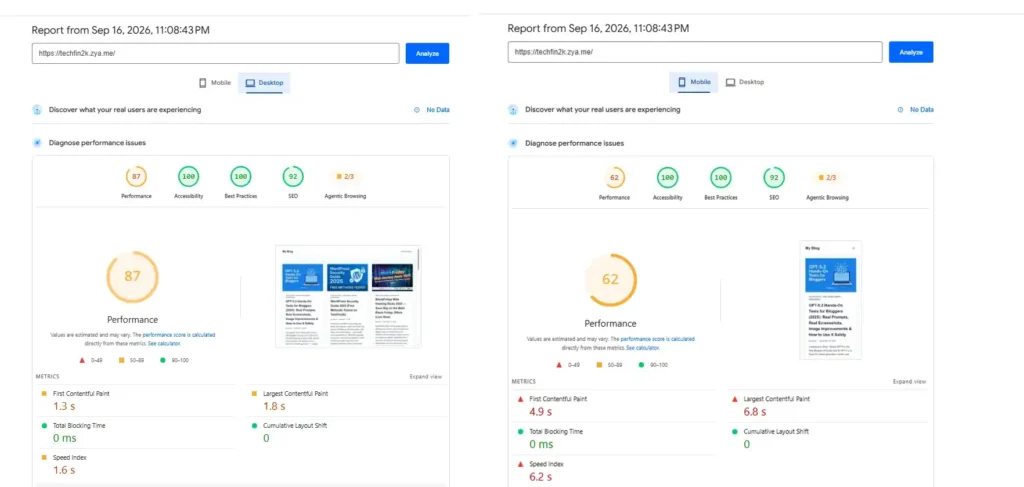
The mobile test recorded a Performance score of 62.
The other scores were 100 for Accessibility, 100 for Best Practices, and 92 for SEO.
The First Contentful Paint (FCP) was 4.9 seconds, while Largest Contentful Paint (LCP) was 6.8 seconds.
Total Blocking Time remained at 0 ms, and Cumulative Layout Shift was 0. The Speed Index was 6.2 seconds.
Compared with the previous 15-plugin test, the mobile Performance score decreased from 94 to 62, while FCP increased from 2.0 seconds to 4.9 seconds and LCP increased from 2.4 seconds to 6.8 seconds.
Desktop Results
The desktop test recorded a Performance score of 87.
Accessibility was 100, Best Practices was 100, and SEO was 92.
The FCP was 1.3 seconds, while LCP was 1.8 seconds. TBT remained at 0 ms, CLS was 0, and the Speed Index was 1.6 seconds.
GTmetrix Results
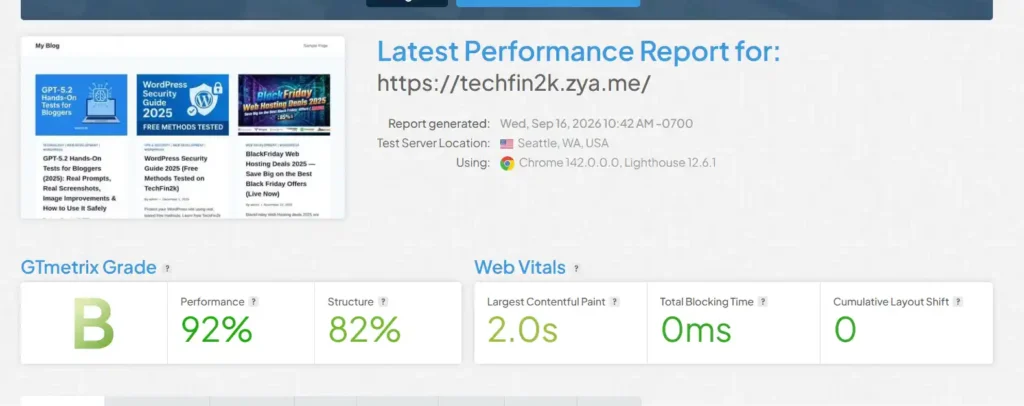
GTmetrix recorded a Grade B, with 92% Performance and 82% Structure.
The Largest Contentful Paint was 2.0 seconds, while Total Blocking Time was 0 ms and Cumulative Layout Shift was 0.
Compared with the previous test, the GTmetrix result changed from Grade A with 99% Performance to Grade B with 92% Performance after the additional content and media were added.
Pingdom Results
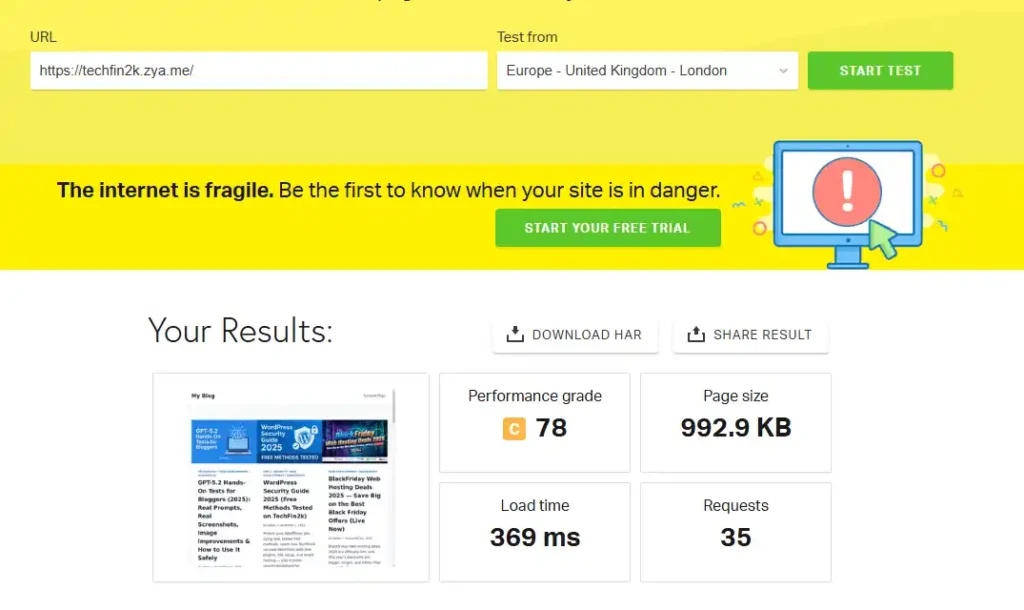
Pingdom recorded a Performance Grade of C with a score of 78.
The page size increased to 992.9 KB, while the number of requests increased to 35.
The recorded load time was 369 ms.
Compared with the previous test, the page size increased from 220.4 KB to 992.9 KB, while requests increased from 13 to 35.
AeonFree Performance Results Content and Media
| Testing Tool | Test | Performance | Key Timing | Other Metrics |
|---|---|---|---|---|
| PageSpeed Insights | Mobile | 62 | FCP: 4.9s LCP: 6.8s |
TBT: 0ms CLS: 0 |
| PageSpeed Insights | Desktop | 87 | FCP: 1.3s LCP: 1.8s |
TBT: 0ms CLS: 0 |
| GTmetrix | Seattle, USA | B / 92% | LCP: 2.0s | Structure: 82% TBT: 0ms CLS: 0 |
| Pingdom | London, UK | C / 78 | Load time: 369ms | Page size: 992.9 KB Requests: 35 |
What Changed After Adding Content and Media?
This final test produced the most noticeable change in performance across the three stages.
The biggest difference was the increase in page size and requests. The page size increased from 170.8 KB with fresh WordPress to 220.4 KB with 15 plugins, and finally to 992.9 KB after adding the content and media.
The number of requests increased from 8 to 13 and then to 35.
The mobile PageSpeed Performance score also changed from 98 in the fresh installation to 94 with 15 plugins and finally 62 with the content and media added.
The desktop PageSpeed score was 87, while GTmetrix recorded 92% Performance with a Grade B.
Interestingly, Pingdom recorded a 369 ms load time even though the page size had increased to almost 1 MB and the number of requests had reached 35.
These results demonstrate why I used three testing tools and tested the website in stages rather than relying only on the performance of a fresh WordPress installation.
AeonFree Hosting Limits and Resource Usage
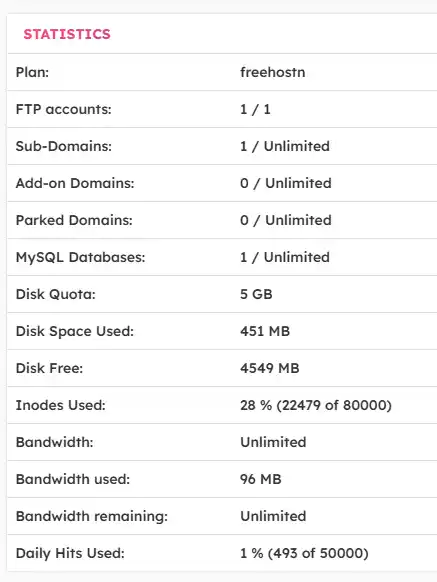
After completing the WordPress and performance testing, I checked the Statistics section in cPanel to see the hosting limits and how much of each resource my test website was using.
The cPanel panel showed both the available limits and my current usage. At the time of checking, my test website had 33 published posts and 222 images, along with the 15 active WordPress plugins used in the earlier test.
AeonFree Resource Limits
The following are the limits and usage figures displayed in my AeonFree hosting account:
| Resource | Limit | My Usage |
|---|---|---|
| FTP Accounts | 1 | 1 |
| Sub-Domains | Unlimited | 1 |
| Add-on Domains | Unlimited | 0 |
| Parked Domains | Unlimited | 0 |
| MySQL Databases | Unlimited | 1 |
| Disk Quota | 5 GB | 451 MB used |
| Disk Space | 5 GB | 4,549 MB free |
| Inodes | 80,000 | 22,479 used (28%) |
| Bandwidth | Unlimited | 96 MB used |
| Daily Hits | 50,000 | 493 used (1%) |
What My Test Website Was Using
At the time I checked the statistics, the website was using 451 MB of disk space out of the 5 GB quota, leaving approximately 4,549 MB free.
The inode usage was 22,479 out of 80,000, which the panel displayed as 28% used.
Bandwidth was shown as unlimited, with 96 MB used at that point. The daily hits counter showed 493 out of 50,000, or approximately 1%.
The account was also using one FTP account, one subdomain, and one MySQL database.
For my particular test website, these figures were well below the displayed limits even after adding the WordPress plugins, 33 posts, and 222 images.
Note: The usage figures shown above are the values displayed in my AeonFree cPanel at the time of testing. Resource usage can change as a website is used and more files, visitors, databases, and other resources are added.
PHP Version and PHP Limits
I also explored the PHP-related settings in the hosting control panel.
On the free hosting account, I found that changing the PHP version was not available as an option. When I tried to access the relevant PHP configuration options, I was prompted to upgrade rather than being given the ability to change the PHP version from the free account.
I also wanted to find out whether users could increase PHP configuration limits such as maximum execution time and PHP memory limit when required. I therefore contacted AeonFree support with the following question:
“Is there any option to increase the PHP limits like max execution time and PHP memory limit?”
I will discuss the support options and the response to my question in the next section.
This is particularly useful to check because PHP limits can become relevant when running larger WordPress websites, importing content, processing images, installing certain plugins, or performing resource-intensive operations.
AeonFree Support and Help Resources
AeonFree provides several ways for users to find help or get assistance with their hosting account. In addition to the support-ticket option available through the control panel, I found a Helpful Tutorials section, a Community Forum, and Discussion sections on the AeonFree website.
Helpful Tutorials
The Helpful Tutorials section is useful for users who want to find instructions for common hosting-related tasks without having to contact support.
The tutorials cover different aspects of using the hosting service and can be useful when setting up or managing a website. For a free hosting service, having a dedicated collection of tutorials is helpful because users can often find instructions for common problems themselves.
Community Forum and Discussions
AeonFree also provides a community forum and discussion areas where users can look for answers from previous discussions or start a new discussion.
However, during my visit, I noticed that the community did not appear to be very active. The most recent comment I found was from February, while several other discussions and comments were two to four years old.
Therefore, while the forum and discussion sections are available, users should not necessarily expect an active community with frequent recent replies.
Support Tickets
For issues that cannot be resolved through the tutorials or existing community discussions, AeonFree provides a support-ticket option through the hosting control panel.
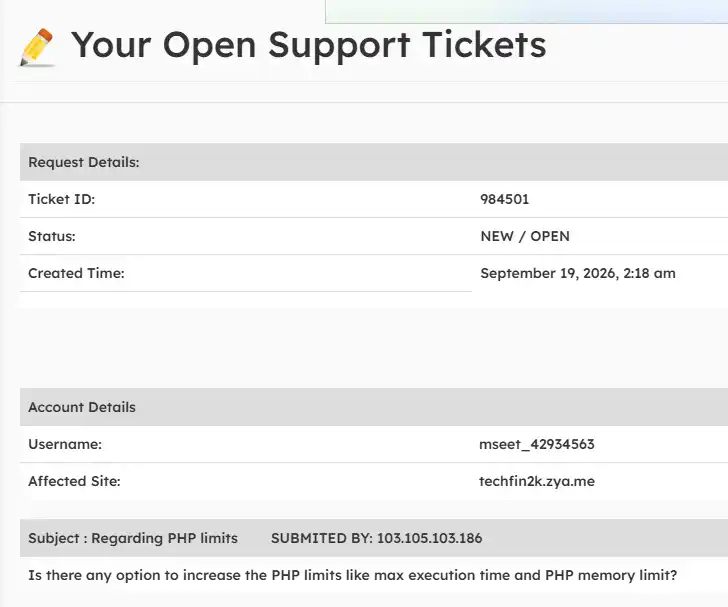
I used this option to ask whether the PHP limits on the free hosting account could be increased:
“Is there any option to increase the PHP limits like max execution time and PHP memory limit?”
The ticket was successfully created and appeared under “Your Open Support Tickets” with the status NEW / OPEN. The ticket also displayed the affected website and the question I submitted.
I am waiting for the support team’s response to see whether these PHP limits can be increased on the free hosting plan. I will update this section with the support team’s response once I receive it.
My Experience
Overall, AeonFree provides several help resources, including tutorials, community discussions, and support tickets. The tutorial section was useful for finding information, while the community forum and discussions appeared relatively inactive based on the recent activity I could see during my testing.
This gives users multiple places to look for assistance, although the level of community activity is something to keep in mind.
AeonFree Free Hosting: Pros and Cons
After completing the account setup, WordPress installation, performance tests, resource checks, and exploration of the available hosting features, these are the main points I observed while using AeonFree’s free hosting service.
Pros
- Free hosting with 5 GB disk space: The cPanel showed a 5 GB disk quota for the free hosting account.
- Unlimited bandwidth: The cPanel statistics showed bandwidth as unlimited.
- Free subdomains: I was able to create and use
techfin2k.zya.mefor my test website. - cPanel included: The hosting account provides cPanel for managing files, databases, domains, and other hosting features.
- Softaculous available: I was able to install WordPress through Softaculous, along with other applications available through the installer.
- Easy-to-navigate dashboard: The AeonFree dashboard has a clear left-side navigation panel, making the available hosting options easy to locate.
- Quick WordPress installation: WordPress itself took only about 29 seconds to install through Softaculous during my test.
- Helpful tutorials: The AeonFree tutorial section provides useful information for common hosting-related tasks.
- Support tickets: Users can submit support tickets directly through the hosting control panel.
- No forced ads on my test website: I did not encounter advertising being placed on the front end of my test WordPress website.
Cons
- Dashboard advertisements can interrupt navigation: When I clicked certain dashboard options, a popup/banner advertisement appeared, and I had to close it before continuing to the selected section.
- Advertisements are also displayed in cPanel: The cPanel interface contains advertisements, although the main hosting controls remained accessible during my testing.
- 5 GB storage limit: The free hosting account has a 5 GB disk quota, which can become a consideration as a website grows.
- 80,000 inode limit: The cPanel showed a maximum of 80,000 inodes. My test website was using 22,479 inodes, or 28%, when I checked the statistics.
- Only one FTP account: The free plan showed a limit of one FTP account.
- PHP version cannot be changed on the free account: When I explored the PHP configuration options, changing the PHP version was not available and I was prompted to upgrade.
- Some dashboard services lead to external providers: Certain options presented through the dashboard as free services took me to external platforms where the offers included limited free periods/trials or paid plans. Users should check the terms of those services before proceeding.
- Limited recent community activity: Although AeonFree provides a community forum and discussion areas, I found relatively little recent activity, with several visible discussions dating back several years.
A note about the free hosting limits
The limits above are based on the statistics displayed in my own AeonFree cPanel during testing. Resource usage and the displayed usage figures can change over time, so these should be treated as my test-account observations rather than a permanent measurement of website usage.
AeonFree Uptime Test: Frequent 502 Errors
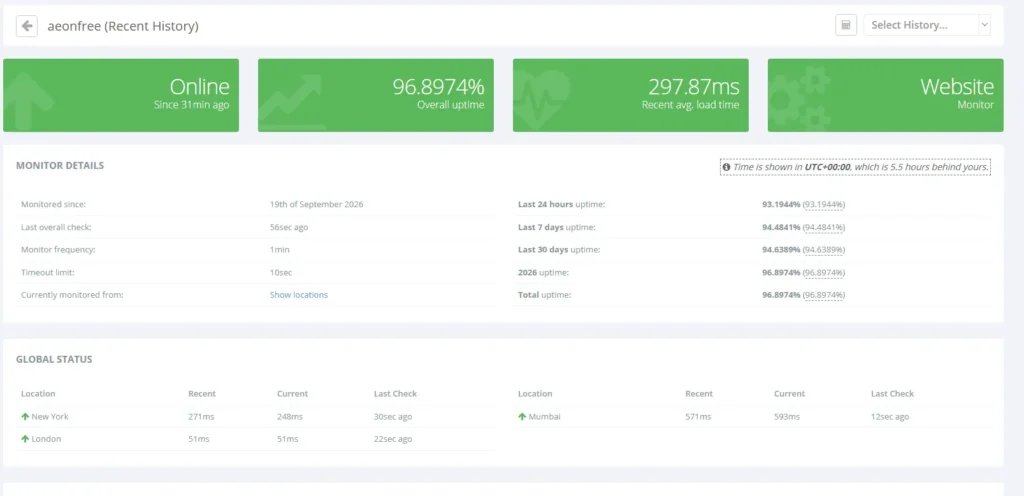
Along with testing WordPress performance, I monitored my AeonFree test website using HetrixTools to check its availability over a longer period.
I started monitoring on September 19, 2026, and reviewed the results on October 29, 2026. The report raised concerns about the website’s reliability.
Uptime Monitoring Results
The HetrixTools report showed the following uptime figures:
- Last 24 hours: 93.19%
- Last 7 days: 94.48%
- Last 30 days: 94.63%
- Overall uptime shown in the report: 96.90%
The downtime history also showed repeated HTTP 502 Bad Gateway errors. On October 29, the recent history listed multiple interruptions, many lasting approximately two minutes before the website became available again.
I also received frequent downtime and recovery notification emails, sometimes around 30–40 notifications in a day. This indicated that the website was repeatedly becoming unavailable and then recovering during the monitoring period.
A 502 Bad Gateway error generally means that a server acting as a gateway or proxy received an invalid response from another server. My monitoring results confirm repeated availability problems with my test website, although they do not establish the exact underlying cause.
The reported average response time during successful checks was approximately 298 milliseconds. However, a reasonably fast response when the website is online does not compensate for frequent interruptions.
My Assessment of AeonFree’s Reliability
My initial tests showed that I could create an account, install WordPress, and run performance tests successfully. However, the longer-term uptime monitoring revealed a significant reliability concern that was not apparent from those initial tests.
Based on my experience, I would be cautious about relying on AeonFree for a business website or any project that needs consistent availability. These results reflect my own test website and the monitoring period described above; they do not establish that every AeonFree website will experience the same problems.
AeonFree Review 2026: Final Verdict
After testing AeonFree from account creation through WordPress installation, plugin testing, content and media testing, resource monitoring, and exploring the available hosting features, I found the service to be a reasonably straightforward free hosting environment for testing and small WordPress projects.
The account creation process was quick, and I was able to activate the account, choose a free subdomain, and install WordPress without encountering any major setup problems. The Softaculous installer also made WordPress installation simple.
The hosting dashboard was easy to navigate, particularly because of its clear left-side navigation panel. However, the frequent popup/banner advertisements that appeared when accessing some dashboard options were an inconvenience. The cPanel interface also displayed advertisements.
The performance results changed as I increased the workload. The fresh WordPress installation produced strong results, while adding 15 plugins caused some changes. The biggest change occurred after adding 33 posts, 222 images, and 10 featured posts to the homepage, particularly in the mobile PageSpeed results and the page size measured by Pingdom.
The resource statistics also showed that my test website was using 451 MB of the 5 GB disk quota and 22,479 of 80,000 inodes (28%) when I checked the account.
Another limitation I encountered was the lack of PHP-version selection on the free hosting account. I have also contacted AeonFree support to ask whether PHP limits such as max_execution_time and PHP memory_limit can be increased. The support response will provide additional information about how flexible the free plan is for more demanding WordPress websites.
Who Is AeonFree Suitable For?
Based on my testing, AeonFree can be considered for users who want to experiment with WordPress, learn how web hosting works, build a small website, or test WordPress without purchasing hosting immediately.
However, users planning to run a larger or more resource-intensive WordPress website should pay attention to the 5 GB storage quota, 80,000 inode limit, PHP configuration restrictions, and the other limitations of the free plan.
As with any free hosting service, I recommend checking the current terms and limits before relying on it for an important website, since hosting features and restrictions can change.
My Testing Summary
My AeonFree review was based on an actual test account rather than only the provider’s advertised specifications. I created the account, verified it, selected a free subdomain, installed WordPress, tested it with 15 plugins, added 33 posts and 222 images, checked resource usage, explored the control panel, and tested the website using multiple performance-testing tools.
This hands-on approach gives a more practical picture of what you can expect when using AeonFree’s free hosting service in 2026.
Ready to Try AeonFree?
If you want to test AeonFree free hosting yourself, you can create a free hosting account using the official signup page.
Sign Up for AeonFree Free Hosting →Have you used AeonFree? Share your experience, results, or any issues you encountered in the comments below.
Frequently Asked Questions About AeonFree Free Hosting
1. Is AeonFree free hosting really free?
Yes. I tested AeonFree’s free hosting plan and successfully created a hosting account without purchasing a paid hosting plan.
2. How much storage does AeonFree free hosting provide?
My cPanel account showed a 5 GB disk quota. At the time of my test, 451 MB was being used.
3. Does AeonFree offer unlimited bandwidth?
The cPanel statistics for my test account showed Unlimited bandwidth. The account had used 96 MB when I checked the statistics.
4. Can you install WordPress on AeonFree?
Yes. I installed WordPress through Softaculous, and the WordPress installation itself took approximately 29 seconds.
5. Does AeonFree provide cPanel?
Yes. My AeonFree hosting account provided access to cPanel.
6. Does AeonFree provide free subdomains?
Yes. During my setup, I was able to create techfin2k.zya.me using one of the available free subdomain options.
7. Can you change the PHP version on AeonFree free hosting?
During my testing, changing the PHP version was not available on the free hosting account. Selecting the relevant option prompted me to upgrade.
8. Does AeonFree have advertisements?
Yes. I found advertisements on both the hosting dashboard and cPanel. Some dashboard options also triggered popup/banner advertisements that had to be closed before continuing.
9. Is AeonFree suitable for WordPress?
It can be used for WordPress, and I successfully installed and tested a WordPress website. However, performance changed as I increased the workload, so the available resource limits should be considered for larger or more resource-intensive websites.
10. How fast is AeonFree hosting?
Performance depends on the workload. In my testing, the fresh WordPress installation scored 98 mobile and 95 desktop in PageSpeed Insights, while the final test with 33 posts and 222 images scored 62 mobile and 87 desktop. I also tested the site with GTmetrix and Pingdom.
11. Does AeonFree provide support?
Yes. AeonFree provides support tickets, tutorials, and community/forum resources. I submitted a support ticket asking whether PHP limits such as max execution time and PHP memory limit could be increased.
12. What are the main limitations of AeonFree free hosting?
My testing showed several limits, including 5 GB storage, 80,000 inodes, and one FTP account. PHP version changes were also unavailable on my free account, and advertisements were present in the hosting interface.
Enjoying our content?
Make TechFin2K a preferred source on Google to see more of our content when it is relevant to you.
