

Introduction
Finding genuinely free web hosting that allows you to install WordPress, use your own website content, and access a hosting control panel can be difficult. Many free hosting services come with significant restrictions, advertisements, or limited features.
For this InfinityFree review, I decided to test the service myself instead of simply listing its advertised features.
I created a free InfinityFree hosting account, installed WordPress using Softaculous, and tested how the hosting performed in different stages. The testing started with a fresh WordPress installation, followed by installing 16 plugins and importing real website content.
For the final test, the website contained 33 posts, more than 200 images , and 16 installed WordPress plugins. I also checked resource usage, SSL, WordPress functionality, and website performance using Google PageSpeed Insights, GTmetrix, and Pingdom.
This review shares my actual experience with InfinityFree, including the account setup process, WordPress installation, resource limits, performance results, and some issues I encountered during testing.
Let’s start with a quick overview of InfinityFree.
InfinityFree at a Glance
InfinityFree is a free web hosting service that allows users to create and host websites without paying for a hosting plan. For this review, I tested its free hosting plan by creating an account, installing WordPress, adding plugins, and importing real website content.
Here is a quick overview of the free hosting account I tested:
| Feature | InfinityFree Free Plan |
|---|---|
| Hosting Price | Free |
| Disk Space | 5 GB |
| Bandwidth | Unlimited |
| Daily Hits Limit | 50,000 per day |
| Inode Limit | 80,000 |
| Hosted Domains | Unlimited |
| Free Subdomain | Yes – no domain purchase required |
| SSL | Enabled by default for the provided subdomain |
| Control Panel | VistaPanel |
| WordPress Installation | Softaculous |
| Email Accounts | Not included with the free plan |
| Ads on Hosted Website | No ads displayed during my testing |
My Initial Experience
One of the first things I noticed after signing up was the presence of advertisements in several areas of the InfinityFree account dashboard. These included ads for third-party services such as domain registration and web hosting.
However, I did not see any advertisements displayed on the actual website hosted with the free account during my testing.
After creating the hosting account, it initially showed a pending status. In my case, the account became active in around 35 minutes.
Once the account was activated, I could access the VistaPanel control panel and install WordPress using Softaculous. I was also able to access the website using the free subdomain created during the account setup process.
Free Subdomain for Testing
One useful feature for beginners is that you don’t need to purchase a domain name before trying the hosting service. During account creation, InfinityFree allows you to create a free subdomain.
For example, I created the test website using the free address:
techfin2k.ct.ws

This means you can create an account, install WordPress, and test the hosting without spending money on either hosting or a domain name. This can be useful if you simply want to learn WordPress, test a website, or try the hosting service before deciding whether you need paid hosting and a custom domain.
A Note About the Resource Limits
Although InfinityFree promotes several features as unlimited, it is important to look at the other limits applied to the free hosting account.
For example, the dashboard showed a daily hit limit of 50,000. During my testing, the account had recorded 74 hits out of the available 50,000 daily hits.
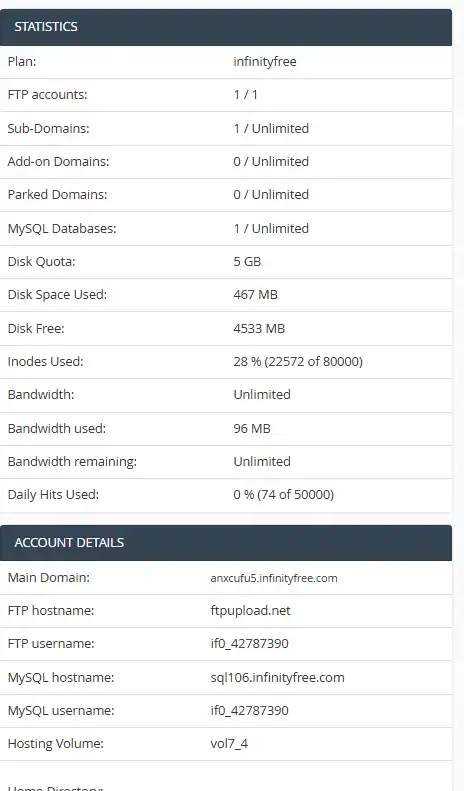
The account also has an 80,000 inode limit and 5 GB of available storage. These limits can become important as a website grows and accumulates more files, images, plugins, themes, and other website data.
In the following sections, I’ll share my hands-on experience with the account setup process, WordPress installation, plugin and content testing, resource usage, and website performance.
Creating an InfinityFree Account
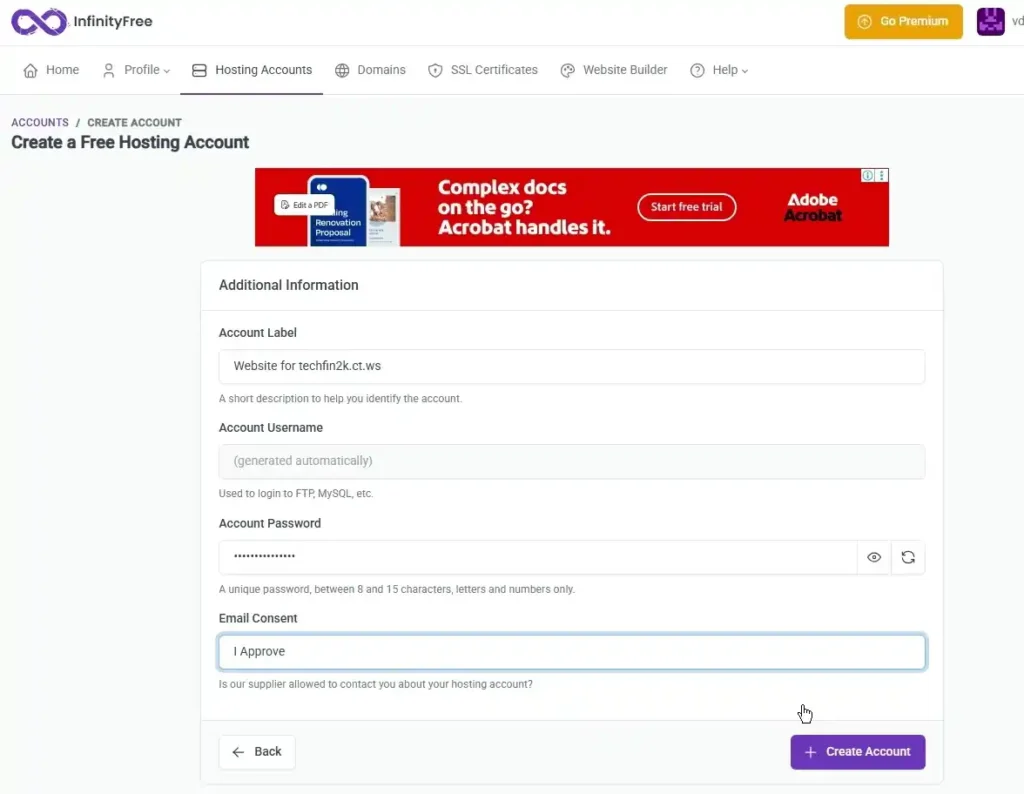
Creating an InfinityFree hosting account was straightforward during my hands-on testing. After selecting the free hosting plan, I was first required to complete a CAPTCHA verification.
I was then taken to the account creation page, where the setup form asked me to provide an Account Label to help identify the hosting account. For my test, I used a label related to the website I was creating.
The Account Username was generated automatically by InfinityFree. I then created an account password and selected “I Approve” under the Email Consent option, allowing the hosting provider to contact me about my hosting account.
After completing these details, I clicked the Create Account button to submit the request. No payment information or credit card details were required during my testing.
InfinityFree Control Panel
Once the hosting account became active, I could access the hosting control panel and begin setting up the website.
InfinityFree uses VistaPanel as its hosting control panel. From here, I could access different hosting tools and features, including file management, databases, domain-related settings, resource usage information, and application installation tools.
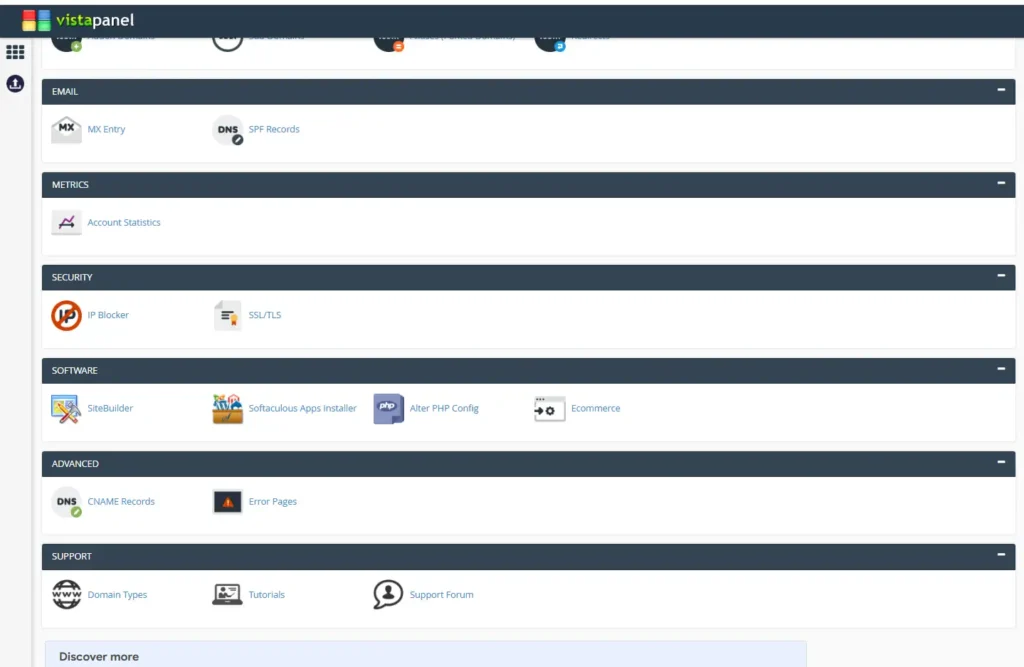
One of the available tools was Softaculous Apps Installer. While I used it to install WordPress for this test, Softaculous also provides installers for other CMS platforms and web applications.
Overall, the control panel provides access to the main tools needed to set up and manage a basic website. However, during my testing, I did not find a direct option for modifying PHP settings or limits, such as PHP execution time or memory limits.
Installing WordPress with Softaculous
Once the hosting account became active, I used the Softaculous Apps Installer available in InfinityFree’s VistaPanel to install WordPress.
The installation process allowed me to select the installation URL and WordPress version, configure the site name and description, and create the administrator account. I installed WordPress directly on the free techfin2k.ct.ws subdomain without needing to purchase or connect a separate domain.
The installation process was straightforward, and I was able to complete the WordPress setup without manually uploading WordPress files or creating a database.
I also recorded the complete WordPress installation process on InfinityFree. The video below shows the steps involved in installing WordPress using Softaculous.
After the installation was completed, I could access the WordPress dashboard and begin preparing the website for the hands-on hosting tests.
After installing WordPress, securing the new installation should also be one of the first setup priorities. You can also see my tested methods in this WordPress Security Guide.
My InfinityFree Hosting Test Setup
I tested InfinityFree in three stages:
- Stage 1: Fresh WordPress website with no additional content or plugins.
- Stage 2: WordPress website with 16 installed plugins.
- Stage 3: WordPress website with 16 plugins and imported website content, including 33 posts and images.
For each stage, I tested the website using:
- Google PageSpeed Insights
- GTmetrix
- Pingdom Website Speed Test
The following sections show the results from each stage.
Stage 1: Blank WordPress Site Performance
For the first stage, I tested the website immediately after installing WordPress. No additional plugins or website content were added at this stage.
This test provides a baseline for understanding how a fresh WordPress installation performs on InfinityFree before adding plugins and content.
Google PageSpeed Insights Results
I tested the blank WordPress website using Google PageSpeed Insights on both mobile and desktop.
| Test | Performance | FCP | LCP | TBT | CLS | Speed Index |
|---|---|---|---|---|---|---|
| Mobile | 91 | 1.6s | 2.6s | 0ms | 0 | 6.0s |
| Desktop | 89 | 0.8s | 1.5s | 0ms | 0.006 | 2.4s |
The blank WordPress installation produced good results in the initial PageSpeed Insights tests. Both mobile and desktop recorded zero Total Blocking Time, while the Cumulative Layout Shift remained very low.
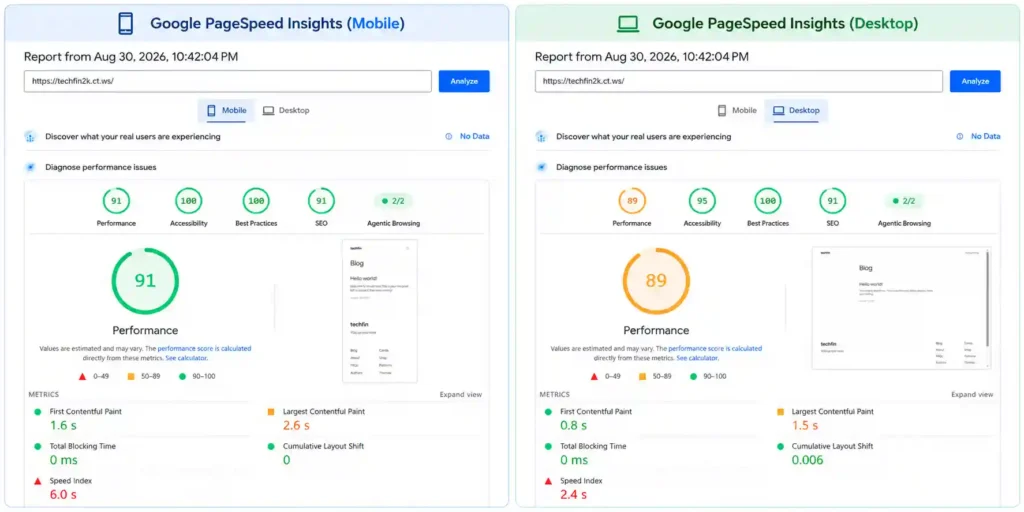
Google PageSpeed Insights mobile and desktop results for the blank WordPress website hosted on InfinityFree.
GTmetrix Results
I also tested the same blank WordPress installation using GTmetrix.
| Grade | Performance | Structure | LCP | TBT | CLS |
|---|---|---|---|---|---|
| A | 100% | 89% | 1.4s | 0ms | 0 |
GTmetrix gave the blank WordPress website an A grade with a 100% performance score. The test also recorded zero Total Blocking Time and no Cumulative Layout Shift.
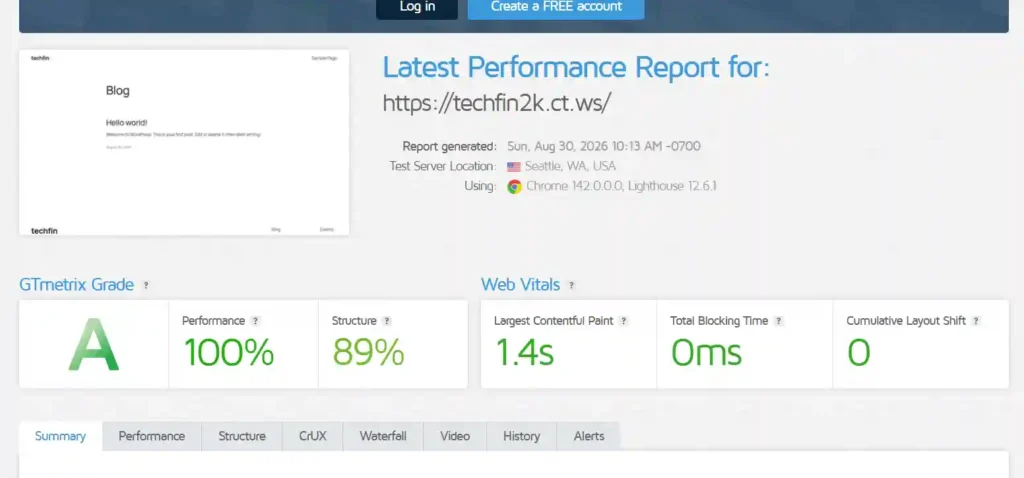
GTmetrix performance results for the blank WordPress website hosted on InfinityFree.
Pingdom Website Speed Test Results
Finally, I tested the blank WordPress website using Pingdom Website Speed Test.
| Performance Grade | Page Size | Load Time | Requests |
|---|---|---|---|
| A 99 | 170.8 KB | 206 ms | 8 |
Pingdom also produced a strong result for the blank WordPress installation, recording an A grade with a 206 ms load time. The small page size and low number of requests are expected for a fresh WordPress website without additional plugins or content.
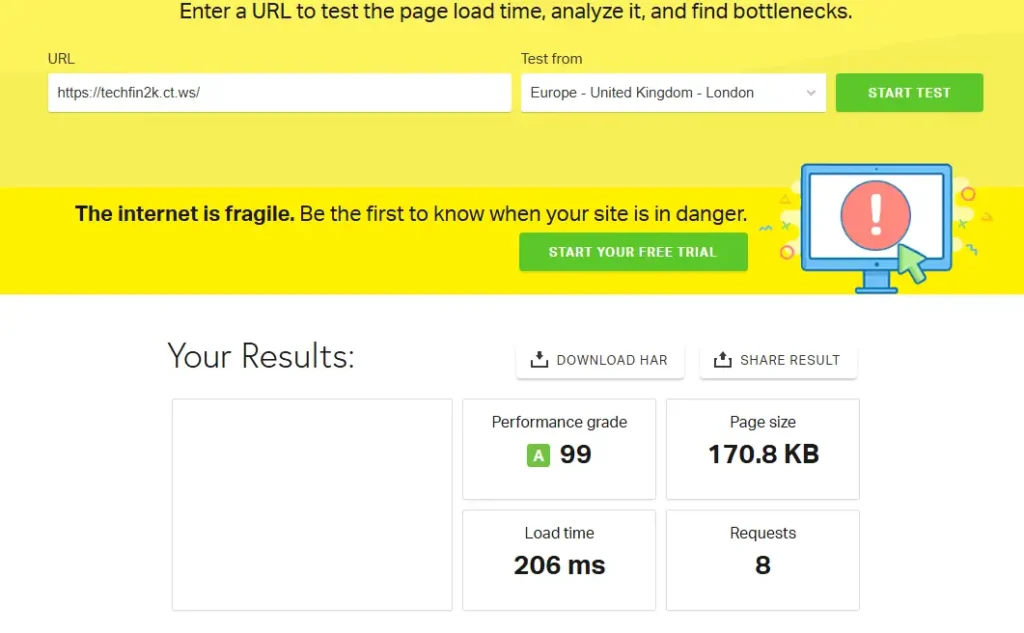
Pingdom speed test results for the blank WordPress website hosted on InfinityFree.
Stage 1 Summary
Overall, the fresh WordPress installation performed well across all three testing tools. However, this was only the baseline test with no additional plugins or real website content.
The next stage tests how the performance changed after installing 16 WordPress plugins.
Stage 2: WordPress Performance With 15 Plugins
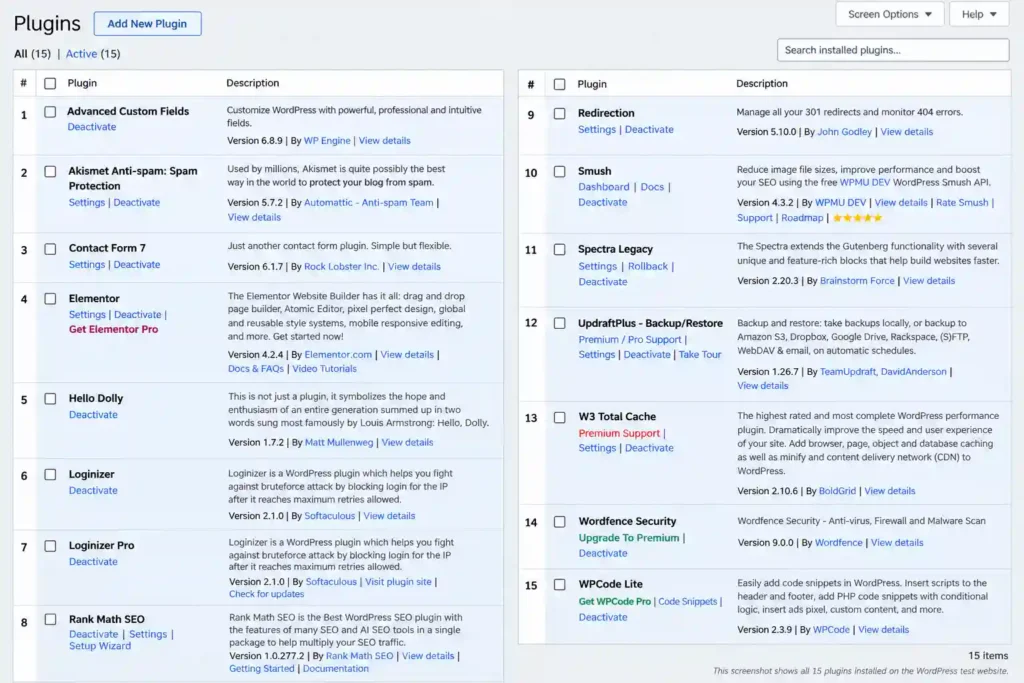
For the second stage of testing, I installed and activated 15 plugins on the same WordPress test website.
The plugins covered common WordPress functions, including website building, SEO, security, performance optimization, forms, backups, and other website management features. No additional posts or significant website content were added at this stage, allowing me to test the hosting performance after adding the plugins separately.
Plugins Used for Testing
The 15 plugins used during this stage are grouped below according to their primary purpose.
| Plugin Category | Plugins Used |
|---|---|
| Website Building & Content | Advanced Custom Fields, Elementor, Spectra Legacy |
| SEO & Website Management | Rank Math SEO, Redirection, WPCode Lite |
| Security & Spam Protection | Akismet Anti-spam, Loginizer, Loginizer Pro, Wordfence Security |
| Performance & Optimization | W3 Total Cache, Smush |
| Forms, Backup & Other Tools | Contact Form 7, UpdraftPlus – Backup/Restore, Hello Dolly |
Note: A 16th plugin, WordPress Importer, was installed later when I imported content and media for the next stage of testing. Therefore, Stage 2 performance results are based on 15 active plugins, while the final test setup included 16 plugins.
Google PageSpeed Insights Results
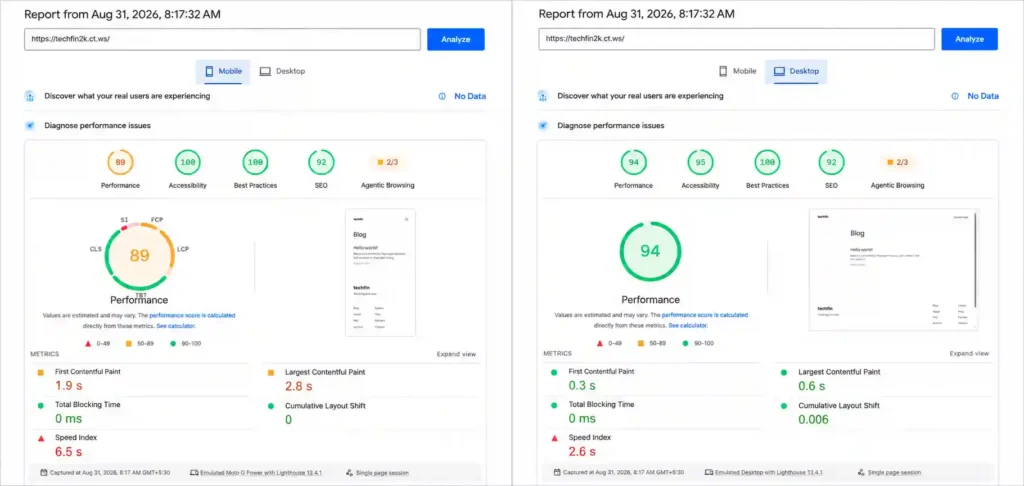
I then tested the website using Google PageSpeed Insights in both mobile and desktop modes.
The results show how the hosting performed after adding the 15 active plugins.
| Test | Performance | FCP | LCP | TBT | CLS | Speed Index |
|---|---|---|---|---|---|---|
| Mobile | 89 | 1.9s | 2.8s | 0ms | 0 | 6.5s |
| Desktop | 94 | 0.3s | 0.6s | 0ms | 0.006 | 2.6s |
The mobile test produced a performance score of 89, while the desktop test scored 94. Total Blocking Time remained at 0 ms in both tests.
The desktop results were particularly strong, with an FCP of 0.3 seconds and an LCP of 0.6 seconds. The mobile test recorded an LCP of 2.8 seconds.
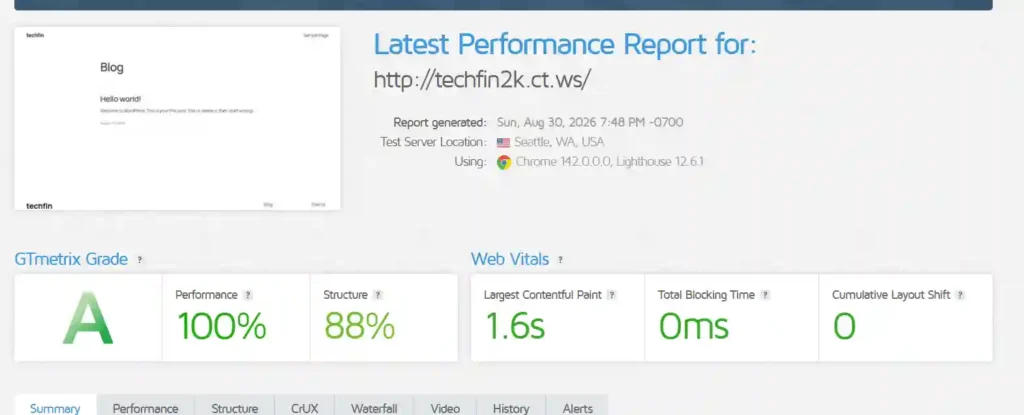
GTmetrix Results
Next, I tested the same Stage 2 setup using GTmetrix.
| Grade | Performance | Structure | LCP | TBT | CLS |
|---|---|---|---|---|---|
| A | 100% | 88% | 1.6s | 0ms | 0 |
GTmetrix gave the Stage 2 website an A grade, with a 100% performance score and an 88% structure score.
The LCP was measured at 1.6 seconds, while Total Blocking Time and Cumulative Layout Shift both remained at zero.
Pingdom Website Speed Test Results
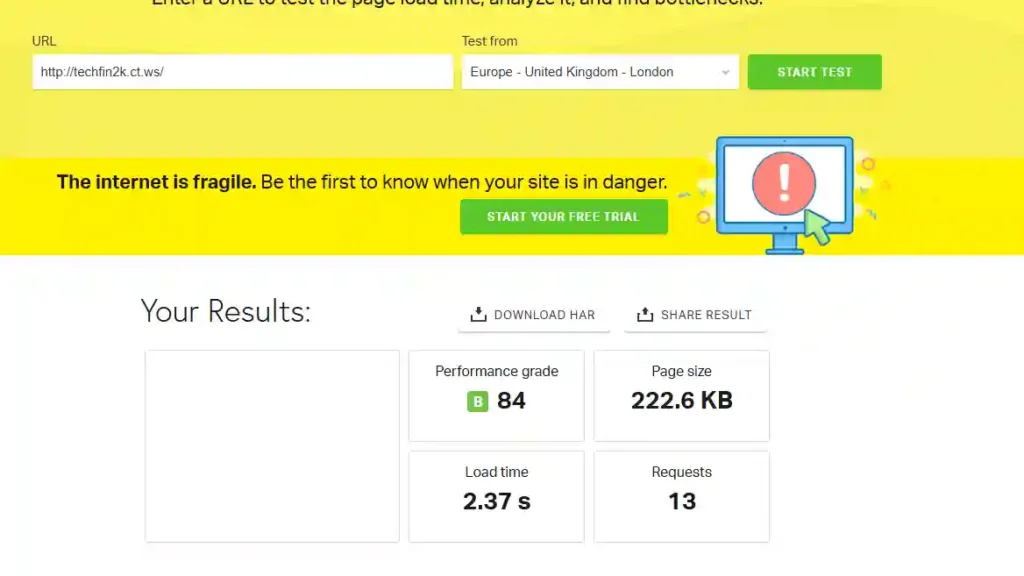
Finally, I tested the website with same set up using Pingdom Website Speed Test.
| Performance Grade | Page Size | Load Time | Requests |
|---|---|---|---|
| B 84 | 222.6 KB | 2.37s | 13 |
Pingdom gave the website a performance grade of B with a score of 84.
The test recorded a load time of 2.37 seconds, with a page size of 222.6 KB and 13 requests.
Stage 2 Summary
Stage 2 tested the hosting with a more realistic WordPress setup by activating 15 plugins covering functions such as SEO, security, caching, backups, image optimisation and page building.
The website continued to perform reasonably well across all three testing tools. Google PageSpeed Insights recorded performance scores of 89 on mobile and 94 on desktop. GTmetrix gave the website an A grade with a 100% performance score and 88% structure score.
Pingdom recorded a B grade with a score of 84 and a load time of 2.37 seconds for the tested page.
Overall, the results show that the InfinityFree hosting environment was able to handle the WordPress installation with 15 active plugins before moving to the final stage, where I added the website content and media.
Stage 3: Testing with Posts, Images and Full Website Content
The third and final stage tested the hosting environment with a more realistic WordPress website configuration.
Unlike the previous stages, this test was performed after importing actual website content and media. The website was no longer a blank WordPress installation and included published posts, featured images and a larger media library.
The testing environment included:
| Website Component | Test Configuration |
|---|---|
| WordPress Plugins | 16 installed plugins |
| Published Posts | 33 posts |
| Images | 200+ images |
| Homepage | 10 posts displayed with featured images |
| Content Migration | Posts and media imported using WordPress Importer |
The content and media were imported into the WordPress installation using the WordPress Importer plugin. This plugin was installed during the import process, bringing the total number of installed plugins to 16.
This stage was designed to simulate a more practical website environment by testing the hosting performance with actual WordPress content, multiple posts, featured images and a larger image library.
The homepage was configured to display 10 posts, including their featured images, while the complete website contained 33 published posts and more than 200 images.
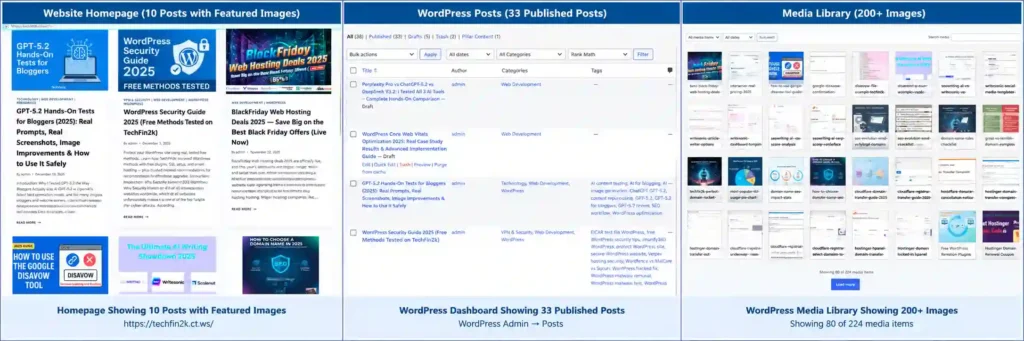
With the website now containing actual posts, featured images and a larger media library, the next step was to measure its performance using Google PageSpeed Insights, GTmetrix and Pingdom.
Google PageSpeed Insights Results
The desktop result remained strong, achieving a performance score of 93 with fast loading metrics and no Total Blocking Time. This indicates that the hosting environment handled the content-loaded website efficiently on desktop devices.
The mobile result was lower at 63, with slower First Contentful Paint and Largest Contentful Paint values. This is expected to some extent because mobile testing uses a more constrained simulated device and network environment. The content-heavy homepage, including multiple posts and featured images, likely contributed to the difference between desktop and mobile performance.
| Test | Performance | FCP | LCP | TBT | CLS | Speed Index |
|---|---|---|---|---|---|---|
| Mobile | 63 | 4.5s | 6.4s | 0ms | 0 | 6.1s |
| Desktop | 93 | 0.9s | 1.2s | 0ms | 0 | 1.9s |

GTmetrix Performance Results
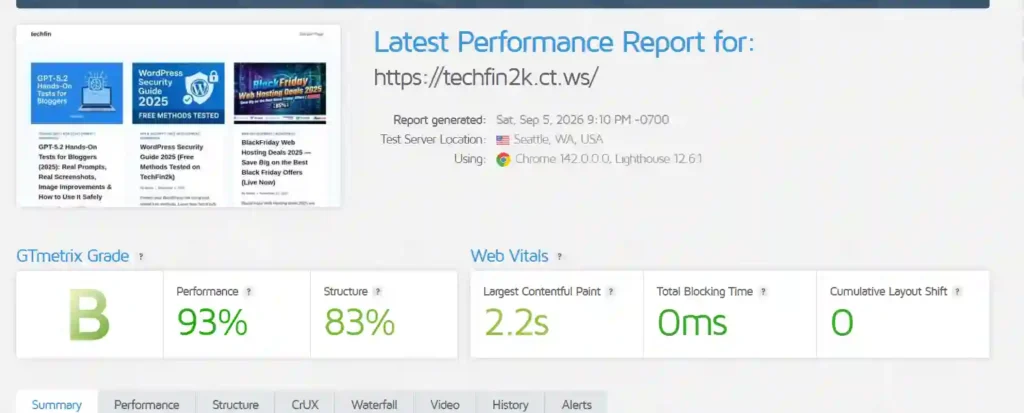
GTmetrix gave the content-loaded website a Grade B, with a 93% Performance score and 83% Structure score. The Largest Contentful Paint was measured at 2.2 seconds, while Total Blocking Time and Cumulative Layout Shift remained at 0.
The results show that the website continued to maintain good performance even after adding posts, featured images and a larger media library. However, compared with the earlier lightweight testing stages, the additional content naturally increased the workload and slightly affected the overall performance metrics.
| Grade | Performance | Structure | LCP | TBT | CLS |
|---|---|---|---|---|---|
| B | 93% | 83% | 2.2s | 0ms | 0 |
Pingdom Website Speed Test Results
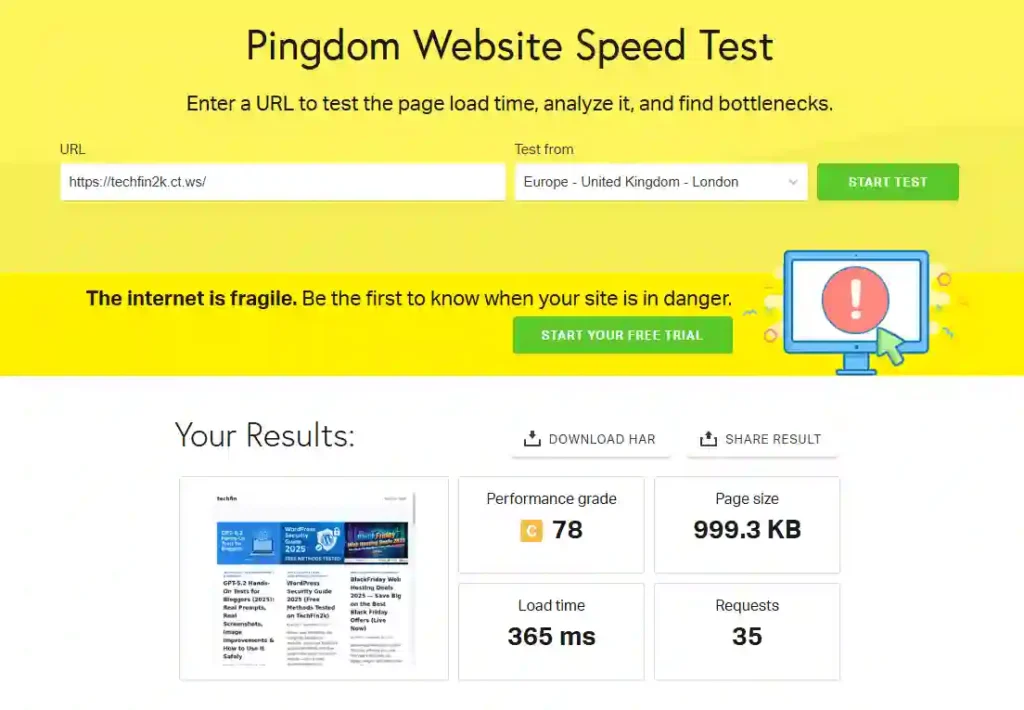
Pingdom reported a Performance Grade of C with a score of 78. The tested page size was 999.3 KB and the test recorded a load time of 365 ms with 35 requests.
Despite the larger page size and increased number of requests compared with the earlier stages, the measured load time remained relatively fast. This indicates that the server was still able to deliver the content-loaded homepage efficiently.
| Performance Grade | Page Size | Load Time | Requests |
|---|---|---|---|
| C 78 | 999.3 KB | 365 ms | 35 |
Stage 3 Performance Summary
After adding 33 posts, more than 200 images, homepage content and 16 WordPress plugins, the website continued to deliver good desktop performance results.
Google PageSpeed Insights recorded a desktop Performance score of 93, while GTmetrix recorded a 93% Performance score with a Grade B. Pingdom recorded a load time of 365 ms for the content-loaded website.
The mobile result was lower at 63, with slower First Contentful Paint and Largest Contentful Paint values. Mobile performance testing uses a more constrained simulated device and network environment, and the content-heavy homepage with multiple posts and featured images may have contributed to the difference between the desktop and mobile results.
Overall, Stage 3 provided a more realistic performance test by evaluating the hosting environment with an actual content-loaded WordPress website rather than a basic installation.
Overall Performance Summary
The three-stage testing process showed how the hosting environment performed as the WordPress website gradually moved from a fresh installation to a more realistic content-loaded setup.
The blank WordPress installation produced the strongest overall benchmark results, while performance changed as plugins, content and images were added. By the final stage, the increased page size and number of requests had a greater impact on mobile performance, while desktop performance remained relatively strong.
The tests also showed stable technical metrics, including zero Total Blocking Time and minimal or zero Cumulative Layout Shift in most results.
Overall, testing the website across three different stages provided a more realistic picture of performance than testing only a fresh WordPress installation.
Hosting Dashboard, Resource Management and Limitations
Navigation and Dashboard Experience
The hosting dashboard was generally easy to understand and provided useful information about the hosting account and resource usage.
The statistics section displayed information such as disk space, inode usage, bandwidth, daily hits and account limits. This made it relatively easy to monitor the available resources during the testing period.
However, accessing the WordPress admin dashboard required several navigation steps. Unlike some managed WordPress hosting providers that offer a direct WordPress login button, the process involved navigating through multiple sections:
- Opening the hosting account.
- Accessing VistaPanel (cPanel).
- Opening Softaculous.
- Going to the installed applications section.
- Opening the WordPress installation.
The process worked without any major problems, but it required several clicks to reach the WordPress admin area.
For users who manage their WordPress website frequently, direct access to the WordPress dashboard would have made the experience more convenient.
Software Installation and Softaculous
The hosting account included Softaculous, which provided access to a large number of applications.
WordPress was installed successfully during the testing. Apart from WordPress, Softaculous listed several other content management systems and eCommerce applications.
Some of the available applications included:
- Joomla
- Drupal
- AbanteCart
- Other CMS platforms
- Various eCommerce applications
During the testing period, I did not find any visible restriction preventing the installation of other applications available through Softaculous.
This means the free hosting account is not limited only to WordPress and can potentially be used for testing different CMS and web applications.
Advertisements in the Hosting Dashboard
One noticeable aspect of the free hosting experience was the number of advertisements displayed within the hosting interface.
Advertisements appeared in different areas of the dashboard, including sidebars and larger advertisements covering a significant portion of the page.
In some situations, an advertisement needed to be closed before accessing the underlying dashboard or hosting controls properly.
Advertisements are understandable as part of a free hosting service, but their frequency affected the overall dashboard experience. Users who access the hosting account regularly may find this inconvenient.
For occasional testing or learning purposes, this may not be a major issue. However, it becomes more noticeable when managing the website frequently.
Account and Subdomain Limits
During testing, the number of free hosting accounts appeared to be limited to three.
This could allow users to create separate websites or testing environments under different free hosting accounts.
However, the account statistics showed a different limit for subdomains.
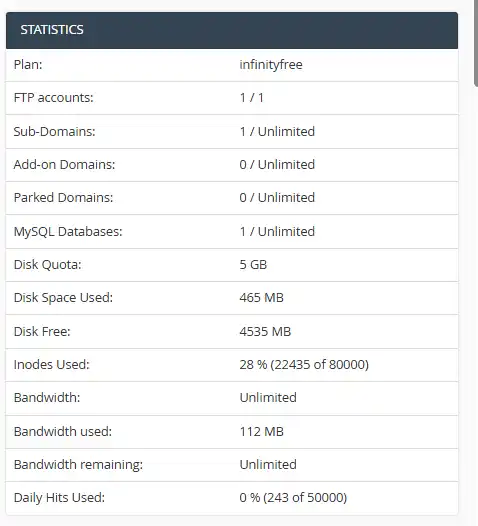
The hosting statistics displayed:
- FTP Accounts: 1 / 1
- Sub-Domains: 1 / Unlimited
- Add-on Domains: 0 / Unlimited
- Parked Domains: 0 / Unlimited
- MySQL Databases: 1 / Unlimited
- Disk Quota: 5 GB
- Bandwidth: Unlimited
Based on the displayed account statistics, subdomains were listed as unlimited.
It is important to distinguish between the limit on the number of free hosting accounts and the number of subdomains allowed within an account. During my testing, the dashboard indicated unlimited subdomains, although the number of free hosting accounts itself appeared to be limited.
Resource Usage and Inode Limits
The resource usage became more interesting after importing the website content.
The WordPress website used for testing contained:
- 33 published posts
- More than 200 images
- Featured images on the homepage
- 16 installed plugins
Despite this being a relatively small content website, the inode usage reached approximately 28%.
The hosting statistics showed:
- Total inode limit: 80,000
- Inodes used: 22,435
- Inode usage: 28%
At the same time, disk space usage remained relatively low:
- Disk quota: 5 GB
- Disk space used: 465 MB
- Disk space remaining: 4,535 MB
This shows an important difference between disk storage and inode usage.
A website may still have plenty of available storage space while consuming a significant number of inodes. WordPress websites can generate many files through images, thumbnails, plugins, themes, cache files and other website components.
For this test, just 33 posts and more than 200 images consumed over one-quarter of the available inode allocation.
This could become a limitation for websites that continue to grow and regularly add new articles and images.
For comparison, some paid hosting providers offer significantly less restrictive resource allocations. In my hands-on InterServer hosting review, I tested a hosting environment that includes unlimited storage and unlimited inodes, which may be more suitable for websites expecting continuous content and media growth.
Errors and Resource Restrictions Encountered During Testing
During the content-loaded website testing, I encountered a 429 Too Many Requests error with a scanner activity detection message.
The issue was encountered only once during the testing period. It first appeared during the evening and remained present for at least a couple of hours. When I checked the website again the following morning, the website was accessible and the error was no longer present.
A separate message was also displayed stating that the website had used all available resources allowed for a free hosting account and recommended upgrading to premium hosting.
Interestingly, the hosting statistics at the time showed that the inode limit had not been exhausted. The account was using approximately 22,435 out of 80,000 available inodes.
This is important because inode usage is only one of several possible hosting resource limits. The warning therefore does not necessarily indicate that the inode limit had been reached.
Based on the testing, another resource restriction, request limit or temporary account-level limitation may have been triggered.
Although this issue occurred only once, the fact that it remained present for at least a couple of hours is worth considering, particularly for users planning to use the free hosting account for an actively accessible website.

PHP Configuration and SSL
PHP Configuration Options
During my testing, I did not find a direct option in the InfinityFree hosting dashboard or VistaPanel to modify PHP settings or limits.
For example, I could not find an option to change settings such as the PHP memory limit or maximum execution time.
This may not be an issue for basic websites or small WordPress installations. However, users who need to adjust PHP limits for specific plugins, themes or larger websites may find the lack of an easily accessible configuration option restrictive.
SSL and HTTPS
SSL was automatically available for the free hosting account during my testing. After setting up the website and installing WordPress, the site loaded through HTTPS without requiring any additional SSL installation or configuration.
I did not experience any noticeable delay while waiting for the HTTPS version of the website to become active.
This made the initial setup more convenient, as I did not need to manually generate, install or configure an SSL certificate before accessing the website securely.
Uptime Monitoring
I also added the test website to UptimeRobot for availability monitoring. However, the monitoring results were inconclusive. UptimeRobot reported 403 Forbidden responses from its North American monitoring locations, while I was still able to access the website normally through a browser.
Therefore, I could not use the monitoring data to confirm actual uptime or downtime during the testing period. The result does, however, show that automated monitoring requests may be treated differently from normal browser access.
Final Verdict: Is InfinityFree Worth Using?
After testing InfinityFree with a basic WordPress installation, a plugin-loaded setup, and finally a content-loaded website containing 33 posts and more than 200 images, my overall experience was mixed.
The hosting platform performed reasonably well in some areas. The hosting environment provides access to VistaPanel and Softaculous, allows installation of WordPress and many other applications, and SSL was automatically available without requiring additional configuration. The website could also deliver good desktop performance results despite running on a free hosting account.
However, the limitations became more noticeable as the website became more realistic. A content-loaded WordPress website with just 33 posts and 200+ images consumed approximately 28% of the available 80,000 inodes. This means the inode limit could become a concern for a growing website, particularly one that regularly publishes content and uploads images.
Performance was also inconsistent between devices. Desktop performance remained strong, while the mobile PageSpeed test recorded slower loading metrics, including a Largest Contentful Paint of 6.4 seconds. For a website intended to grow, attract organic traffic or provide a consistently fast mobile experience, this is an important consideration.
During testing, I also encountered temporary access restrictions, including a 429 Too Many Requests error related to scanner activity. Uptime monitoring produced inconclusive results because UptimeRobot received 403 Forbidden responses from North American monitoring locations while the website remained accessible through my browser. Although this does not confirm a complete outage, it means availability could not be consistently verified across all access methods and locations.
The interface itself is functional, but accessing WordPress administration requires several steps through the hosting account, cPanel and Softaculous. Advertisements are also heavily displayed throughout the free hosting interface and can occasionally interrupt navigation.
My Overall Opinion
InfinityFree can be useful for:
- Learning WordPress and web hosting basics.
- Testing WordPress themes or plugins.
- Creating temporary demonstration websites.
- Practising with different CMS applications available through Softaculous.
- Small personal or experimental projects.
However, based on my testing, I would be cautious about using it for a growing content website or a project where consistent performance, resource availability and reliable accessibility are important.
The free hosting plan provides a useful environment for experimentation, but the inode limitations, mobile performance results, occasional access restrictions and heavily advertised interface make it less suitable as a long-term solution for a growing WordPress website.
If you are looking for a hosting provider for a growing blog or long-term content website, you can also explore my comparison of the best blog hosting providers for 2026, where I compared several hosting providers based on performance, resources, reliability and scalability.
Final Rating
InfinityFree is a useful free hosting platform for testing and learning, but its practical limitations become more visible as a WordPress website grows.
Frequently Asked Questions About InfinityFree
Is InfinityFree really free?
Yes. InfinityFree allowed me to create a hosting account, install WordPress and use the free subdomain without entering payment information during my testing. However, the free account has resource limits, including 5 GB storage, an 80,000 inode limit and a daily hit limit.
Can I install WordPress on InfinityFree?
Yes. I installed WordPress using the Softaculous Apps Installer available through the InfinityFree hosting control panel. The installation process allowed me to set up WordPress without manually uploading files or creating a database.
Does InfinityFree provide free SSL?
Yes. SSL was automatically available for the free subdomain during my testing. The WordPress website loaded through HTTPS without requiring manual SSL installation or additional configuration.
Can InfinityFree handle a WordPress website with posts and images?
It can handle a small content-loaded WordPress website, based on my testing. I tested InfinityFree with 33 published posts, more than 200 images and 16 installed plugins. Desktop performance remained good, but mobile PageSpeed performance was noticeably lower.
What is the InfinityFree inode limit?
The free account I tested had an inode limit of 80,000. After importing 33 posts and more than 200 images, the website was using approximately 22,435 inodes, or around 28% of the available limit.
Is InfinityFree suitable for a growing website?
Based on my testing, I would be cautious about using InfinityFree for a rapidly growing content website. The inode limit, resource restrictions and inconsistent mobile performance could become more important as more articles, images and plugins are added. It may be better suited to learning WordPress, testing websites and small experimental projects.
Enjoying our content?
Make TechFin2K a preferred source on Google to see more of our content when it is relevant to you.

One Comment