

Introduction
Choosing a reliable web hosting provider can be difficult, especially if you are looking for free hosting for a WordPress website. While free hosting can be useful for testing, learning, or running a small website, the real question is how well it performs once you move beyond a basic WordPress installation.
In this ByetHost review, I tested the provider hands-on using a real WordPress website rather than relying only on the specifications advertised by the hosting company. The testing was performed in three stages to see how the hosting environment handled increasing website complexity.
I started with a fresh WordPress installation, then tested the same website with 15 active WordPress plugins, and finally loaded it with a realistic TechFin2K workload consisting of 33 published posts, 223 media files, a homepage displaying 10 posts, and the same 15 plugins.
Throughout the testing, I checked performance using Google PageSpeed Insights, GTmetrix, and Pingdom. I also examined the VistaPanel control panel, available resources, SSL, subdomains, databases, email options, PHP settings, account activation, and other aspects of the free hosting environment.
The goal of this review is not simply to determine whether ByetHost can host WordPress for free. Instead, I wanted to see how the service performs as a WordPress website becomes more realistic and resource-intensive, and where its limitations become noticeable.
With the testing methodology in place, let’s start by looking at the account creation and activation process and see how straightforward it is to get started with ByetHost.
Creating a ByetHost Account
I started the test by creating a free ByetHost hosting account. During registration, I selected a free subdomain, created a password, entered my email address, selected Personal as the site category, chose English as the site language, and completed the security verification.
After submitting the registration form, ByetHost displayed its list of prohibited website types and activities. I then received an activation email, which arrived in my Spam folder. After clicking the activation link, the account was activated in approximately 50–53 seconds.
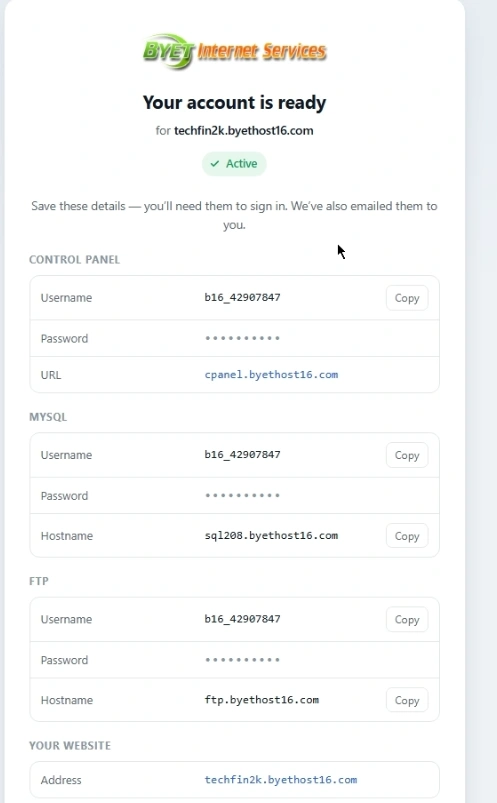
Once the account was activated, ByetHost provided the credentials and access details for the control panel, FTP, MySQL, and the website.
ByetHost Control Panel and Resource Limits
I then logged into the ByetHost control panel. The login process redirected me to the ByetHost control-panel login page, where I entered the credentials provided during activation. Before accessing VistaPanel, ByetHost asked me to approve its service-related email notifications. After selecting “I Approve,” VistaPanel loaded successfully.
The resource information displayed in VistaPanel showed 5 GB of disk quota, 80,000 inodes, unlimited bandwidth, 50,000 daily hits, 1 FTP account, 1 subdomain, and 1 MySQL database. The panel also included options for SSL, PHP settings, and email accounts.
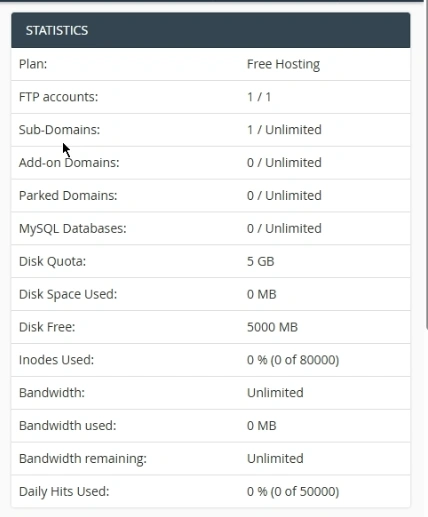
The control panel also provided options for features such as SSL, PHP settings, and email accounts. I checked these options as part of the initial evaluation of the free hosting environment.
Installing WordPress
After checking the available resources and control-panel options, I proceeded with the WordPress installation using Softaculous.
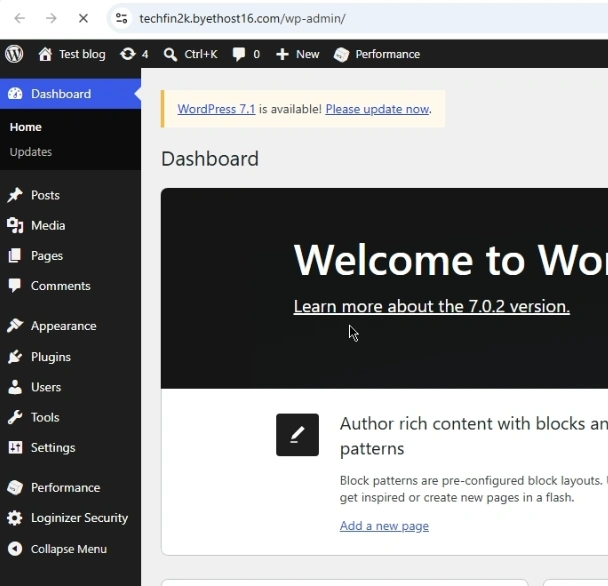
The installation completed successfully, and I verified that both the WordPress dashboard and the website were working correctly.
With WordPress installed, let’s look at the test setup and see how ByetHost performed as the website became progressively more demanding.
Stage 1: Blank WordPress Site Performance
After installing WordPress, I first tested the website in its default state, without adding any plugins or additional content. This provides a baseline for evaluating how ByetHost performs with a basic WordPress installation.
I tested the website using Google PageSpeed Insights, GTmetrix, and Pingdom. The results from each tool are shown below.
Google PageSpeed Insights
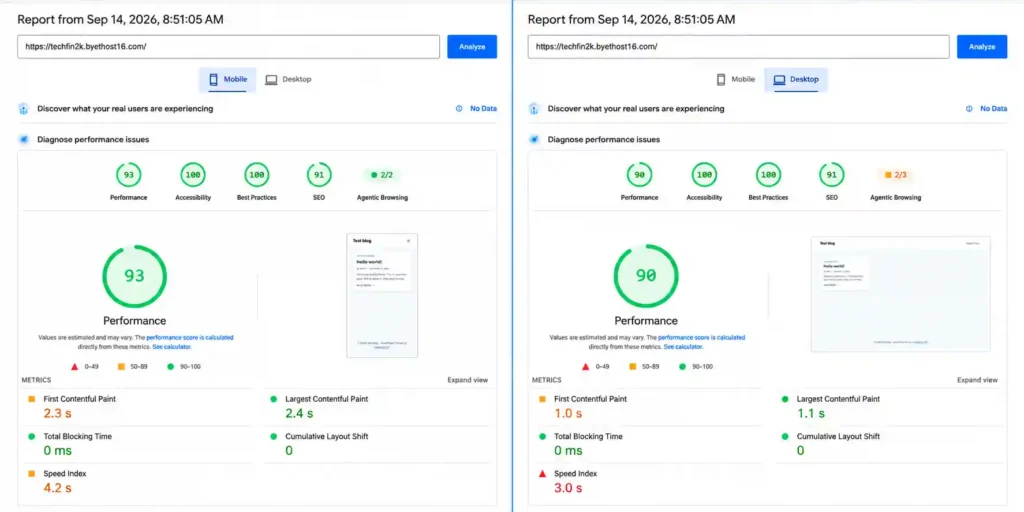
Google PageSpeed Insights recorded a Performance score of 93 on mobile and 90 on desktop. The website also achieved 100 scores for Accessibility and Best Practices on both devices, while the SEO score was 91.
The results show that the fresh WordPress installation performed well, particularly on desktop. The Total Blocking Time and Cumulative Layout Shift were both 0, indicating no measurable main-thread blocking or layout instability in this test. The mobile LCP was 2.4 seconds, while desktop LCP was considerably faster at 1.1 seconds.
GTmetrix
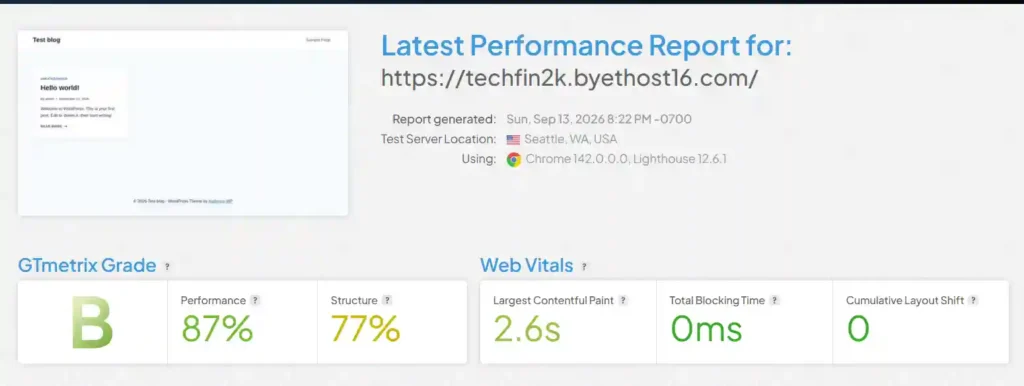
GTmetrix gave the blank WordPress website a Grade B, with a Performance score of 87% and a Structure score of 77%.
The GTmetrix results also showed 0 ms Total Blocking Time and 0 Cumulative Layout Shift. The measured Largest Contentful Paint was 2.6 seconds.
Pingdom
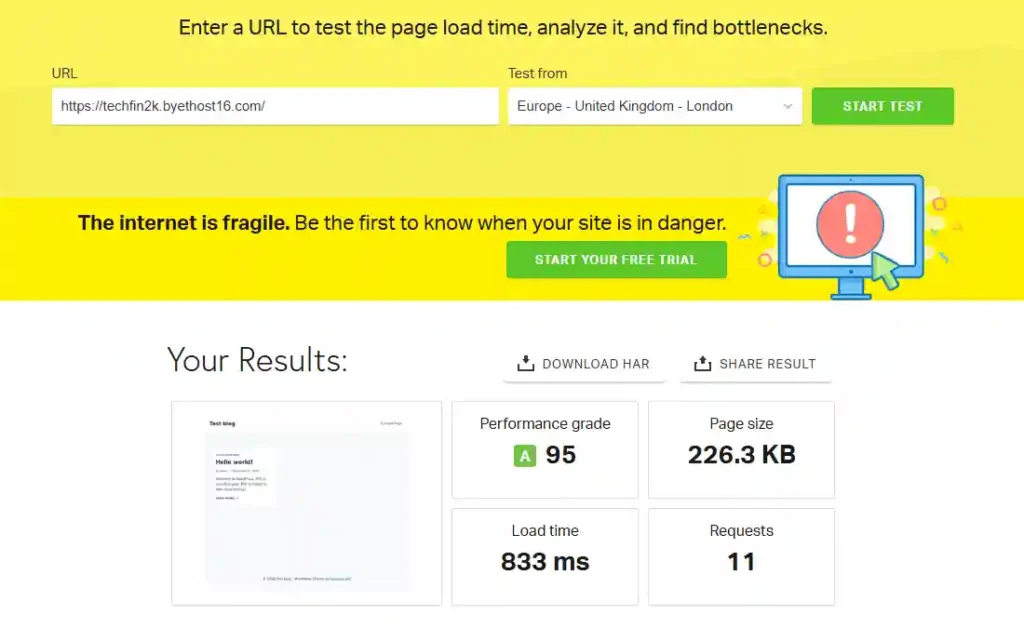
Pingdom produced the strongest overall grade for the blank WordPress website, giving it a Performance Grade of A 95.
The page was only 226.3 KB and required 11 requests, with a measured load time of 833 ms in this test.
Stage 1 Summary
Overall, the fresh WordPress installation produced good baseline performance across all three testing tools. PageSpeed Insights recorded scores of 93 on mobile and 90 on desktop, while GTmetrix gave the website a Grade B with an 87% Performance score. Pingdom produced an A 95 with a measured load time of 833 ms.
These results represent the performance of a basic WordPress installation before adding plugins or real website content. The next stage will show how the performance changes after activating 15 WordPress plugins.
Stage 2: WordPress Performance With 15 Plugins
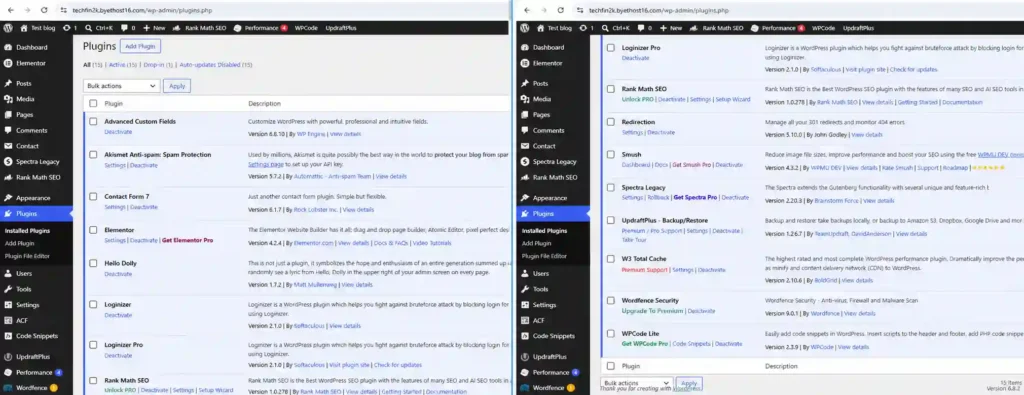
For the second stage of testing, I installed and activated 15 WordPress plugins on the same test website.
The plugins covered common WordPress functions, including website building, SEO, security, performance optimization, forms, backups, and other website management features. No additional posts or significant website content were added at this stage, allowing me to measure the effect of the plugins separately from the website’s content and media.
Plugins Used for Testing
The 15 plugins used during this stage were grouped according to their primary purpose:
| Plugin Category | Plugins Used |
|---|---|
| Website Building & Content | Advanced Custom Fields, Elementor, Spectra Legacy |
| SEO & Website Management | Rank Math SEO, Redirection, WPCode Lite |
| Security & Spam Protection | Akismet Anti-spam, Loginizer, Loginizer Pro, Wordfence Security |
| Performance & Optimization | W3 Total Cache, Smush |
| Forms, Backup & Other Tools | Contact Form 7, UpdraftPlus – Backup/Restore, Hello Dolly |
Google PageSpeed Insights Results
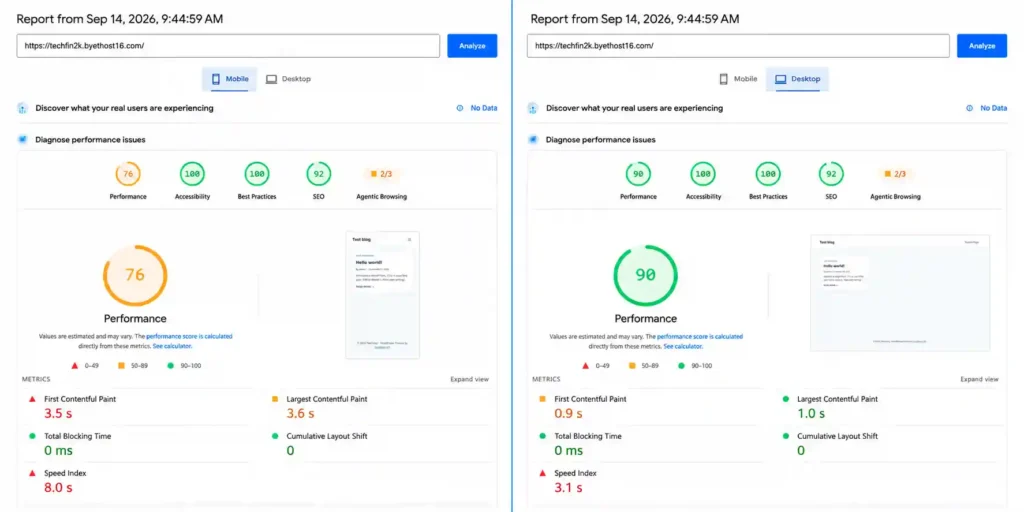
I then tested the website using Google PageSpeed Insights in both mobile and desktop modes.
The results show how the ByetHost hosting environment performed after activating the 15 WordPress plugins.
The mobile test produced a Performance score of 76, while the desktop test scored 90. Total Blocking Time remained at 0 ms and Cumulative Layout Shift remained at 0 on both devices.
The main difference was in loading performance. The mobile test recorded an FCP of 3.5 seconds, an LCP of 3.6 seconds and a Speed Index of 8.0 seconds. Desktop performance was considerably faster, with an FCP of 0.9 seconds, LCP of 1.0 second and Speed Index of 3.1 seconds.
GTmetrix Results
Next, I tested the same Stage 2 setup using GTmetrix.
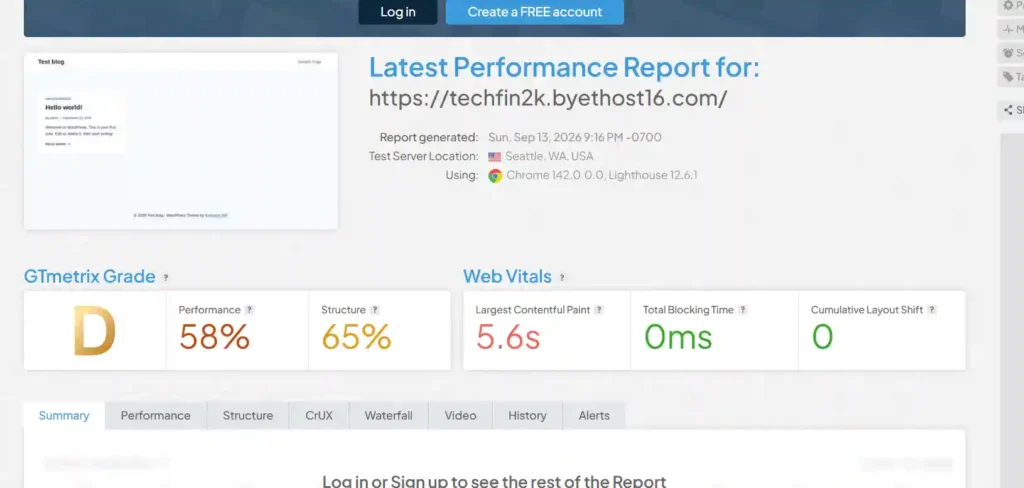
GTmetrix gave the Stage 2 website a Grade D, with a 58% Performance score and a 65% Structure score.
The Largest Contentful Paint was measured at 5.6 seconds, while Total Blocking Time and Cumulative Layout Shift both remained at zero.
Pingdom Website Speed Test Results
Finally, I tested the same Stage 2 setup using Pingdom Website Speed Test.
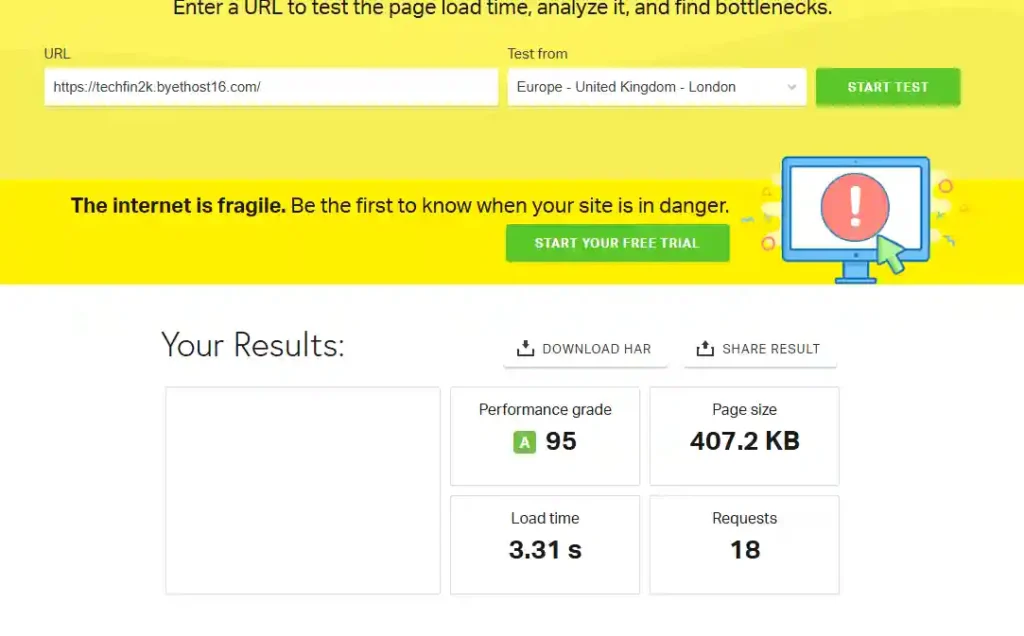
Pingdom gave the website a Performance Grade of A 95. The test recorded a page size of 407.2 KB, a load time of 3.31 seconds, and 18 requests.
Stage 2 Summary
Stage 2 tested ByetHost with a more realistic WordPress setup by activating 15 plugins covering functions such as SEO, security, performance optimization, backups, website building and forms.
The results varied considerably between the testing tools. Google PageSpeed Insights recorded performance scores of 76 on mobile and 90 on desktop, while GTmetrix gave the website a Grade D with a 58% Performance score. Pingdom, however, recorded an A 95, although the measured load time increased to 3.31 seconds.
Compared with the blank WordPress installation in Stage 1, the results show that adding plugins had a noticeable effect on the website’s performance, particularly in the mobile PageSpeed and GTmetrix tests.
The next stage will add the actual TechFin2K website content, including 33 published posts, 223 media files and a homepage displaying 10 posts, to see how ByetHost handles a more realistic content-loaded WordPress website.
Stage 3: Performance Test With Website Content and Media
In the final stage, I imported my TechFin2K website content into the ByetHost test site. This included 33 published posts, 223 media files (images), and a homepage displaying 10 recent posts. The same 15 WordPress plugins from Stage 2 remained active.
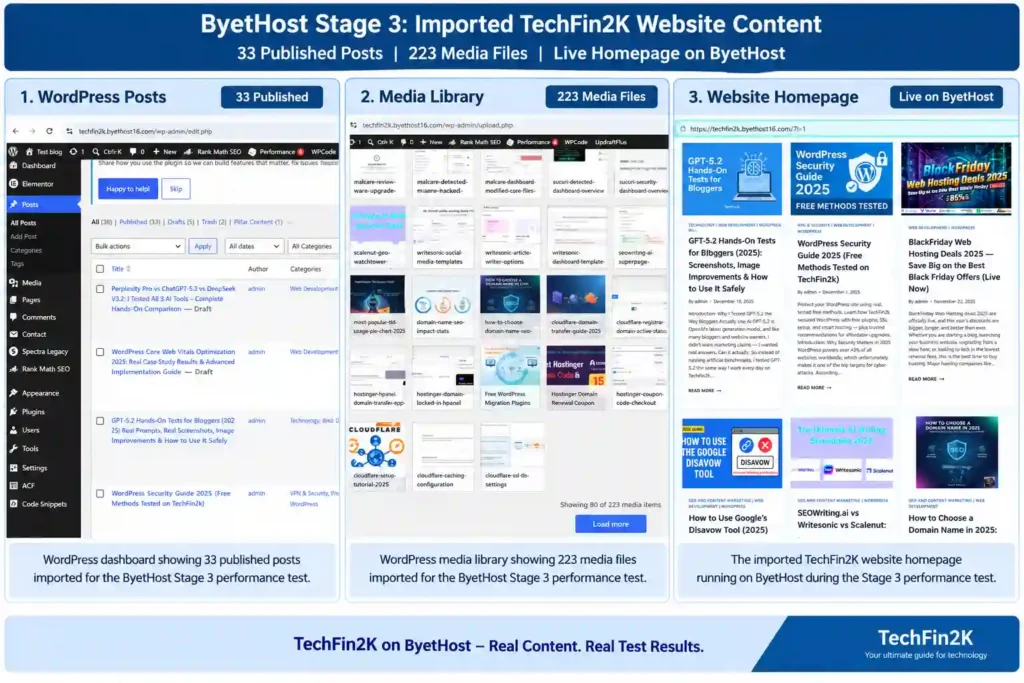
No manual performance optimization was applied. This test was intended to show how ByetHost handles a more realistic WordPress website with actual content, images, and multiple active plugins.
Google PageSpeed Insights Results
I first tested the content-loaded website using Google PageSpeed Insights in both mobile and desktop modes.
The results showed a noticeable reduction in performance compared with the earlier stages, particularly on mobile.
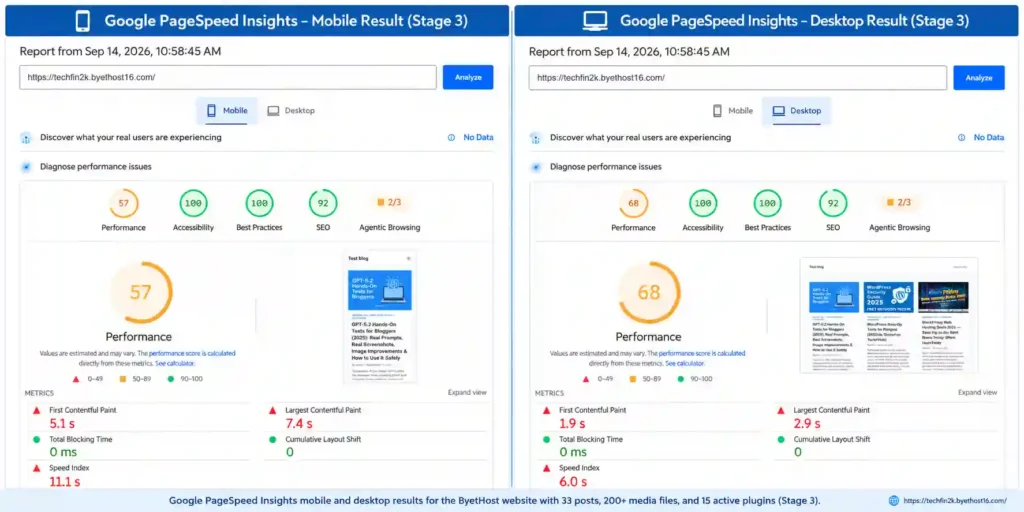
The mobile performance score dropped to 57, with an FCP of 5.1 seconds, an LCP of 7.4 seconds, and a Speed Index of 11.1 seconds.
The desktop score was 68, with an FCP of 1.9 seconds, an LCP of 2.9 seconds, and a Speed Index of 6.0 seconds. Total Blocking Time and Cumulative Layout Shift remained at 0 for both devices.
GTmetrix Results
I then tested the same content-loaded website using GTmetrix.
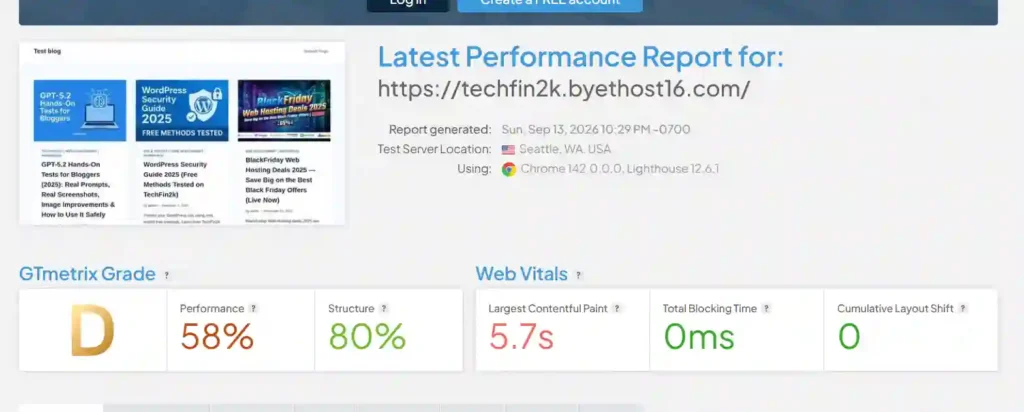
GTmetrix gave the website a Grade D, with a 58% Performance score and an 80% Structure score.
The Largest Contentful Paint was measured at 5.7 seconds, while Total Blocking Time and Cumulative Layout Shift remained at 0.
Pingdom Website Speed Test Results
Finally, I tested the Stage 3 website using Pingdom Website Speed Test.
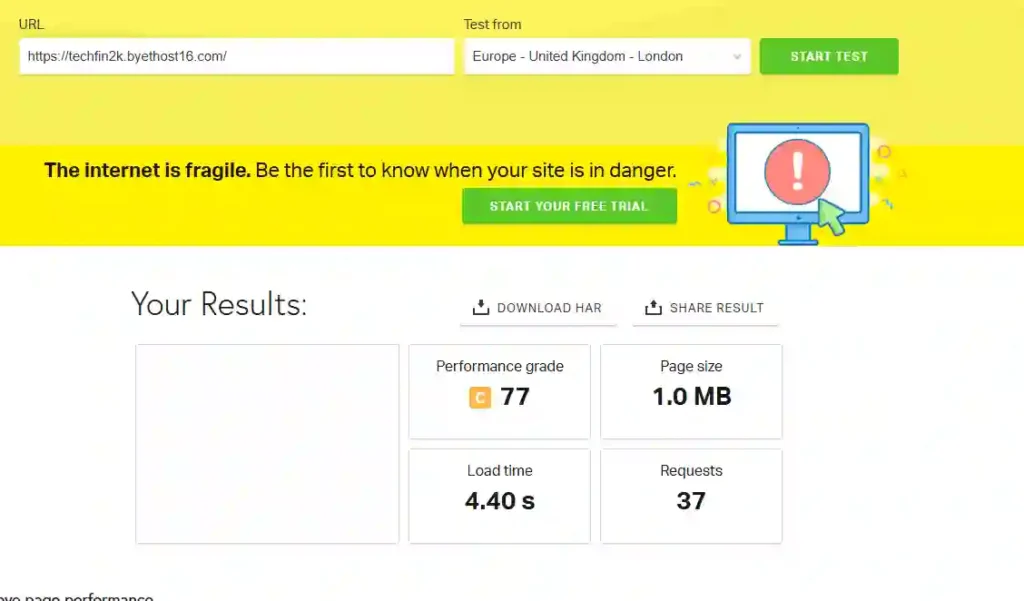
| Performance Grade | Page Size | Load Time | Requests |
|---|---|---|---|
| C 77 | 1.0 MB | 4.40s | 37 |
Pingdom gave the website a Performance Grade of C 77. The page size increased to 1.0 MB, with a measured load time of 4.40 seconds and 37 requests.
Stage 3 Summary
With 33 published posts, 223 media files, a homepage displaying 10 recent posts, and 15 active plugins, the ByetHost website showed a noticeable reduction in performance compared with the earlier stages.
Google PageSpeed Insights recorded scores of 57 on mobile and 68 on desktop. GTmetrix gave the website a Grade D, with a 58% Performance score and 80% Structure score. Pingdom recorded a C 77, with a 4.40-second load time, 1.0 MB page size, and 37 requests.
The results show how the additional website content and media affected the overall loading performance of the ByetHost-hosted WordPress website. The next section will compare the results from all three testing stages to show how performance changed as the website became progressively more demanding.
ByetHost Performance at a Glance
The three-stage test shows that ByetHost handled a blank WordPress installation reasonably well, but performance declined as plugins, content, and media were added. The PageSpeed Mobile score dropped from 93 to 57, while GTmetrix LCP increased from 2.6 seconds to 5.7 seconds by the final stage.
| Metric | Stage 1 Blank WordPress |
Stage 2 15 Plugins |
Stage 3 Full Website |
|---|---|---|---|
| PageSpeed Mobile | 93 | 76 | 57 |
| PageSpeed Desktop | 90 | 90 | 68 |
| GTmetrix | B – 87% | D – 58% | D – 58% |
| GTmetrix LCP | 2.6s | 5.6s | 5.7s |
| Pingdom | A – 95 | A – 95 | C – 77 |
| Page Size | 226.3 KB | 407.2 KB | 1.0 MB |
| Requests | 11 | 18 | 37 |
| Load Time | 833 ms | 3.31s | 4.40s |
Pingdom also showed a clear increase in page weight as the website became more complex. The page size increased from 226.3 KB to 1.0 MB, requests increased from 11 to 37, and the load time increased from 833 ms to 4.40 seconds between Stage 1 and Stage 3.
Overall, ByetHost performed well with a basic WordPress installation, but performance declined noticeably as plugins, content, and media were added.
ByetHost Control Panel and WordPress Dashboard
The ByetHost hosting account is managed through VistaPanel, which provides access to the main hosting and website management features. During my testing, I found the control panel functional, although there were a few limitations and usability issues worth mentioning.
VistaPanel Experience
VistaPanel provides access to the main hosting management options, including files, databases, FTP, SSL, PHP settings, subdomains, and other account-related features.
One limitation I noticed is that some options available in the control panel are restricted on the free plan. For example, the PHP version option prompted me to upgrade when I attempted to change the available PHP version. Similarly, the Email Accounts option required an upgrade, so email hosting was not available with the free account I tested.
The free hosting account also uses a ByetHost-branded subdomain, meaning the website address includes the ByetHost domain rather than using a completely independent domain name.
SSL was configured automatically, so I did not need to perform a manual SSL installation.
I also noticed that VistaPanel logged me out frequently during testing, requiring me to log in again when returning to the control panel. This was not a major technical problem, but it made the hosting management process less convenient.
WordPress Dashboard Access
WordPress itself worked normally after installation, and I was able to access the WordPress dashboard and manage the website as expected.
However, ByetHost does not provide a direct WordPress admin access option from the hosting panel. I had to open the site’s /wp-admin URL separately to access the WordPress dashboard. This is a minor convenience issue rather than a major limitation.
Overall, VistaPanel provides the basic tools required to manage a free hosting account, but some features are restricted behind upgrades, and the frequent logout behavior made the control-panel experience less convenient during my testing.
ByetHost Uptime Test
I also tested the ByetHost website using an uptime monitoring service to check whether the site could be monitored successfully over time.
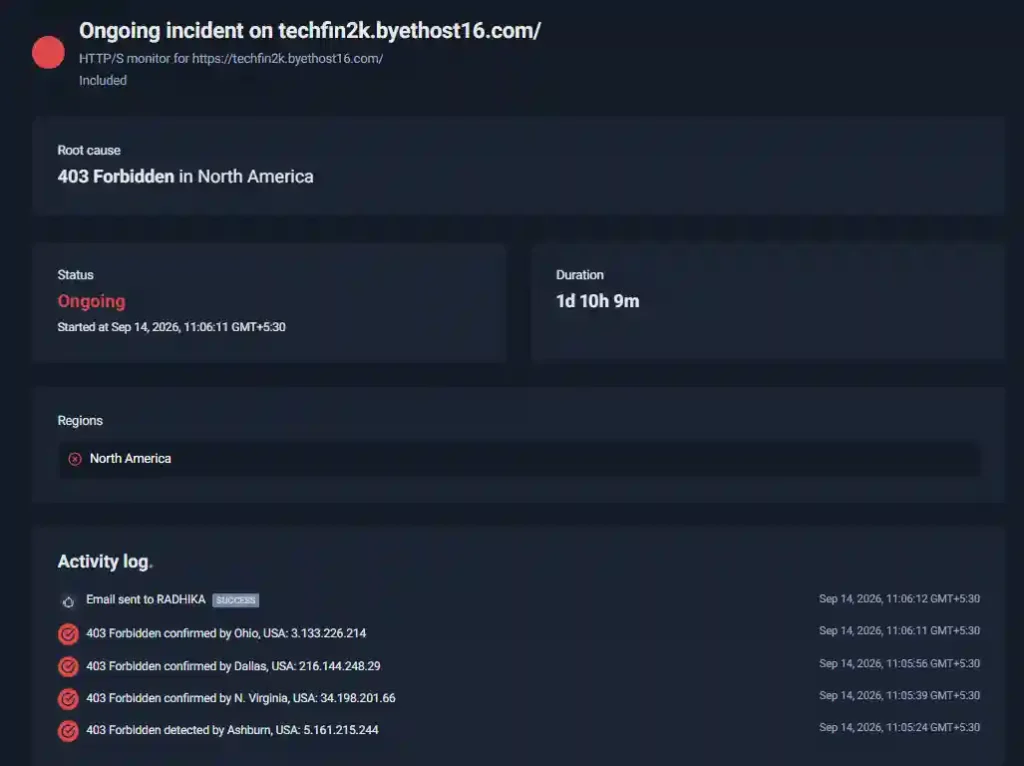
During the test, the monitoring service returned a 403 Forbidden response when attempting to access the website. However, a 403 response indicates that the request was denied rather than confirming that the website was offline. Therefore, I would not treat this result as evidence of downtime or poor uptime.
This was the response observed during my testing, so I am including it as a monitoring observation rather than an uptime failure.
WordPress Content Import and Safe Browsing Warning
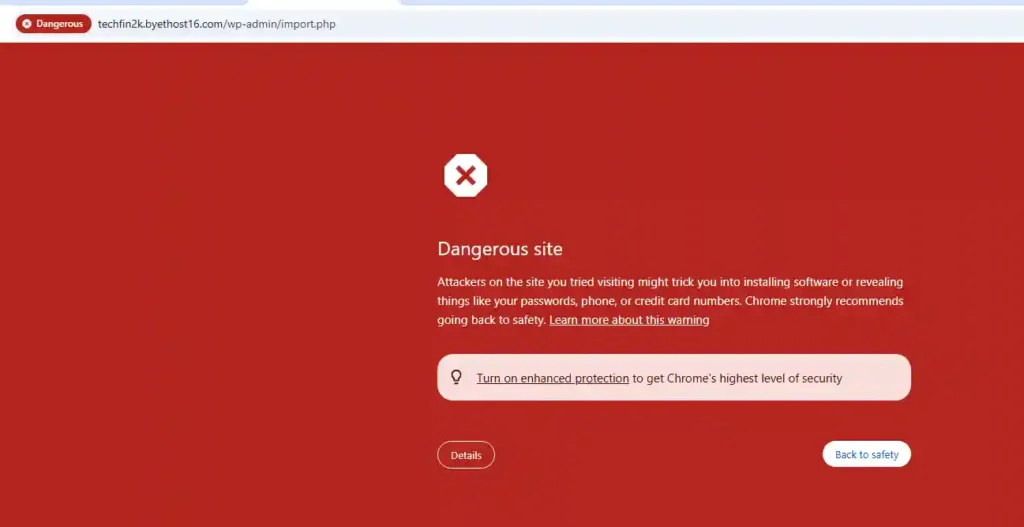
During the content-import process, I encountered a Chrome “Dangerous site” warning while accessing the WordPress administration area of the ByetHost test website.
The warning first appeared on the WordPress /wp-admin/import.php page. However, during further testing, I also encountered similar warnings when accessing other WordPress admin areas, including Media. This means the issue was not limited to a single WordPress import page.
I checked the Google Safe Browsing status for the website, but it showed no available data. Therefore, I could not confirm from the Safe Browsing status page that the website had been identified as malicious.
Despite these warnings, I was eventually able to complete the content import and load the 33 published posts and 223 media files onto the ByetHost test website. The homepage, posts, images, and WordPress dashboard were also accessible during the testing.
Since the warning continued to appear on different WordPress administration pages, I consider this an issue worth noting in the ByetHost review. However, the test results alone do not establish the underlying cause of the Safe Browsing warnings.
If you are concerned about WordPress security, you can also see my WordPress Security Guide for additional security practices.
ByetHost Pros and Cons
Based on my hands-on testing, ByetHost has some useful features for a free WordPress hosting service, but there are also several limitations to consider.
Pros
- Free WordPress hosting with no hosting fee.
- 5 GB disk space on the tested free plan.
- Unlimited bandwidth according to the hosting panel.
- Automatic SSL configuration.
- WordPress installation through Softaculous.
- VistaPanel provides basic hosting management tools.
Cons
- Performance declined as plugins, content, and media were added.
- PHP version changes require an upgrade on the tested free plan.
- Email accounts require an upgrade.
- VistaPanel logged out frequently during testing.
- No direct WordPress admin access option from the hosting panel.
- Free hosting uses a ByetHost-branded subdomain.
- Chrome displayed Dangerous site warnings on multiple WordPress administration pages during testing.
Final Verdict: Is ByetHost Good for Free WordPress Hosting?
Based on my hands-on testing, ByetHost successfully hosted the test WordPress website and provided the essential features needed to manage it through the free hosting environment.
The testing also revealed several limitations. Performance declined as the website became more complex, while some hosting features were restricted on the free plan. I also encountered frequent VistaPanel logouts and repeated Chrome Safe Browsing warnings on different WordPress administration pages during testing.
Overall, ByetHost offers a functional free WordPress hosting environment, but the limitations and issues observed during my testing are important factors to consider before using it for a content-rich WordPress website.
If you’re also considering another free hosting option, see my InfinityFree review, where I tested a WordPress website using the same three-stage approach.
Frequently Asked Questions About ByetHost
Is ByetHost free hosting?
Yes. ByetHost offers a free hosting plan that can be used to host a website without paying for hosting. The free plan I tested included WordPress support and access to VistaPanel for hosting management.
Can I install WordPress on ByetHost?
Yes. I successfully installed WordPress on the ByetHost free hosting account using Softaculous. The WordPress dashboard and website were accessible after installation.
Does ByetHost provide free SSL?
Yes. During my testing, SSL was configured automatically, so I did not need to perform a manual SSL installation.
Does ByetHost provide free email accounts?
Not on the free account I tested. The Email Accounts option in VistaPanel prompted for an upgrade.
Can I change the PHP version on ByetHost free hosting?
The PHP version option was available in the control panel, but attempting to change the PHP version prompted for an upgrade during my testing.
Does ByetHost provide a free subdomain?
Yes. The free hosting account provides a ByetHost-branded subdomain, which can be used instead of connecting an independent domain.
How much storage does ByetHost free hosting provide?
The VistaPanel resource information for my tested account showed a 5 GB disk quota.
Is ByetHost good for WordPress?
ByetHost can host WordPress successfully, but its performance depends on the website workload. In my hands-on testing, performance declined as I added plugins, posts, media, and homepage content. Therefore, the results should be considered alongside the specific limitations documented in this review.
Does ByetHost have a WordPress management option in the hosting panel?
No direct WordPress admin access option was available from the ByetHost hosting panel during my testing. I accessed the WordPress dashboard separately through the site’s /wp-admin URL.
Is ByetHost suitable for a content-rich WordPress website?
It is technically possible to run a content-rich WordPress website on ByetHost, and my test successfully loaded 33 published posts and 223 media files. However, the performance results declined as the workload increased, so this should be considered when evaluating the free hosting environment.
Enjoying our content?
Make TechFin2K a preferred source on Google to see more of our content when it is relevant to you.
