
Could a blogger build a custom landing page without touching code or changing the whole site? A WordPress page builder plugin can help, but the right choice depends on the work ahead.
Options range from free tools to paid builders, and each suits different sites and workflows. Your design needs, budget, and comfort with editing all matter. A long feature list does not guarantee a good fit for your website.
This comparison looks at ease of use, features, pricing, performance considerations, strengths, limits, and intended users. It can help bloggers, creators, and small teams narrow their choices before they commit.
This article was created as part of my practical testing of SEOWriting.AI. Read my SEOWriting.AI review to learn more about the tool and its content-generation capabilities.
Key Takeaways
- Use the native block editor for standard posts and simple pages.
- Choose a Gutenberg extension when you want more blocks and controls.
- Consider a page builder for custom layouts or whole-site design.
- Check plan limits, integrations, and theme-building features before paying.
- Test a representative page on a safe copy of your site.
A page builder is a visual tool for arranging page content and layouts. The next section explains what that means in practice.
What Is a WordPress Page Builder Plugin?
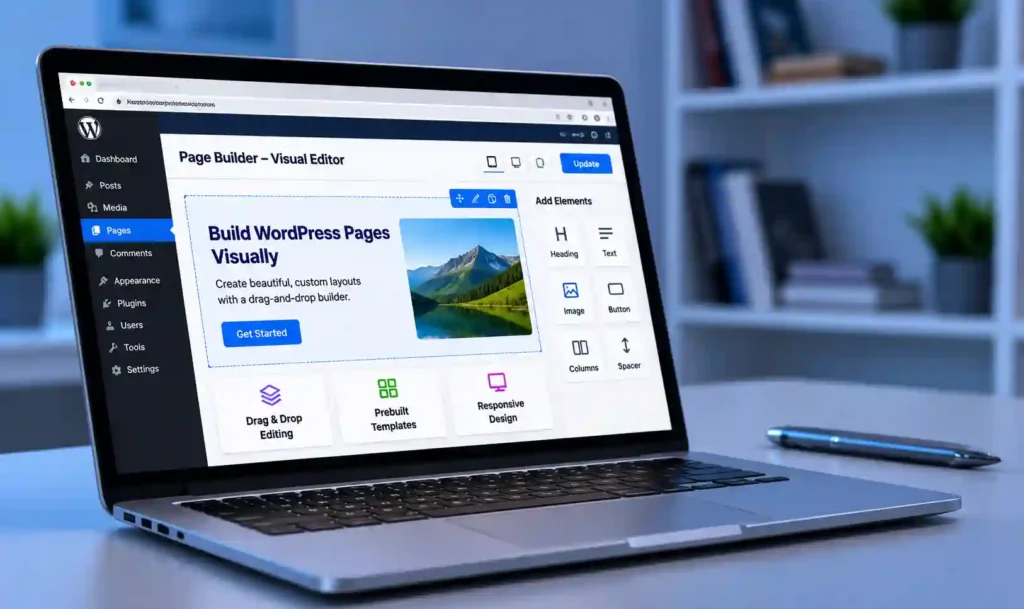
A WordPress page builder lets you create and edit page layouts through a visual interface, often with drag-and-drop controls. You can arrange columns, spacing, text, images, and other elements without writing code for common layouts.
That approach makes it easier to shape a WordPress page around a specific goal, such as a service overview or a sales page. Many page builders also include templates, so you can start with a layout and change its content and design.
Some tools offer theme-building features as well. These can help you design headers, footers, and templates for posts, archives, or products. The range varies by product and plan.
A Gutenberg extension is a plugin that adds blocks or controls to WordPress’s native block editor without replacing it. A page builder, by contrast, may provide its own visual editing interface.
The term can cover different tools, from simple layout controls to builders for entire site templates. For a broader introduction to website-building choices, see this guide to website builders for first-time site owners. That distinction leads to a practical question: how do these tools compare with the editor already included in WordPress?
Page Builders vs. Gutenberg and Block Extensions
A blogger can lay out a standard post with the WordPress block editor, then need more control for a custom sales page. The best WordPress editor plugin depends on the pages you need to make, not on one editing style being right for everyone.
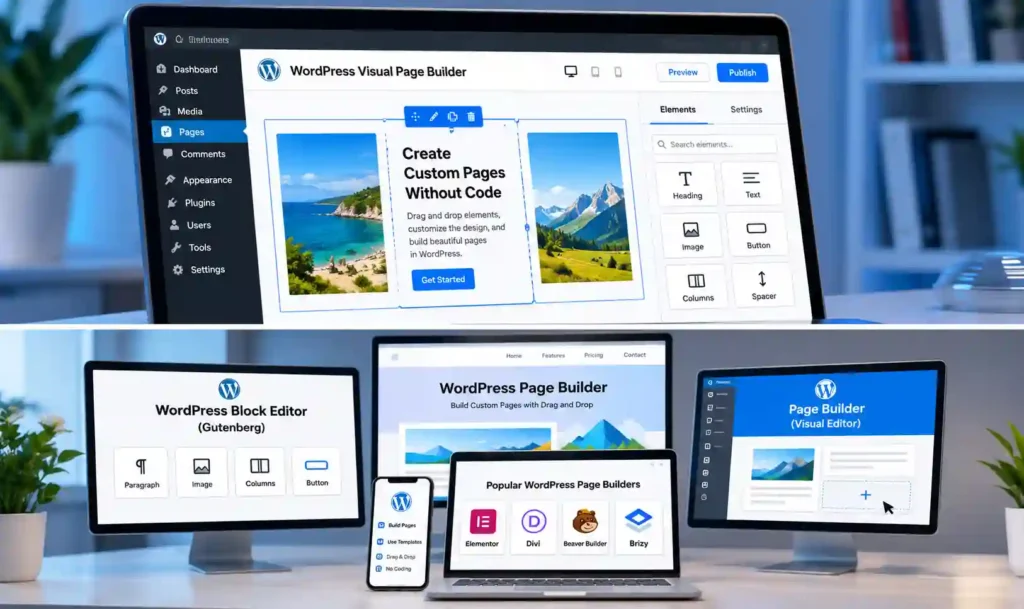
The WordPress block editor is the built-in writing and layout tool. It uses blocks for items such as headings, images, and columns. A Gutenberg extension adds blocks or controls to that editor, while a full page builder supplies a separate visual design workflow.
Which WordPress editor plugin fits a simple site?
A simple blog often needs only the native editor. It handles common posts and pages without adding another plugin or learning another interface. For many users, that is enough.
Spectra and Kadence Blocks are Gutenberg extensions, not equivalent full page builders. They add blocks and design controls within the native editor. This can suit users who want extra layout options while keeping their work in the same editing system.
How do WordPress editors differ from full page builders?
WordPress editors differ in how much they change the editing process. The native editor arranges content in blocks. Extensions add more blocks or controls. Full page builders often offer their own interface and may control more parts of a page or theme.
| Approach | Layout control | Whole-site design | Suitable use case |
|---|---|---|---|
| Native block editor | Blocks for standard content | Limited to theme options | Blog posts and simple pages |
| Gutenberg extensions | Added blocks and style controls | Usually works within editor limits | Extra layouts without a separate builder |
| Full page builders | Visual control over custom sections | Some include theme templates | Landing pages or wider redesigns |
When does a full visual builder make sense?
A full visual builder can make sense when a basic page layout cannot support your design. You might need custom landing pages, reusable sections, or templates for headers and archives.
It can also add a separate workflow to learn and maintain. The right choice depends on how often you need those extra elements. That distinction makes it easier to compare specific tools using practical criteria.
What to Compare Before Choosing a Builder
Choose a tool based on the work you need to do, such as making a few custom blog pages or redesigning headers and archives. Start with the pages and templates you need, then check whether the tool supports them on your budget.
Look at the interface before you focus on the feature list. A clear editor can save time, while a complex one may slow down routine changes. Templates can help you begin, but check whether you can adapt them to your site.
Check which parts of the site you need to design
Check responsive controls for phone and tablet layouts. If you sell products, confirm WooCommerce support and the features included in your plan. Review other integrations, such as forms or email tools, if your workflow relies on them.
Theme-building matters when you want custom headers, footers, or archive layouts. Also check support options, theme compatibility, and whether the tool works with plugins you already use. The term WordPress page builder covers different types of tools, and their features can vary significantly from one product to another.
- List the pages or templates you want to build.
- Name the integrations your site needs.
- Assess your comfort with code and new editing tools.
- Set your budget and check site limits.
- Plan how to test changes safely before launch.
Look beyond the editor when judging ease and performance
Page speed depends on more than the builder. Large images, animation effects, hosting, caching, and add-ons can all affect a site. A complex layout may also take more time to maintain, even when the editor feels easy at first.
For a site hosted on Hostinger, its WordPress setup and speed guide explains how hosting settings and caching affect performance. Compare these practical needs rather than treating a longer features list as proof of a better fit. The options below use consistent details to make that comparison easier.
WordPress Page Builders Compared at a Glance
No single option leads on every buying criterion. This table offers a quick orientation, not a performance ranking, and shows listed starting plans and license scope.
Free versions differ in scope, while paid plans set different site limits. A starting price does not show every feature or renewal condition, so read the plan terms that match your needs.
| Builder | Free Option | Starting Paid Plan | License / Site Scope |
|---|---|---|---|
| SeedProd | Yes | Basic – $39.50/year | 1 website |
| Elementor | Yes | Essential – $60/year | 1 website |
| Bricks | No | Starter – $79/year | 1 website |
| Divi | No | Annual – $89/year | Unlimited websites; $249 lifetime option |
| Beaver Builder | Yes, Lite | Starter – $89/year | 1 website |
| Breakdance | Yes | Pro – $99.99/year | 1 website |
| Brizy | Yes | Personal – $69/year | 1 website |
| Thrive Architect | No separate free option confirmed | Thrive Suite – $299/year | Up to 5 websites |
| SiteOrigin | Yes | Personal – $29/year | 1 website |
Note: Thrive Suite pricing is for the complete suite, which includes Thrive Architect, rather than a standalone plugin license.
Prices and license terms can shape the total cost, especially if you manage several sites. The profiles that follow explain the trade-offs behind each builder’s place in the table.
SeedProd: A Focused Choice for Landing Pages
A creator who needs an opt-in or launch page, but not a full redesign, may find SeedProd’s focused workflow useful. Its visual drag-and-drop editor centers on landing pages and related launch modes.
SeedProd offers landing-page templates for sales, opt-in, webinar, coming soon, and maintenance pages. You can add content modules and adjust the design without building the whole site from scratch. Its SeedProd page and theme builder also describes responsive designs and email-marketing integrations.
The free version provides basic landing-page features. SeedProd’s paid plans start with Basic at $39.50 per year for one website. Plus costs $99.50 per year for three websites, Pro costs $199.50 per year for five websites, and Elite costs $239.60 per year for up to 100 websites. The Plus plan adds website and theme-building capabilities, while Elite includes WooCommerce and Easy Digital Downloads support.
These are promotional introductory prices. Regular annual prices are higher, and renewals are charged at the regular rates, so check the current pricing terms before purchasing.
The differences between these plans matter when choosing SeedProd. Plus is worth considering if you want to build complete website layouts and customize your theme. Elite is more suitable if you need its e-commerce integrations or manage a larger number of websites. The focused interface can suit someone making sales, opt-in, or launch pages, but it may be less suitable if your main requirement is a broad design ecosystem.
- Check which landing-page types your project needs.
- Confirm whether WooCommerce blocks are required.
- Compare template access across the plans.
- Check how many sites the selected plan covers.
A small project may need only a free landing page, while a store can need paid features. If you want a broader design ecosystem, compare SeedProd with an all-purpose option next.
Elementor: A Flexible All-Around Option
A small business can add a custom services section without editing code by using Elementor’s visual editor. Its broad widget and template ecosystem gives users many ways to shape a page.
The free version offers a starting point for creating common page layouts. Elementor’s Essential plan costs $60 per year for one website and includes additional capabilities such as Theme Builder. Higher-tier plans provide access to more advanced features, including Popup Builder and additional marketing tools. Responsive controls let you adjust how page elements appear on smaller screens. Check Elementor’s pricing page for the latest plan prices and feature limits.
Elementor can suit beginners, bloggers, freelancers, and small businesses that want visual control. Support resources and templates can help new users learn the editor. Users who build many custom pages may also value its range of available elements.
Flexibility brings choices to manage. Add-ons and complex effects can make a site harder to maintain, so use only the features your pages need. A large library does not mean every widget belongs on every page.
Developers who want direct control over markup may prefer a more technical tool. Elementor offers a visual way to build, but its editor can add another layer between the user and the page code. Readers who put technical control first can compare it with Bricks.
Bricks: Visual Control for Performance-Minded Users
A developer can create a reusable layout in Bricks that pulls changing post or product content into each page. Its theme-building workflow combines visual design with controls for dynamic content.
Bricks includes query-loop capability, which can display sets of posts or products based on chosen rules. Responsive controls and WooCommerce design features let users shape templates for different screen sizes and store pages.
Bricks does not offer a separate free version. Its Starter plan costs $79 per year for one website, making it a paid option for users who need its advanced design and theme-building capabilities.
Those tools can suit developers and agencies that want to build repeatable designs. Dynamic content helps when a site has many similar entries. The builder lets a user create a layout once, then apply it to changing content.
That workflow can take more time to learn than a simple landing-page editor. A first-time user making one page may not need query loops or theme templates. Bricks is a technical choice, not a required step for every WordPress site.
Oxygen is another performance-focused, developer-oriented tool, though it is not one of the reviewed picks here. Both tools appeal to users who want deeper control, while Divi takes a more design-led approach with a bundled theme experience.
Divi: Visual Design With a Lifetime License Option
A small agency may consider whether an all-in-one theme and visual builder can simplify its client workflow. Divi combines a theme, a visual builder, and broad design controls in one product family.
Divi offers an annual plan at $89 per year and a Lifetime plan for a one-time payment of $249. Both plans include the Divi Theme and Builder with unlimited website usage. For users who need additional services such as Divi AI, Divi Cloud, and VIP support, Divi Pro is available for $277 per year.
Divi is available as both a theme and a builder. Its lifetime license may appeal to people maintaining multiple websites, while the annual license offers another way to pay. Weigh the license terms against how many sites you plan to manage.
The wide design toolkit can create a feature-dense interface. New users may need time to find the controls they use most. Builder-specific layouts can also need attention if you switch tools later.
- Pro: The theme and builder come in one product family.
- Pro: Design tools include responsive controls and A/B testing.
- Con: The interface can take time to learn.
- Con: Switching may require work on builder-specific layouts.
That mix can suit an agency that values broad design tools across sites. Readers who put long-term maintenance and a more restrained workflow first may prefer to consider Beaver Builder.
Beaver Builder: A Steady Option for Client Sites
A freelancer making a page change on a client site may want a clear view of the finished layout. Beaver Builder uses real-time front-end editing, so changes appear in the page view as you work.
Its content modules and templates support common page layouts. The Lite version offers a free way to try the editor. Paid licenses cover unlimited sites, which can matter to a freelancer or agency looking after several client websites.
Beaver Builder offers four paid plans. Starter costs $89 per year for one website, Plus costs $179 for three websites, Professional costs $299 for up to 50 websites, and Unlimited costs $546 per year with unlimited website usage.
All four plans include the Page Builder Plugin, Beaver Builder Theme, Beaver Themer, and Loop Builder. Beaver Builder AI is included in Plus and higher plans, while Professional and Unlimited offer multisite support. Unlimited also includes white labeling and priority email support. Choose a plan based on the number of websites you manage and the features you need.
Beaver Themer adds a route to designing headers, footers, and archive layouts. That option lets a site owner start with page editing and add broader controls when needed. Check which route fits your planned work and budget.
A simpler workflow may appeal to maintainers who value clear editing over a larger set of tools. The trade-off is that some users may want more built-in design features. Theme and plugin compatibility can vary, so assess the setup on each site.
For a freelancer maintaining several client websites, the unlimited-site licenses may be useful. Readers who want to explore a modern interface before paying can also try a newer option with a free version.
Breakdance: A Feature-Rich Free Starting Point
A small business owner building a store page can test Breakdance’s free editor before committing to a paid plan. The free version includes 80 elements and allows use on unlimited sites.
Its drag-and-drop interface offers a broad set of page elements. Breakdance also includes a theme-building workflow and WooCommerce tools for store pages. Trying a real project can show whether its controls suit your daily editing needs.
Breakdance offers a free version, while its Pro plan costs $99.99 per year for one website or $199.99 per year for unlimited websites. The Pro plans are suitable for users who need additional features beyond the free version, with the unlimited option being particularly useful for freelancers and agencies managing multiple websites.
Before upgrading, check whether the integrations and extensions you rely on are available. A free plan can show how the interface feels, but it does not guarantee every part of your existing workflow will fit.
Breakdance sits between beginner-focused tools and developer-focused workflows. It gives users many design controls without requiring them to start with a code-centered process. A newer interface may appeal to people who want more than basic blocks.
Testing the free editor with a real store page can reveal which features you would actually use. Readers who want an editing experience aimed at newcomers may also consider Brizy.
Brizy: A Simple Interface for New Users
A first-time site owner may prefer to assemble a page from ready-made sections instead of starting with a blank canvas. Brizy offers a visual editor, templates, and page elements for that kind of workflow.
Its template library contains more than 150 templates. Brizy also offers features such as a popup builder, WooCommerce blocks, and theme-building tools, although availability depends on the selected plan. Ready-made layouts provide a useful starting point, but you still need to adapt them to your content and website.
Brizy offers a free version with limited features and four paid plans. Personal costs $69 per year for one website, Freelancer costs $119 per year for up to 25 websites, Agency costs $239 per year for up to 50 websites, and White Label costs $359 per year for up to 100 websites. The higher plans are designed for freelancers and agencies managing multiple websites, while White Label is intended for users who want to offer a branded website-building experience.
- Consider whether the interface feels simple during a trial.
- Check if reusable layouts suit your usual pages.
- Confirm that the popup and marketing tools meet your needs.
- Think about whether advanced work may need more control.
Brizy can suit newcomers who want visual controls and ready-made sections. Some advanced users may want more detailed control over their layouts. Templates provide a starting point, not a finished design that fits every site.
Its mix of templates and marketing tools can help with a first visual workflow. If your main goal is conversion-focused blog and landing-page content, Thrive Architect takes a more specific approach.
Thrive Architect: Tools for Conversion-Focused Content
A blogger preparing a comparison post may need clear, reusable decision-making elements. Thrive Architect includes content blocks such as comparison tables and pros-and-cons elements.
It also offers landing-page templates and design elements for marketing content. The Thrive Architect product details describe forms, testimonials, calls to action, and countdown timers among its available elements.
Thrive Architect is also available as part of Thrive Suite, which costs $149 per quarter or $299 per year. The annual plan supports installation on up to five websites and includes access to other Thrive Themes tools in addition to Thrive Architect. If you need multiple conversion-focused tools for your websites, the Suite may offer better value than purchasing individual products.
That distinction matters if you want to test different versions of a page. The standalone tool focuses on content and landing-page design, while the suite groups related tools together.
Thrive Architect can suit bloggers and creators who publish comparison posts, offers, or lead pages. Its focused elements may be less useful if you need a broad tool for every part of a site. Consider the work you publish most often.
The tool’s conversion focus supports specific content workflows, but it cannot promise more sales or sign-ups. Readers who value simple layouts and a free basic option can turn to SiteOrigin Page Builder.
SiteOrigin Page Builder: A Basic Free Option
A site owner on a tight budget can use SiteOrigin Page Builder to arrange a few simple information pages. Its free core plugin uses rows and widgets to build page layouts.
Users can place widgets within rows and adjust the layout structure. Prebuilt layouts offer a starting point for common page types. The editing approach does not provide the same live front-end view as many visual builders.
The free core plugin is suitable for basic page layouts. SiteOrigin also offers three paid plans: Personal at $29 per year for one website, Business at $49 per year for up to five websites, and Developer at $99 per year for unlimited websites. These plans provide additional features and support for users who need more than the free plugin offers. Choose a plan based on the number of websites you manage and the features you require.
The trade-off is an editing process that may feel less intuitive than a live visual interface. Users who prefer to see each change on the front of the site may find the workflow dated. A row-and-widget layout may still work for pages with simple needs.
SiteOrigin is worth considering when low cost and basic layouts matter more than a modern editor. It may not suit a creator who wants rich visual controls or frequent design changes.
That makes it a narrow choice rather than a fit for every site. The profiles point to several paths, so match the shortlist to your audience and project needs.
Which Builder Fits Your Site and Budget?
A straightforward blog and a business site with custom landing or store pages need different tools. Choose the lightest option that can handle the pages and integrations you actually use.
A free WordPress page builder plugin can be adequate for a small project if it covers the needed pages and integrations. Check paid-only features and site limits before building your workflow around a free plan.
Beginners and bloggers
Brizy can suit a beginner who wants visual editing and ready-made layouts, but the best choice depends on how its interface feels to you. Elementor offers a wider range of design options for users who want to grow beyond basic pages.
Thrive Architect fits bloggers who make comparison posts, lead pages, or other content with conversion elements. It has a more focused role than a full site-design toolkit. A writer who mostly publishes standard posts may not need that extra layer.
Business owners and small teams
SeedProd suits a team focused on landing pages, launches, or opt-in forms. Breakdance gives a business a free way to test page elements and store layouts. Divi can suit teams that want broad visual design tools and a theme-builder workflow.
Beaver Builder may fit freelancers or agencies maintaining several sites. Bricks can suit teams with technical comfort that want dynamic layouts and more direct design control. Consider the people who will make routine edits, not only the person who builds the first page.
| Audience | Shortlist | Reason to consider it |
|---|---|---|
| Beginners | Brizy, Elementor | Visual editing and room to learn |
| Bloggers | Elementor, Thrive Architect | Custom posts or conversion content |
| Business owners | SeedProd, Breakdance, Divi, Beaver Builder, Bricks | Landing pages, stores, maintenance, or technical control |
There is no single best WordPress page builder plugin for every reader. If you want a direct choice, start with Elementor for broad visual flexibility, SeedProd for focused landing pages, or the native editor for a simple blog.
Those are fit-based choices, not an objective ranking. Before deciding, consider how the tool may affect site speed, compatibility, and any future switch.
How Performance, Compatibility, and Switching Affect Your Choice
A page can look polished and still need speed checks on real devices and the actual site. No WordPress page builder is universally fastest, because measured results depend on the full site setup.
Images, effects, hosting, caching, and other plugins all affect load time. Builder-generated markup, the code structure a tool adds to a page, can also shape what the browser must process.
Which WordPress page builder is fastest?
There is no universal fastest builder for every website. A lightweight theme and optimized images can help, while large assets and many effects can add load. Hosting quality, caching, and other plugins also affect measured results.
| Factor | What can add load | Practical check |
|---|---|---|
| Images | Large files and unneeded images | Resize and compress key page images |
| Effects and add-ons | Animations or unused features | Disable extras and compare the page |
| Hosting and caching | Weak hosting or disabled cache | Check host settings and cache behavior |
| Builder-generated markup | Many nested elements or scripts | Test a real page on phone and desktop |
For a practical change, test key pages before and after editing. A guide to backing up and restoring a WordPress site in Hostinger covers safe recovery before major changes.
What to check before changing builders
Switching builders can affect layouts, theme templates, and shortcodes. Some builder-specific layouts or shortcodes may need rebuilding after deactivation. Use a staging copy to spot problems before they reach your live site.
- Back up the site files and database.
- Test the new builder on a staging site.
- Inspect representative posts, pages, and templates.
- Check theme, plugin, and form integrations.
- Confirm what happens to builder-specific layouts or shortcodes after deactivation.
The right choice is the one that meets your site’s needs and that you can maintain. A careful test can reveal both the editing experience and the work involved in keeping the design healthy.
Conclusion
The best fit depends on your site’s design needs, budget, and comfort with the editing workflow. A simple blog may need only the native editor, while custom landing pages can call for a dedicated builder.
Before committing, shortlist one or two options and build a representative page on a safe test site. Check that the editor feels clear and that the features you need work as expected.
That test page gives you a practical basis for choosing. Try the workflow with a real layout before making it part of your site.
FAQ
Is the native WordPress block editor enough for a blog?
Yes, the native WordPress block editor is often enough for standard blog posts and simple pages. It includes blocks for common content, such as headings, images, and columns. You may want more tools when you need custom landing pages, detailed visual controls, or broader template design. Try the built-in editor first if your layouts stay simple.
Can a free page builder support a small business site?
Yes, a free page builder can support a small business site if its free features cover the pages and integrations you need. Check whether forms, store tools, and templates are included or limited to paid plans. Review the site limit as well. Build a test page before relying on a free version for a key business workflow.
Does a page builder affect Core Web Vitals?
A page builder can contribute to Core Web Vitals, but it is only one part of a site’s performance. Hosting, image size, caching, effects, and other plugins also affect measured results. Test actual pages on phones and computers instead of judging from a blank demo. Compare the same page before and after changes for a more useful check.
Can I use a page builder with my existing WordPress theme?
Often, yes, but theme-builder features and compatibility vary by tool and theme. A page builder may handle page content while the theme controls headers or other templates. Test important pages, forms, and plugins on a staging site first. That check can reveal layout conflicts before you apply a change to the live website.
How much should I budget for a premium builder?
Based on the plans compared in this article, listed annual starting prices range from $29 for SiteOrigin Personal to $99.99 for Breakdance Pro. Higher-tier plans cost more depending on website limits and included features. For example, Beaver Builder’s Unlimited plan costs $546 per year. Divi also offers a $249 lifetime license. Compare the features, renewal terms, and website limits before choosing a plan.
Can I build WordPress pages without writing code?
Yes, most visual builders support drag-and-drop editing for common page layouts. You can place text, images, columns, and other elements through an interface instead of writing code. Custom behavior or advanced styling may still call for code, especially when you need a feature the builder does not offer. Test your planned layout before choosing a tool.
Enjoying our content?
Make TechFin2K a preferred source on Google to see more of our content when it is relevant to you.
