
Last Updated on September 17, 2026 by RADHIKA VATLAM
Introduction
Google has rolled out a Preferred Sources feature that lets searchers choose the websites they want to see more frequently across relevant Google Search experiences. For publishers and website owners, it provides another way to build stronger connections with regular readers.
Google also allows publishers to place an interactive “Add to Preferred Sources” button directly on their websites. When a reader clicks the button and confirms their choice, Google adds the website to their Preferred Sources and returns them to the page they were viewing.
If you run a WordPress site, you do not need to manually edit every post to add this button. By using a lightweight PHP snippet alongside the free WPCode plugin, you can automatically add the button across your WordPress content.
I implemented this on TechFin2K and tested the button on both desktop and mobile. It worked seamlessly—letting me add the site as a Preferred Source and returning me straight back to the post.
Below, we’ll look at how Google Preferred Sources works, clarify whether it affects search rankings, and walk through the steps to add the button to your WordPress website.
What Is Google Preferred Sources?
Google Preferred Sources is a personalization feature that lets users choose websites they want to see more often in relevant Google Search experiences. For users who select your website, your content may appear more frequently when it is fresh and relevant, including in Top Stories, AI Overviews, and AI Mode.
Does Google Preferred Sources Affect Search Rankings?
Not in the traditional sense. Google Preferred Sources is a personalization feature, not a general ranking boost for your website.
Selecting a site as a Preferred Source can help its content appear more prominently for that particular user in relevant Google Search experiences, but it does not improve rankings for everyone.
How to Add Google’s Preferred Sources Button to WordPress
Google’s official implementation requires loading its Preferred Sources JavaScript library and placing a button container where you want the button to appear.
Instead of manually adding this code to every WordPress post, you can use a PHP snippet to automatically display the button below your content. For this method, I used the free version of the WPCode plugin.
What You’ll Need
Before getting started, you’ll need:
- A WordPress website
- The free WPCode plugin
Note: For the Preferred Sources button to work, your website should be available in Google’s Source Preferences tool. Google says only domain-level and subdomain-level sites are eligible to appear in the tool.
Step 1: Install and Activate WPCode
To add the Preferred Sources button automatically, we’ll use WPCode Lite, a free WordPress plugin that lets you safely add custom code without editing your theme files.
If you already have WPCode installed, you can skip this step.
- Go to your WordPress dashboard.
- Navigate to Plugins → Add New Plugin.
- Search for WPCode.
- Install and activate the plugin.
Once activated, you’ll find the Code Snippets section in your WordPress dashboard.

Step 2: Create a New PHP Snippet
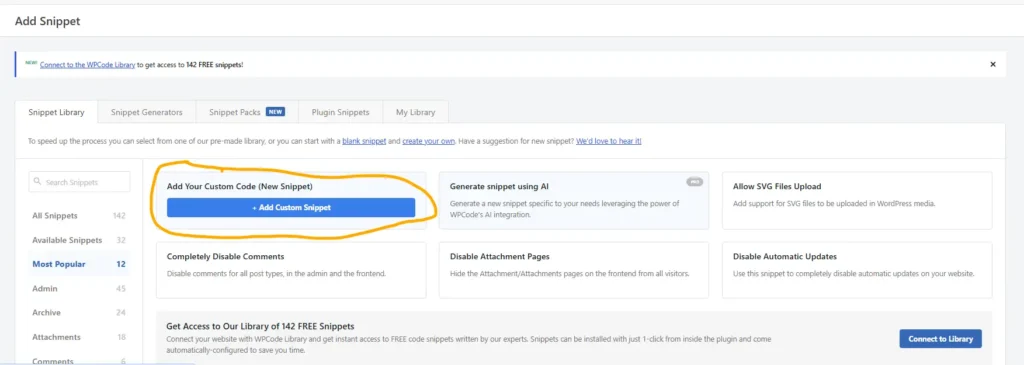
After activating WPCode, go to Code Snippets → Add Snippet from your WordPress dashboard.
This opens the WPCode Snippet Library, where you will see ready-made snippets for different WordPress functions, along with the option to create your own custom code.
At the top of the page, you will find:
Add Your Custom Code (New Snippet)
Click the + Add Custom Snippet button to create a new snippet from scratch.
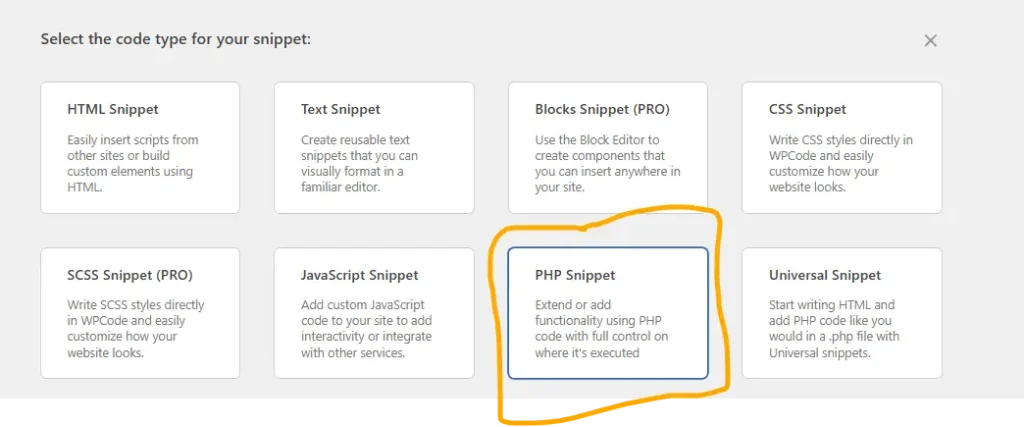
After clicking Add Custom Snippet, WPCode displays a window where you can select the type of code you want to add.
You will see several options, including:
- HTML Snippet
- Text Snippet
- CSS Snippet
- JavaScript Snippet
- PHP Snippet
- Universal Snippet
For this method, select:
PHP Snippet
This allows us to add the PHP code needed to automatically display Google’s Preferred Sources button on the website.
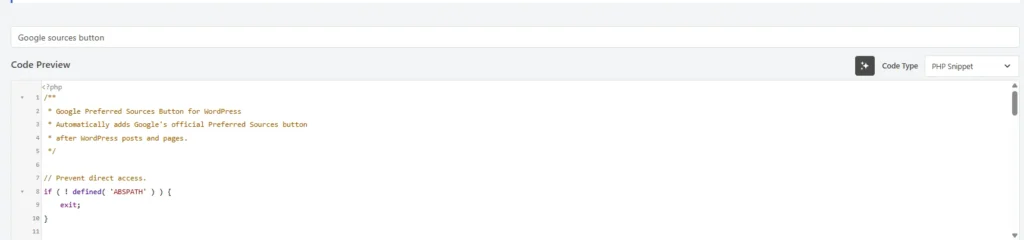
After selecting PHP Snippet, WPCode will open the snippet editor, where we can name the snippet and add the code.
Step 3: Add the Google Preferred Sources PHP Code
After selecting PHP Snippet, WPCode will open the snippet editor.
Enter a name for your snippet, such as:
Google Preferred Sources Button
Then paste the following code into the Code Preview area:
<?php
/**
 * Google Preferred Sources Button for WordPress
 * Automatically adds Google's official Preferred Sources button
 * after WordPress posts and pages.
 */

// Prevent direct access.
if ( ! defined( 'ABSPATH' ) ) {
    exit;
}


/**
 * Load Google's Preferred Sources JavaScript in the page head.
 */
function techfin2k_preferred_sources_script() {

    if ( is_singular( array( 'post', 'page' ) ) ) {
        ?>
        <script async src="https://news.google.com/swg/js/v1/publisher.js"></script>
        <?php
    }

}
add_action( 'wp_head', 'techfin2k_preferred_sources_script', 1 );


/**
 * Add the Preferred Sources section after post and page content.
 */
function techfin2k_add_preferred_sources_button( $content ) {

    // Only add to the main content on individual posts and pages.
    if (
        is_singular( array( 'post', 'page' ) ) &&
        in_the_loop() &&
        is_main_query()
    ) {

        $preferred_sources_button = '
            <div class="techfin2k-preferred-source" style="text-align: center; margin: 40px 0 30px; padding: 25px 15px;">

                <p style="font-size: 20px; font-weight: 600; margin-bottom: 10px;">
                    Enjoying our content?
                </p>

                <p style="margin-bottom: 20px;">
                    Make TechFin2K a preferred source on Google to see more of our content when it is relevant to you.
                </p>

                <div style="display: flex; justify-content: center;">
                    <div google-add-preferred-source-btn data-theme="light"></div>
                </div>

            </div>
        ';

        $content .= $preferred_sources_button;

    }

    return $content;

}
add_filter( 'the_content', 'techfin2k_add_preferred_sources_button', 999 );
Important: Before activating the snippet, replace TechFin2K in the code with your own website name. You can also customize the text displayed above the Google button. Changing this text will not affect how Google’s Preferred Sources button works.
This snippet does two things:
- Loads Google’s Preferred Sources JavaScript library.
- Automatically adds the message and Preferred Sources button after individual WordPress posts and pages.
Step 4: Configure and Activate the Snippet
After pasting the code, scroll down to the Insertion section and configure the snippet as follows:
Insert Method
Select:
Auto Insert
Location
Choose:
Run Everywhere
Device Type
Leave the default option:
Any device type
This ensures the snippet can run for visitors using both desktop and mobile devices.
Smart Conditional Logic
Leave Enable Logic turned off.
You do not need to add any conditions because the PHP code already controls where the Preferred Sources button appears.
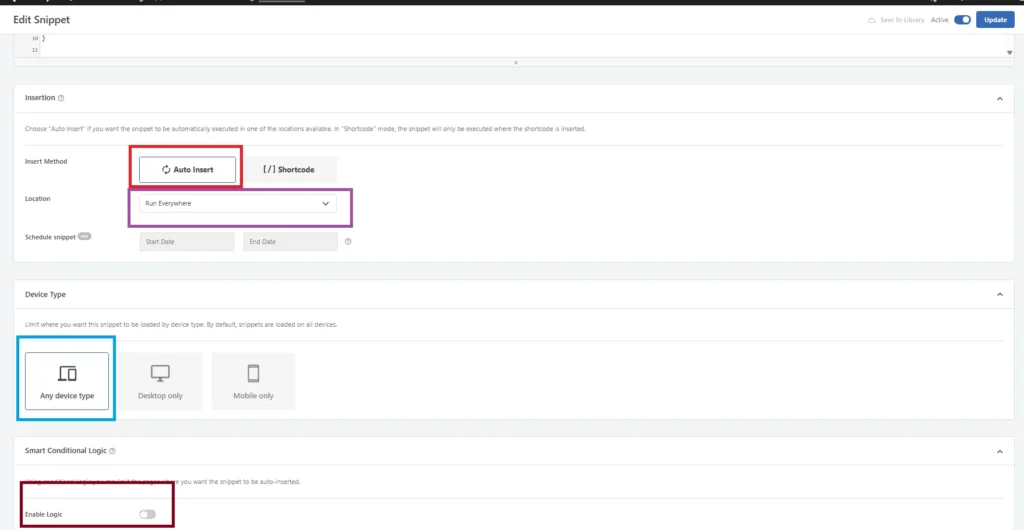
Note: Selecting Run Everywhere does not mean the button will appear on every page of your website. The PHP code controls where the button is displayed—in this case, on individual posts and pages only.
Once you have confirmed these settings, scroll back to the top of the page, switch the snippet from Inactive to Active, and click Update (or Save Snippet, depending on your WPCode version).
Step 5: Clear Your Website Cache
After activating the snippet, the Preferred Sources button may not appear immediately if your website uses caching.
Clear the cache from any caching plugin or service you use, then reload one of your WordPress posts or pages.
For example, during my testing, I cleared the cache in:
- LiteSpeed Cache
- Cloudflare
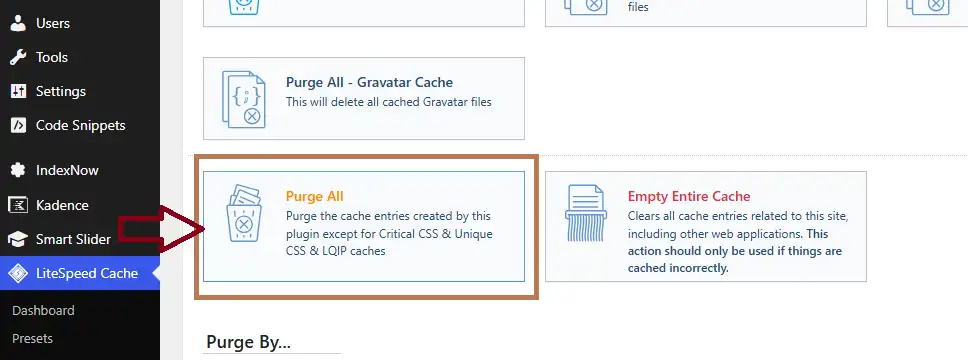
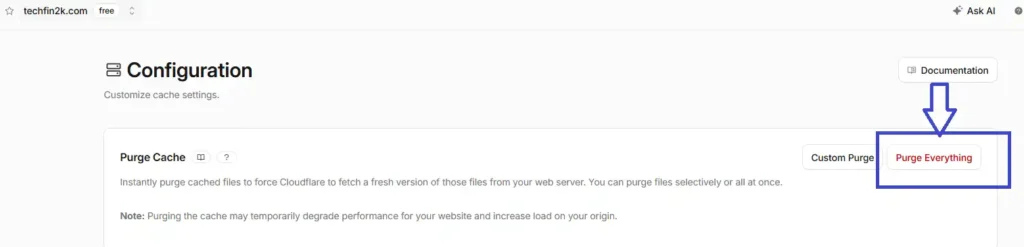
Note: If you use a different caching plugin or CDN, clear its cache as well. An older cached version of the page may prevent the newly added button from appearing immediately.
Step 6: Check the Preferred Sources Button
After clearing your website cache, open a published post or page and scroll below the content.
You should see the custom message and Google’s Add to Preferred Sources button.
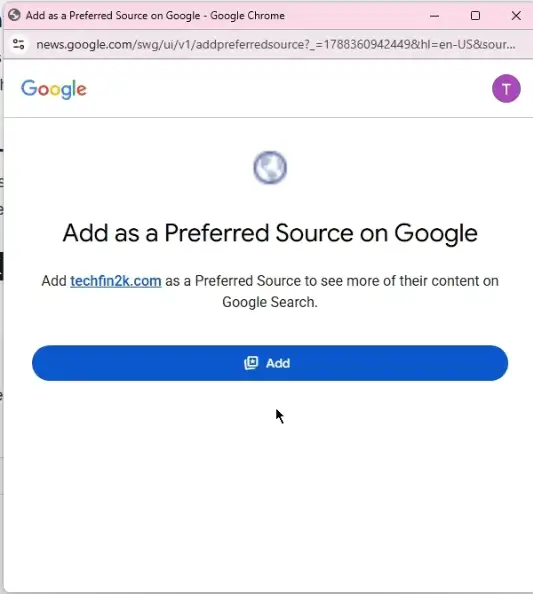
Click the button to open Google’s Add as a Preferred Source page. From there, click the Add button to add the website as a Preferred Source.
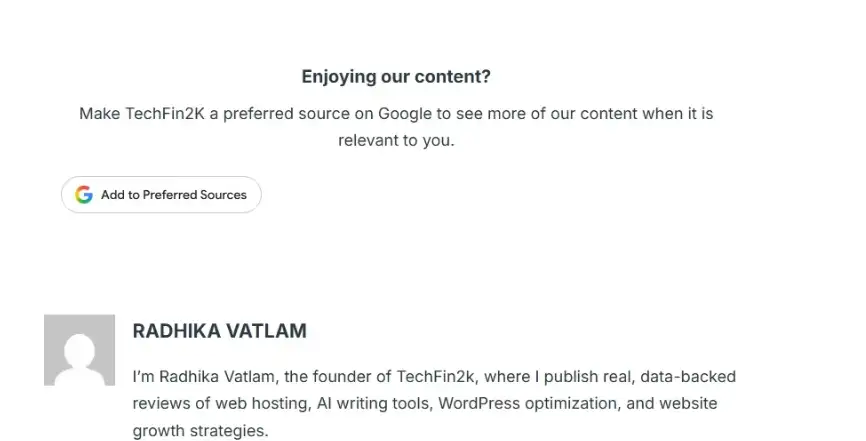
After the website is successfully added, Google displays a confirmation message and returns you to the original article.
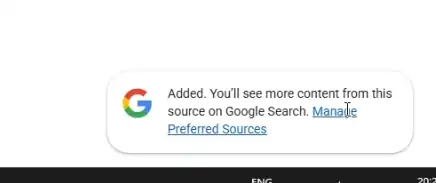
During my testing on TechFin2K, the button worked correctly through the complete process, including adding the website as a Preferred Source and returning to the article.
What If the Preferred Sources Button Does Not Appear?
If the custom text appears but Google’s Preferred Sources button does not, check the page source and search for:
google-add-preferred-source-btnIf this code is present, the PHP snippet is likely working correctly. The issue may be related to caching, browser settings, extensions such as ad blockers, or the current Google account session.
Make sure you are signed in to a Google account when testing the button. Since Preferred Sources are saved to an individual Google account, you need to sign in to add a website as a Preferred Source.
You can also try opening the page in another browser or a private/incognito window. During my testing, I found that the button could behave differently across browser sessions even when the code was present on the page.
Final Thoughts
Adding Google’s Preferred Sources button to your WordPress website gives readers a simple way to select your site as one of their preferred sources on Google.
While it is not a direct ranking factor for general search results, users who choose your website may see more of your content when it is relevant across supported Google Search experiences, including Top Stories, AI Overviews, and AI Mode.
By using WPCode Lite and a lightweight PHP snippet, you can automatically add the button to your WordPress posts and pages without editing your theme files individually.
Have you tried adding the Preferred Sources button to your WordPress site? Let me know in the comments if you run into any issues while setting it up.
Frequently Asked Questions (FAQs)
What are the eligibility requirements for the Preferred Sources button?
Your website must be available in Google’s source preferences tool. Google supports root domains and subdomains, but individual subfolders cannot be added separately.
Does using this PHP snippet slow down my WordPress site?
The snippet is lightweight, and Google’s script loads asynchronously. However, you can run a performance test after implementation if page speed is a concern.
Can I change the text displayed above the button?
Yes. You can replace the website name and customize the message above the button without affecting its functionality.
Can I change where the button appears?
Yes. This code adds the button after the content of posts and pages. The code can be modified if you want to place it elsewhere.
Does adding a site as a Preferred Source guarantee higher rankings?
No. It is not a general ranking boost. Google may show more content from your site to individual users who select it as a Preferred Source when your content is relevant.
Does the Preferred Sources button work on mobile devices?
Yes. I tested this implementation on both desktop and mobile, and the button worked correctly on both.
Enjoying our content?
Make TechFin2K a preferred source on Google to see more of our content when it is relevant to you.

That made adding this code so easy, thank. you. Quick question, I tried typing before to move the button from the bottom to the top of the content. That did not seem to work. Do I need to use a different word or phras?
Thank you! Glad to hear the setup was easy. 😊 Yes, you can move the button to the top.
Near the end of the PHP snippet, find this line:
$content .= $preferred_sources_button;
Replace only this line with:
$content = $preferred_sources_button . $content;
Everything else stays the same. This will move the Preferred Sources section from the bottom to the top of the article.