
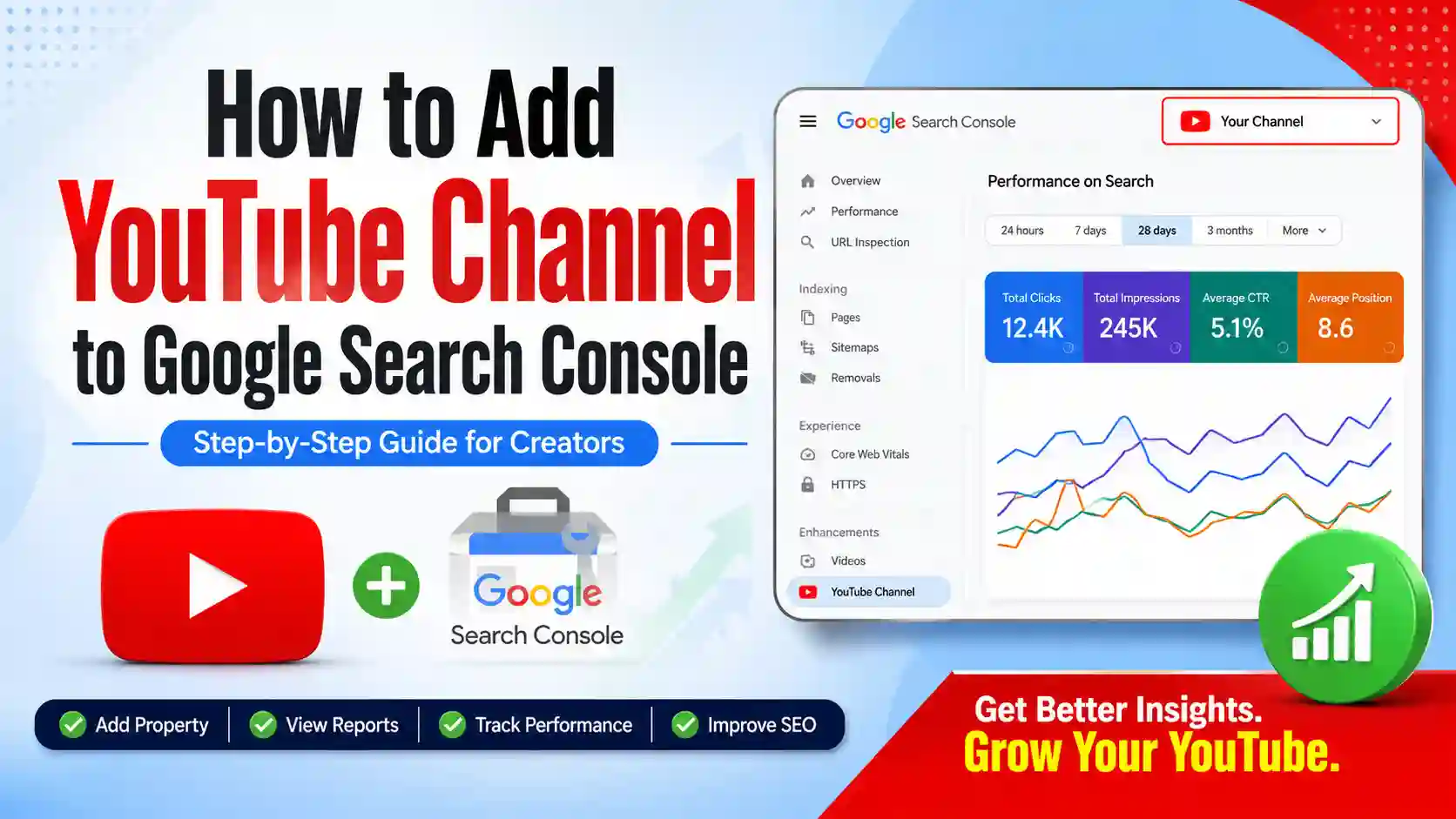
Google Search Console has introduced Platform Properties, allowing creators to add their YouTube channels and monitor how their videos perform in Google Search.
If you’re wondering how to add YouTube Channel to Google Search Console, this step-by-step guide walks you through the entire process.
You’ll also learn how to understand the available reports and the search performance insights that become available after Search Console starts collecting data.
Watch the Complete Video Tutorial
What is the YouTube Platform Property in Google Search Console?
The YouTube Platform Property is a new feature in Google Search Console that allows you to add your YouTube channel and monitor how your videos perform in Google Search.
Once your YouTube channel is added and Search Console starts collecting data, you’ll be able to view several search performance reports directly within your Search Console account. These reports help you understand how people find your YouTube videos through Google Search and how your content is performing over time.
Some of the reports available include:
- Google Search Clicks – The number of times users clicked your YouTube videos from Google Search results.
- Search Impressions – The number of times your YouTube videos appeared in Google Search results.
- Search Queries – The keywords and search terms people used that displayed your videos in Google Search.
- Average Click-Through Rate (CTR) – The percentage of users who clicked your video after seeing it in Google Search results.
- Average Position – The average ranking position of your YouTube videos in Google Search results.
- Countries – The countries where your Google Search impressions and clicks are coming from.
- Individual Video Performance – Performance data for each YouTube video that appears in Google Search.
How Does It Compare to YouTube Studio Analytics?
It’s important to understand that this feature is different from YouTube Studio Analytics.
YouTube Studio Analytics focuses on activity within YouTube, such as views, watch time, audience retention, and subscribers.
Google Search Console, on the other hand, focuses specifically on how your YouTube videos perform in Google Search. It shows how often your videos appear in Google Search results, the search queries that displayed your videos, and how users interacted with them.
For more information about Platform Properties, you can also refer to Google’s official documentation.
How to Add YouTube Channel to Google Search Console
Adding your YouTube channel to Google Search Console is a straightforward process and only takes a few minutes. Before you begin, make sure you’re signed in to the same Google account that manages your YouTube channel.
Follow the steps below to add your YouTube channel as a Platform Property.
Step 1: Open Google Search Console
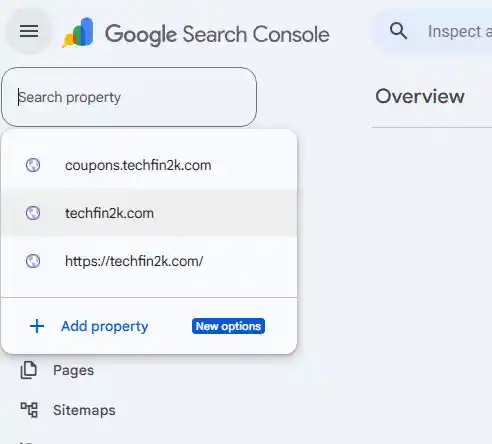
Sign in to your Google Search Console account. Once you’re on the dashboard, click the Property Selector in the upper-left corner and then select Add Property.
Step 2: Select YouTube Under Platform Properties
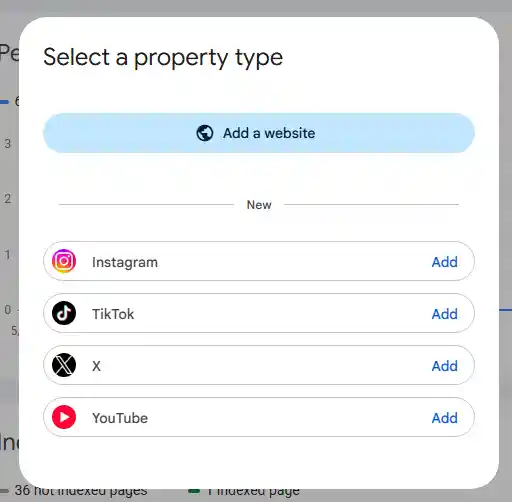
On the Add Property page, you’ll see the new Platform Properties section. Google currently supports several platforms, including YouTube, Instagram, TikTok, and X (formerly Twitter).
Click the Add button next to YouTube to continue.
Step 3: Choose Your YouTube Channel
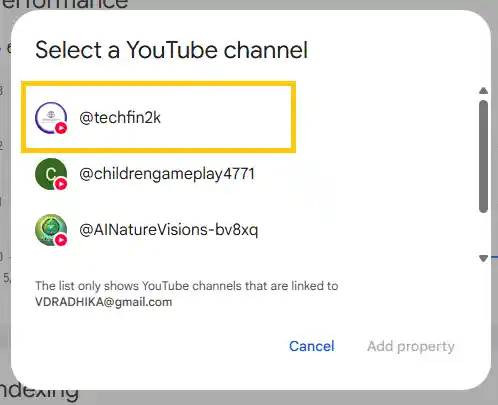
Google Search Console will display the YouTube channels associated with your Google account.
Select the YouTube channel you want to add. In this example, I’m selecting my @techfin2k YouTube channel.
After selecting your channel, click the Add Property button.
Step 4: Wait for Search Console to Start Collecting Data
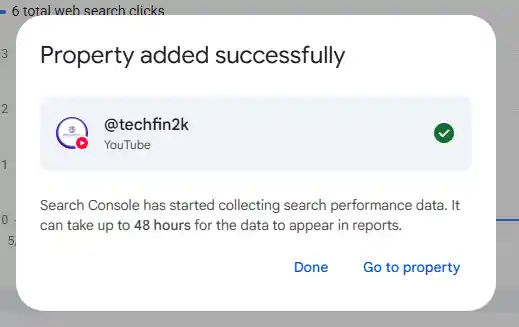
After clicking Add Property, Google Search Console will add your YouTube channel as a Platform Property.
You’ll then see a confirmation message similar to:
“Search Console has started collecting search performance data. It can take up to 48 hours for the data to appear in reports.”
This means your YouTube channel has been added successfully.
Click Done to return to the Search Console dashboard.
Don’t expect to see search performance reports immediately after adding the property. Google Search Console first needs to collect and process search data before it can display reports such as clicks, impressions, search queries, CTR, and average position.
Although Google mentions that reports can take up to 48 hours to appear, the actual time may vary depending on your channel and when Search Console begins collecting data.
Step 5: Open Your YouTube Property
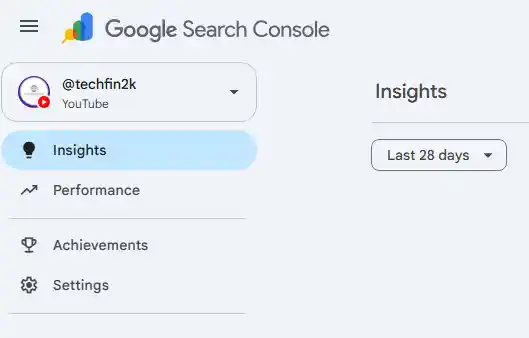
After Search Console has collected enough search performance data, open the Property Selector in the upper-left corner and select your YouTube property from the list.
If search performance data is available, you’ll be able to explore reports such as Insights, Performance, Search Queries, and Countries to understand how your YouTube videos are performing in Google Search.
Understanding the YouTube Reports in Google Search Console
After Search Console starts collecting data, you’ll gain access to several reports that help you understand your YouTube channel’s search performance.
Let’s look at what each report means.
These reports help you understand how your YouTube videos appear and perform in Google Search over time.
Insights Report
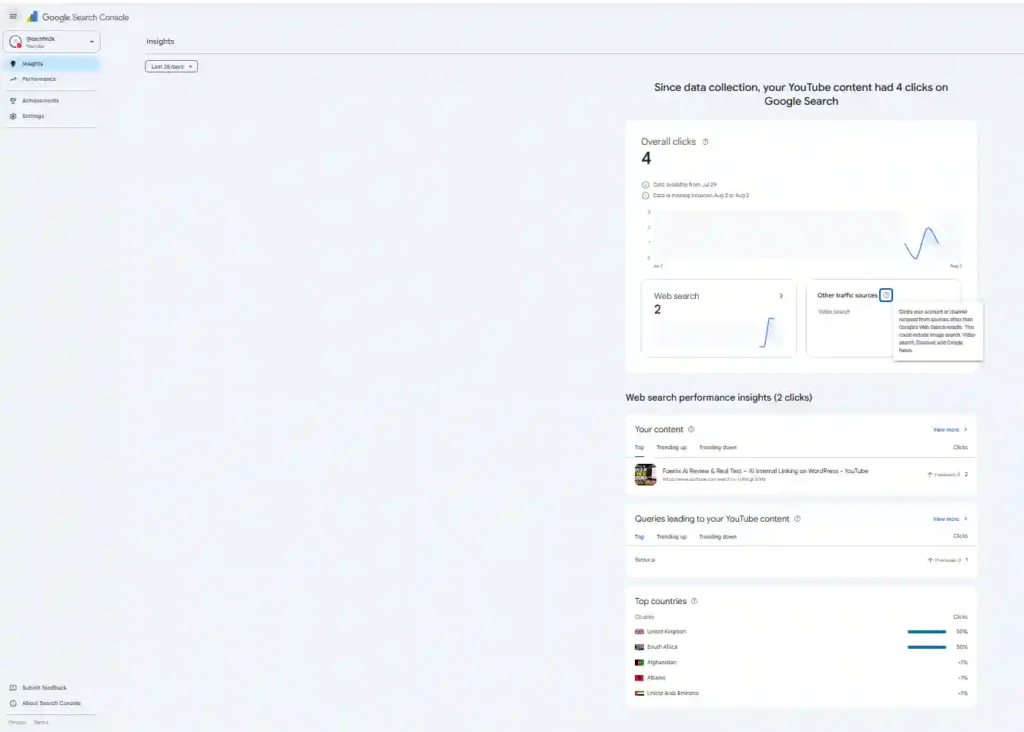
The Insights page provides a quick overview of your YouTube channel’s performance in Google Search.
Here you’ll find information such as:
- Overall Clicks
- Google Web Search clicks
- Other Traffic Sources
- Your Content
- Search Queries
- Top Countries
The Other Traffic Sources section may include traffic from Google services such as:
- Google Video Search
- Google Discover
- Google Images
- Google News
Performance Report
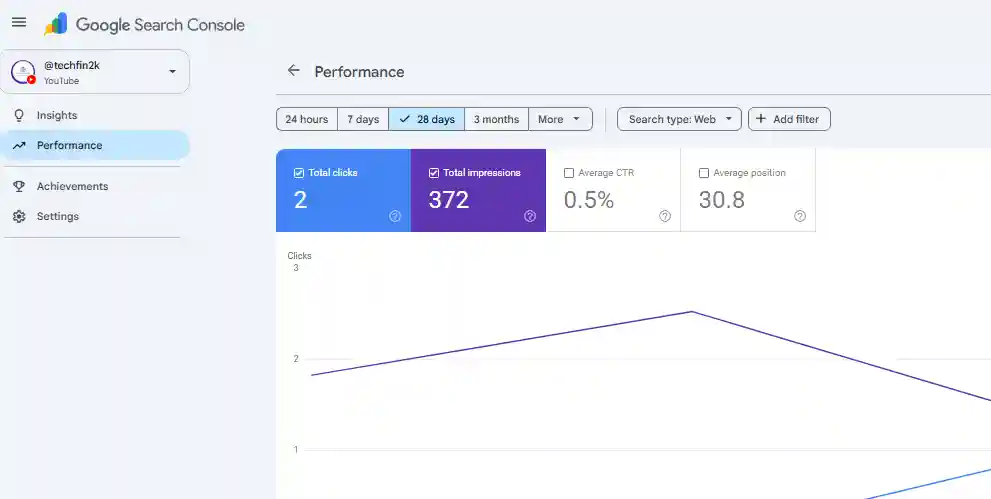
Click Web Search to open the detailed Performance report.
This report provides more detailed search metrics, including:
- Total Clicks
- Total Impressions
- Average Click-Through Rate (CTR)
- Average Position
You can also change the reporting period to analyze data from the last:
- 24 hours
- 7 days
- 28 days
- 3 months
- Custom date range
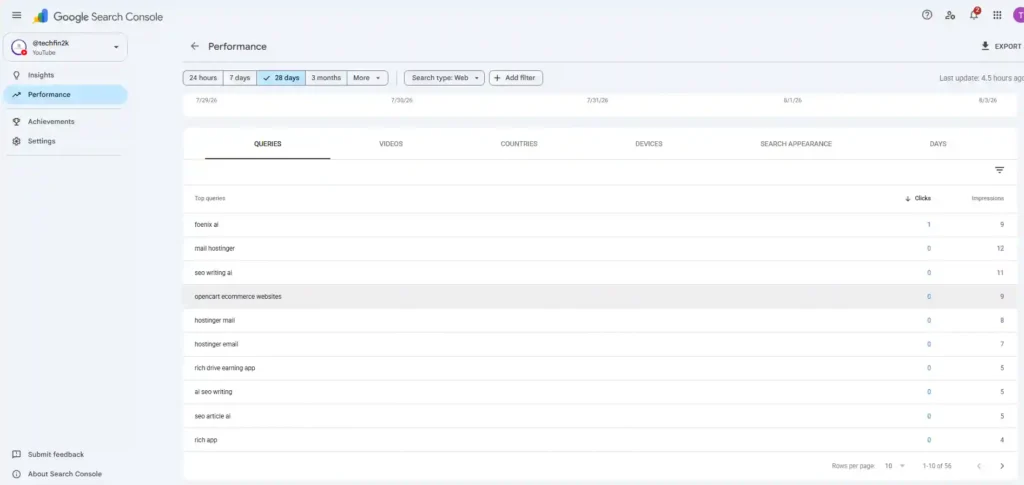
Search Queries Report
The Queries report shows the Google search terms that displayed your YouTube videos in Google Search results.
These insights can help you:
- Understand which topics are gaining visibility.
- Identify keywords people are using.
- Discover opportunities for future YouTube content.
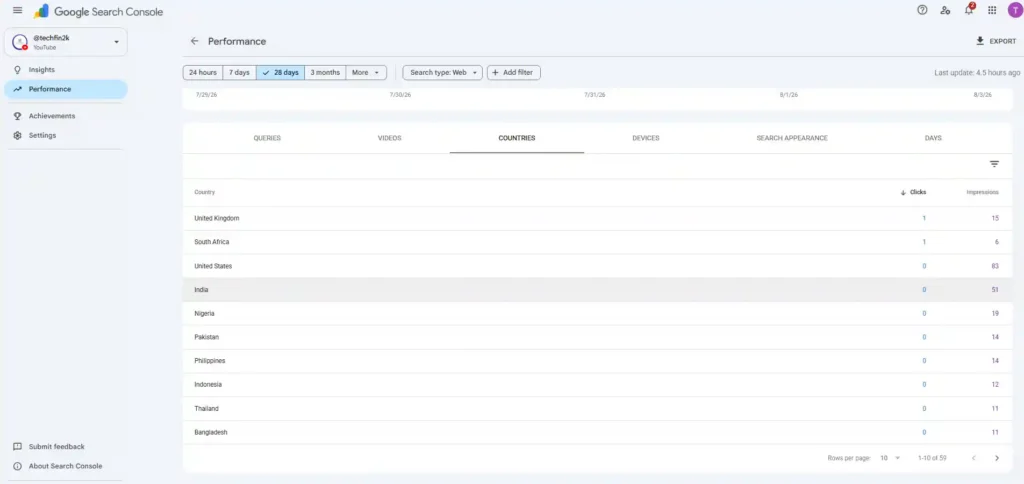
Countries Report
The Countries report shows where your Google Search impressions and clicks are coming from.
This helps you understand which countries are discovering your YouTube videos through Google Search.
Frequently Asked Questions
How long does it take before reports appear?
Google Search Console states that search performance reports can take up to 48 hours after adding your YouTube channel.
However, the actual time may vary.
In my case:
- Property Added: July 30, 2026
- Reports Started Appearing: Approximately three days later
Is this different from YouTube Studio Analytics?
Yes.
YouTube Studio Analytics focuses on activity within YouTube, such as views, watch time, subscribers, and audience retention.
Google Search Console focuses specifically on how your YouTube videos perform in Google Search.
Which platforms can currently be added?
At the time of writing, Google Search Console supports Platform Properties for:
- YouTube
- TikTok
- X (formerly Twitter)
Do I need to verify my YouTube channel separately?
No. If your YouTube channel is associated with the Google account you’re using, Google Search Console automatically adds it as a Platform Property without requiring any additional verification.
Final Thoughts
Adding your YouTube channel to Google Search Console is a simple process that gives you valuable insights into how your videos perform in Google Search.
Once Search Console has collected enough data, you’ll be able to monitor search clicks, impressions, search queries, average position, and the countries where your videos are gaining visibility.
If you’re a YouTube creator looking to better understand how your videos perform in Google Search, this new Platform Property is definitely worth setting up. It only takes a few minutes to add, and once Search Console starts collecting data, you’ll gain valuable insights that can help improve your YouTube SEO over time.
Enjoying our content?
Make TechFin2K a preferred source on Google to see more of our content when it is relevant to you.
